
 資料結構
資料結構 網路
網路 關係型資料庫管理系統
 作業系統
作業系統 Java
Java MS Excel
 iOS
iOS HTML
HTML CSS
CSS Android
 Python
 C 程式設計
 C++
C++ C#
C# MongoDB
 MySQL
MySQL Javascript
 PHP
PHP 物理學
物理學 化學
化學 生物學
生物學 數學
數學 英語
英語 經濟學
經濟學 心理學
心理學 社會學
社會學 時尚研究
時尚研究 法律研究
法律研究如何使用 Kotlin 建立可擴充套件的 ListView?
此示例演示瞭如何使用 Kotlin 建立可擴充套件的 ListView。
步驟 1 - 在 Android Studio 中建立一個新專案,轉到檔案?新建專案並填寫所有必要資訊以建立新專案。
步驟 2 - 將以下程式碼新增到 res/layout/activity_main.xml。
示例
<RelativeLayout xmlns:android="http://schemas.android.com/apk/res/android"
xmlns:tools="http://schemas.android.com/tools"
   android:layout_width="match_parent"
   android:layout_height="match_parent"
   android:padding="4dp"
   tools:context=".MainActivity">
   <ExpandableListView
      android:id="@+id/expendableList"
      android:layout_width="match_parent"
      android:layout_height="match_parent"
      android:divider="@android:color/background_light"
      android:dividerHeight="0.5dp" />
</RelativeLayout>
步驟 3 - 建立一個新的 Kotlin 類 CustomExpandableListAdapter.kt 並新增以下程式碼 -
示例
import android.content.Context
import android.graphics.Typeface
import android.view.LayoutInflater
import android.view.View
import android.view.ViewGroup
import android.widget.BaseExpandableListAdapter
import android.widget.TextView
import java.util.HashMap
class CustomExpandableListAdapter internal constructor(
   private val context: Context,
   private val titleList: List<String>,
   private val dataList: HashMap<String, List<String>>
   ) : BaseExpandableListAdapter() {
      override fun getChild(listPosition: Int, expandedListPosition: Int): Any {
         return this.dataList[this.titleList[listPosition]]!![expandedListPosition]
      }
      override fun getChildId(listPosition: Int, expandedListPosition: Int): Long {
         return expandedListPosition.toLong()
      }
      override fun getChildView(
      listPosition: Int,
      expandedListPosition: Int,
      isLastChild: Boolean,
      convertView: View?,
      parent: ViewGroup
      ): View {
         var convertView = convertView
         val expandedListText = getChild(listPosition, expandedListPosition) as String
         if (convertView == null) {
            val layoutInflater =
            this.context.getSystemService(Context.LAYOUT_INFLATER_SERVICE) as LayoutInflater
            convertView = layoutInflater.inflate(R.layout.list_item, null)
         }
         val expandedListTextView = convertView!!.findViewById<TextView>(R.id.listView)
         expandedListTextView.text = expandedListText
         return convertView
      }
      override fun getChildrenCount(listPosition: Int): Int {
         return this.dataList[this.titleList[listPosition]]!!.size
      }
      override fun getGroup(listPosition: Int): Any {
         return this.titleList[listPosition]
      }
      override fun getGroupCount(): Int {
         return this.titleList.size
      }
      override fun getGroupId(listPosition: Int): Long {
         return listPosition.toLong()
      }
      override fun getGroupView(
      listPosition: Int,
      isExpanded: Boolean,
      convertView: View?,
      parent: ViewGroup
      ): View {
      var convertView = convertView
      val listTitle = getGroup(listPosition) as String
      if (convertView == null) {
         val layoutInflater =
         this.context.getSystemService(Context.LAYOUT_INFLATER_SERVICE) as LayoutInflater
            convertView = layoutInflater.inflate(R.layout.list_item, null)
      }
      val listTitleTextView = convertView!!.findViewById<TextView>(R.id.listView)
      istTitleTextView.setTypeface(null, Typeface.BOLD)
      listTitleTextView.text = listTitle
      return convertView
   }
   override fun hasStableIds(): Boolean {
      return false
   }
   override fun isChildSelectable(listPosition: Int, expandedListPosition: Int): Boolean {
      return true
  }
}
步驟 4 - 建立一個新的類 ExpandableListData.kt 並新增以下程式碼 -
示例
import java.util.*
internal object ExpandableListData {
   val data: HashMap<String, List<String>>
   get() {
      val expandableListDetail =
      HashMap<String, List<String>>()
      val myFavCricketPlayers: MutableList<String> =
      ArrayList()
      myFavCricketPlayers.add("MS.Dhoni")
      myFavCricketPlayers.add("Sehwag")
      myFavCricketPlayers.add("Shane Watson")
      myFavCricketPlayers.add("Ricky Ponting")
      myFavCricketPlayers.add("Shahid Afridi")
      val myFavFootballPlayers: MutableList<String> = ArrayList()
      myFavFootballPlayers.add("Cristiano Ronaldo")
      myFavFootballPlayers.add("Lionel Messi")
      myFavFootballPlayers.add("Gareth Bale")
      myFavFootballPlayers.add("Neymar JR")
      myFavFootballPlayers.add("David de Gea")
      val myFavTennisPlayers: MutableList<String> = ArrayList()
      myFavTennisPlayers.add("Roger Federer")
      myFavTennisPlayers.add("Rafael Nadal")
      myFavTennisPlayers.add("Andy Murray")
      myFavTennisPlayers.add("Novak Jokovic")
      myFavTennisPlayers.add("Sania Mirza")
      expandableListDetail["CRICKET PLAYERS"] = myFavCricketPlayers
      expandableListDetail["FOOTBALL PLAYERS"] = myFavFootballPlayers
      expandableListDetail["TENNIS PLAYERS"] = myFavTennisPlayers
      return expandableListDetail
   }
}
步驟 5 - 將以下程式碼新增到 src/MainActivity.kt
示例
import android.os.Bundle
import android.widget.ExpandableListAdapter
import android.widget.ExpandableListView
import android.widget.Toast
import androidx.appcompat.app.AppCompatActivity
import app.com.q14.ExpandableListData.data
class MainActivity : AppCompatActivity() {
   private var expandableListView: ExpandableListView? = null
   private var adapter: ExpandableListAdapter? = null
   private var titleList: List<String>? = null
   override fun onCreate(savedInstanceState: Bundle?) {
      super.onCreate(savedInstanceState)
      setContentView(R.layout.activity_main)
      title = "KotlinApp"
      expandableListView = findViewById(R.id.expendableList)
      if (expandableListView != null) {
         val listData = data
         titleList = ArrayList(listData.keys)
         adapter = CustomExpandableListAdapter(this, titleList as ArrayList<String>, listData)
         expandableListView!!.setAdapter(adapter)
         expandableListView!!.setOnGroupExpandListener { groupPosition ->
         Toast.makeText(
            applicationContext,
            (titleList as ArrayList<String>)[groupPosition] + " List Expanded.",
            Toast.LENGTH_SHORT
         ).show()
         }
         expandableListView!!.setOnGroupCollapseListener { groupPosition ->
         Toast.makeText(
            applicationContext,
            (titleList as ArrayList<String>)[groupPosition] + " List Collapsed.",
            Toast.LENGTH_SHORT
         ).show()
         }
         expandableListView!!.setOnChildClickListener { _, _, groupPosition, childPosition, _ ->
         Toast.makeText(
         applicationContext,
         "Clicked: " + (titleList as ArrayList<String>)[groupPosition] + " -> " + listData[(
            titleList as
            ArrayList<String>
         )
         [groupPosition]]!!.get(
            childPosition
         ),
         Toast.LENGTH_SHORT
         ).show()
            false
         }
      }
   }
}
步驟 6 - 建立一個新的佈局資源 (list_item.xml) 並新增以下程式碼。
示例
<?xml version="1.0" encoding="utf-8"?>
<LinearLayout mlns:android="http://schemas.android.com/apk/res/android"
   android:layout_width="match_parent"
   android:layout_height="match_parent"
   android:orientation="vertical">
   <TextView
      android:id="@+id/listView"
      android:layout_width="match_parent"
      android:layout_height="wrap_content"
      android:paddingStart="?android:attr/expandableListPreferredItemPaddingLeft"
      android:paddingTop="10dp"
      android:paddingBottom="10dp"
      android:textColor="@android:color/black" />
</LinearLayout>
步驟 7 - 將以下程式碼新增到 androidManifest.xml
示例
<?xml version="1.0" encoding="utf-8"?>
<manifest xmlns:android="http://schemas.android.com/apk/res/android" package="app.com.q13">
   <application
      android:allowBackup="true"
      android:icon="@mipmap/ic_launcher"
      android:label="@string/app_name"
      android:roundIcon="@mipmap/ic_launcher_round"
      android:supportsRtl="true"
      android:theme="@style/AppTheme">
      <activity android:name=".MainActivity">
         <intent-filter>
            <action android:name="android.intent.action.MAIN" />
            <category android:name="android.intent.category.LAUNCHER" />
         </intent-filter>
      </activity>
   </application>
</manifest>
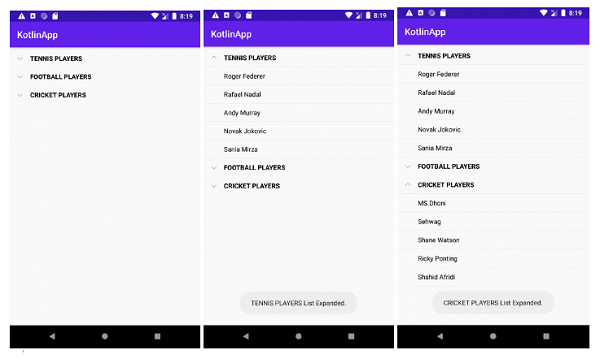
讓我們嘗試執行您的應用程式。我假設您已將您的實際 Android 移動裝置連線到您的電腦。要從 Android Studio 執行應用程式,請開啟您的一個專案活動檔案,然後點選工具欄上的執行圖示 。選擇您的移動裝置作為選項,然後檢查您的移動裝置,它將顯示您的預設螢幕

更新於: 2020年5月23日
4K+ 次檢視

廣告