
 資料結構
資料結構 網路
網路 關係型資料庫管理系統
 作業系統
作業系統 Java
Java MS Excel
 iOS
iOS HTML
HTML CSS
CSS Android
 Python
 C 語言程式設計
 C++
C++ C#
C# MongoDB
 MySQL
MySQL Javascript
 PHP
PHP 物理學
物理學 化學
化學 生物學
生物學 數學
數學 英語
英語 經濟學
經濟學 心理學
心理學 社會學
社會學 時尚研究
時尚研究 法律研究
法律研究如何在 MATLAB 中使用 HSV 色彩空間進行顏色切片?
在數字影像處理中,從影像中提取特定顏色或顏色範圍並將所有其他顏色丟棄的過程稱為顏色切片。在影像中,顏色切片是透過建立一個二值掩碼來執行的,該掩碼選擇影像中位於指定顏色範圍內的所有畫素。
顏色切片通常用於特定的顏色空間,例如 RGB(紅-綠-藍)顏色空間或 HSV(色相-飽和度-值)顏色空間等。
在本文中,我們將學習**如何使用 MATLAB 程式設計在 HSV 色彩空間中執行顏色切片**。
在 HSV 色彩空間中,顏色切片是透過考慮影像的色相分量來執行的。其中,“色相”表示顏色色調。從 0 到 1 的範圍表示 HSV 色彩空間中色相值的整個顏色光譜。
顏色切片廣泛用於影像處理中,用於執行各種任務,例如去除背景、影像分割、目標識別等。
現在,讓我們藉助 MATLAB 示例程式瞭解 HSV 色彩空間中顏色切片的過程。
從紅色到綠色對影像進行顏色切片
示例
% MATLAB program to perform color slicing to green using HSV color space
% Read the input image
in_img = imread('https://tutorialspoint.tw/assets/questions/media/14304-1687425236.jpg');

% Convert the image from RGB format to HSV format
hsv = rgb2hsv(in_img);

% Extract the Hue channel of the HSV image
h = hsv(:, :, 1);

% Change all hue values within the red color range to green color
red_range = [0, 0.1]; % Red color range in HSV
h(h >= red_range(1) | h <= red_range(2)) = 0.3333; % Green color Hue value is 0.3333

% Replace the original Hue channel in the HSV image with the modified Hue channel
hsv(: , :, 1) = h;

% Convert the modified HSV image back to RGB image
out_img = hsv2rgb(hsv);

% Display the orignal image and the color-sliced image in green
figure;
subplot(1, 2, 1); imshow(in_img); title('Original Image');
subplot(1, 2, 2); imshow(out_img); title('Color Sliced to Green');
輸出
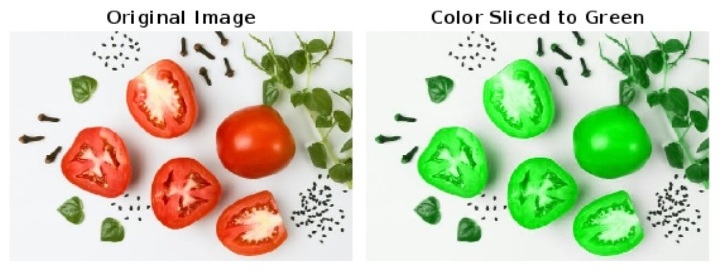
程式碼說明
在此 MATLAB 程式碼中,我們首先使用“imread”函式讀取 RGB 影像並將其儲存在變數“in_img”中。接下來,我們使用“rgb2hsv”函式將輸入影像從 RGB 色彩空間轉換為 HSV 色彩空間,並將其儲存在變數“hsv”中。然後,我們提取 HSV 影像的色相通道並將其儲存在變數“h”中。
之後,我們在 HSV 色彩空間中指定紅色範圍“red_range”。然後,我們將此範圍內的所有色相值設定為 0.3333,這是 HSV 空間中綠色的色相值。
接下來,我們用修改後的色相通道“h”替換 HSV 影像中的原始色相通道“hsv”以應用顏色切片。然後,我們使用“hsv2rgb”函式將修改後的 HSV 影像轉換回 RGB 影像以獲得顏色切片後的 RGB 影像,並將結果儲存在變數“out_img”中。
最後,我們使用“imshow”函式顯示原始影像和顏色切片為綠色的影像。
從紅色到紫色對影像進行顏色切片
示例
% MATLAB program to perform color slicing using HSV color space
% Read the input image
in_img = imread('https://tutorialspoint.tw/assets/questions/media/14304-1687425236.jpg');

% Convert the image from RGB format to HSV format
hsv = rgb2hsv(in_img);

% Extract the Hue channel of the HSV image
h = hsv(:, :, 1);

% Change all hue values within the red color range to violet color
red_range = [0, 0.1]; % Red color range in HSV
h(h >= red_range(1) | h <= red_range(2)) = 0.8; % Violet color code in HSV is 0.8

% Replace the original Hue channel in the HSV image with the modified Hue channel
hsv(:, :, 1) = h;

% Convert the modified HSV image back to RGB iimage
out_img = hsv2rgb(hsv);

% Display the orignal image and the color-sliced image in violet
figure;
subplot(1, 2, 1); imshow(in_img); title('Original Image');
subplot(1, 2, 2); imshow(out_img); title('Color Sliced to Violet');
輸出
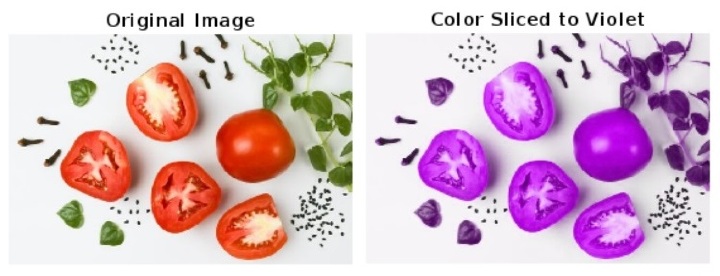
程式碼說明
在此 MATLAB 程式中,程式碼實現和執行與 MATLAB 程式(1)相同。唯一的區別是,在此 MATLAB 程式中,顏色切片是針對紅色到紫色的顏色執行的,其中指定的紫色色相值為 HSV 色彩空間中的 0.8。
因此,在本文中,我們解釋了使用 MATLAB 程式設計在 HSV 色彩空間中進行影像顏色切片。

264 次檢視
