
- Git 入門
- Git - 首頁
- Git - 版本控制
- Git - 基本概念
- Git - 命令列
- Git - 安裝
- Git - 首次設定
- Git - 基本命令
- Git - 獲取幫助
- Git - 工具
- Git - 速查表
- Git - 術語
- Git 分支
- Git - 簡述分支
- Git - 建立新分支
- Git - 切換分支
- Git - 分支和合並
- Git - 合併衝突
- Git - 管理分支
- Git - 分支工作流程
- Git - 遠端分支
- Git - 跟蹤分支
- Git - 變基
- Git - 變基與合併
- Git - 合併提交
- Git 操作
- Git - 克隆操作
- Git - 打標籤操作
- Git - 別名操作
- Git - 提交操作
- Git - 暫存操作
- Git - 移動操作
- Git - 重新命名操作
- Git - 推送操作
- Git - 拉取操作
- Git - Fork 操作
- Git - 修補程式操作
- Git - 差異操作
- Git - 狀態操作
- Git - 日誌操作
- Git - HEAD 操作
- Git - origin master
- Git 撤銷
- Git - 撤銷更改
- Git - 檢出
- Git - 恢復
- Git - 重置
- Git - 恢復操作
- Git - rm
- Git - 切換操作
- Git - cherry-pick
- Git - amend
- Git 在伺服器上
- Git - 本地協議
- Git - 智慧 HTTP 協議
- Git - 啞 HTTP 協議
- Git - SSH 協議
- Git - Git 協議
- Git - 在伺服器上獲取 Git
- Git - 設定伺服器
- Git - 守護程序
- Git - GitWeb
- Git - GitLab
- Git - 第三方託管選項
- 分散式 Git
- Git - 分散式工作流程
- Git - 為專案做出貢獻
- Git - 維護專案
- 自定義 Git
- Git - 配置
- Git - 鉤子
- Git - 屬性
- Git - init
- Git - commit
Git - 記錄更改
將更改記錄到儲存庫意味著
在克隆期間,遠端 Git 儲存庫中的每個檔案的完整副本都將下載到您的本地計算機。
您可以不受限制地訪問此本地副本中的檔案進行編輯和修改。
您可以使用 Git 控制要保留哪些修改。
更改可以保持未跟蹤(未包含在提交中)或跟蹤(包含在後續快照或提交中)。
尚未上傳以進行跟蹤的任何新檔案或現有檔案都稱為未跟蹤檔案。克隆後,所有檔案最初都被視為已跟蹤且未更改。
Git 中的三種狀態
在 Git 中的檔案生命週期中,檔案可以處於三種主要狀態
Git 會跟蹤自上次提交(快照)以來檔案的修改。
已修改:透過暫存已修改的檔案,您可以選擇其中哪些檔案包含在下一個快照中。
已暫存:透過提交,每個暫存的更改都將捕獲到單個快照中。
已提交:在處理專案時,您將重複編輯、暫存和提交的迴圈。
檢查檔案的狀態
驗證 Git 儲存庫中檔案狀態的最便捷方法是使用git status命令。
$ git status
克隆後,執行git status可以準確瞭解檔案及其當前狀態。
輸出訊息如下
On branch main
Your branch is up to date with 'origin/main'.

nothing to commit, working tree clean
這表示工作目錄乾淨,沒有已修改的跟蹤檔案或未跟蹤檔案。
它還會識別當前分支,並確認它沒有偏離伺服器的分支,通常是主分支。
$ echo 'myGymProj' > README
$ git status
輸出訊息如下
On branch gym-project Your branch is ahead of 'origin/gym-project' by 3 commits. (use "git push" to publish your local commits) Untracked files: (use "git add..." to include in what will be committed) README nothing added to commit but untracked files present (use "git add" to track)
git status命令在Untracked files部分列出未跟蹤的檔案。
Git 不會自動跟蹤新檔案。您需要告訴 Git 使用 git add 命令開始跟蹤它們。這可以確保意外檔案不會包含在提交中。
跟蹤新檔案
要開始跟蹤新檔案,請使用git add。然後 Git 將在即將進行的提交中識別它。
新增檔案後,您可以透過執行git status來驗證它是否已跟蹤並準備好提交。
$ git add README
執行 git status 時會顯示Changes to be committed,表示已為下一次提交暫存的檔案。
就像git add開始跟蹤這些已暫存的檔案一樣,提交會記錄其當前版本。
$ git add about_us.html
$ git status
輸出訊息如下
On branch gym-project Your branch is ahead of 'origin/gym-project' by 3 commits. (use "git push" to publish your local commits) Changes to be committed: (use "git restore --staged..." to unstage) new file: about_us.html
您可以使用git add將整個目錄或特定檔案新增到暫存區,包括之前使用git init新增的檔案。
暫存已修改的檔案
編輯時,已跟蹤的檔案(如 homePage.html)不會立即被暫存。它們在Changes not staged for commit下使用 git status 列出。
這意味著在提交之前必須使用git add暫存更改,因為它們不會被捕獲到下一次提交中。
$ git status
輸出訊息如下
On branch gym-project Your branch is ahead of 'origin/gym-project' by 3 commits. (use "git push" to publish your local commits) Changes to be committed: (use "git restore --staged..." to unstage) new file: about_us.html Changes not staged for commit: (use "git add <file>..." to update what will be committed) (use "git restore <pre>..." to discard changes in working directory) modified: homePage.html
Changes not staged for commit列列出了homePage.html檔案,表明已跟蹤的檔案已編輯但尚未準備好提交。
git add命令用於暫存更改。git add是一個靈活的工具,可用於跟蹤新檔案、解決合併衝突和暫存檔案。
建議使用git add暫存 Test.htm 檔案,然後使用git status驗證狀態。
$ git add homePage.html
$ git status
輸出訊息如下
On branch gym-project Your branch is ahead of 'origin/gym-project' by 3 commits. (use "git push" to publish your local commits) Changes to be committed: (use "git restore --staged..." to unstage) new file: about_us.html modified: homePage.html
暫存後,這兩個檔案都將包含在您即將進行的提交中。
假設此時您想到對homePage.html進行最後一次修改,然後再提交它。
進行調整並再次開啟它後,您就可以準備提交了。
但首先,讓我們再次執行 git status
$ vim homePage.html
$ git status
輸出訊息如下
On branch gym-project Your branch is ahead of 'origin/gym-project' by 3 commits. (use "git push" to publish your local commits) Changes to be committed: (use "git restore --staged..." to unstage) new file: about_us.html modified: homePage.html
目前存在homePage.html的已暫存和未暫存版本。當您使用git add時,Git 會按原樣暫存檔案。
如果您現在提交,則您最近的git add命令時工作目錄中homePage.html的版本將包含在提交中。
要暫存檔案的最新版本,必須在對homePage.html進行更改後再次執行git add。
$ git add homePage.html
$ git status
輸出訊息如下
On branch gym-project Your branch is ahead of 'origin/gym-project' by 3 commits. (use "git push" to publish your local commits) Changes to be committed: (use "git restore --staged..." to unstage) new file: about_us.html modified: homePage.html
簡短狀態
可以使用git status全面檢視 Git 儲存庫的檔案狀態。
使用-s或--short標誌從 git status 獲取更簡短的輸出版本,以便更易於閱讀。這簡化了搜尋特定更改的過程。
$ git status -s
輸出訊息如下
A  about_us.html
M  homePage.html
?? .homePage.html.swp
git status -s命令使用程式碼提供儲存庫狀態的簡要檢視
?? - 新的未跟蹤檔案
A - 新新增的檔案
M - 已修改的檔案(和其他檔案)
輸出顯示在兩列中
左側 - 暫存區狀態(準備好提交的內容)
右側 - 工作目錄狀態(檔案的當前狀態)
忽略檔案
在專案的根目錄中,建立一個 .gitignore 檔案,以排除 Git 不跟蹤的不需要的檔案。
在.gitignore檔案中列出要匹配和排除的模式。這可以阻止這些不必要的檔案意外提交。
$ cat .gitignore
此類檔案的示例包括
日誌
臨時檔案(tmp 目錄)
程序 ID (pid) 目錄
自動生成的文件
$ cat .gitignore
輸出訊息如下
# no .a files
*.a

# but do track lib.a, even though you're ignoring .a files above
!lib.a

# only ignore the root TODO file, not subdir/TODO
/TODO

# ignore all files in the build/ directory
build/

# ignore doc/notes.txt, but not doc/server/arch.txt
doc/*.txt

# ignore all .txt files in the doc/ directory
doc/**/*.txt
建立.gitignore檔案以防止提交不必要的檔案。
忽略註釋(帶 # 的行)和空行。
使用 glob 模式匹配檔案
* 匹配任意數量的字元(例如,*.log)
[] 匹配括號內的字元(例如,[abc])
? 匹配單個字元
[0-9] 匹配一系列字元(例如,數字 0-9)
** 匹配巢狀目錄(例如,a/**/z)
以/開頭模式以僅忽略特定檔案(而不是子目錄)。
以/結尾模式以定位目錄(例如,tmp/)。
以!為字首的模式以否定規則(例如,包含 README.md)。
檢視已暫存和未暫存的更改
git status提供了工作目錄中更改的簡潔概述。
它列出已修改、已暫存或未跟蹤的檔案。
使用git status大致瞭解發生了哪些更改。
相反,git diff提供了實際編輯的詳細檢視。
它顯示逐行新增和刪除,就像修改的補丁一樣。
當您需要檢視對檔案進行的精確編輯時,請使用git diff。
$ git status
在沒有任何引數的情況下鍵入git diff以檢查您所做的但尚未暫存的更改。
$ git diff
輸出訊息如下
diff --git a/homePage.html b/homePage.html
index 994cc5a..9e40d3c 100644
--- a/homePage.html
+++ b/homePage.html
@@ -47,7 +47,7 @@
         }
         .navbar li{
               display: inline-block;
-            font-size: 20px;
+            font-size: 22px;

         }
         .navbar li a{
@@ -94,7 +94,7 @@
         </div>
         <!-- right for logo -->
         <div class="right">
-            <button class="btn">Call Us</button>
+            <button class="btn">Contact Us</button>
<button class="btn">Email Us</button>
</div>
</header>
透過比較工作目錄中的更改與暫存區,git diff命令突出顯示尚未暫存的更改。
使用git diff --staged檢視已為下一次提交暫存的更改,方法是將它們與之前的提交進行比較。
$ git diff --staged
輸出訊息如下
diff --git a/about_us.html b/about_us.html
new file mode 100644
index 0000000..e69de29
diff --git a/homePage.html b/homePage.html
index 3abf58d..994cc5a 100644
--- a/homePage.html
+++ b/homePage.html
@@ -99,7 +99,7 @@
   </div>
   <header>
   <div class="Container">
   -        <h2>Join the best gym of Delhi now</h2>
   +        <h2>Join the best gym of Pune now</h2>
   </div>
   <body>
git diff僅顯示未暫存的修改;它不會顯示自上次提交以來所做的所有更改。
如果所有更改都已暫存,則git diff將不返回任何內容。
一旦homePage.html檔案已暫存並編輯,您就可以使用git diff檢視檔案中已暫存和未暫存的更改。
$ git status
輸出訊息如下
On branch gym-project Your branch is ahead of 'origin/gym-project' by 3 commits. (use "git push" to publish your local commits) Changes to be committed: (use "git restore --staged..." to unstage) new file: about_us.html modified: homePage.html Changes not staged for commit: (use "git add ..." to update what will be committed) (use "git restore ..." to discard changes in working directory) modified: homePage.html
目前,您可以使用git diff檢視哪些內容仍未暫存
$ git diff
輸出訊息如下
diff --git a/homePage.html b/homePage.html
index 9e40d3c..dbf6cf4 100644
--- a/homePage.html
+++ b/homePage.html
@@ -80,7 +80,7 @@
         <div class="left">
         <img src="img/dumbbell.jpg" alt="">
-                <div>ABC Fitness</div>
+                <div>XYZ Fitness</div>
         </div>
您可以使用git diff --cached檢視您迄今為止已暫存的更改。
值得注意的是,在此上下文中--staged和--cached是同義詞。
$ git diff --cached
輸出訊息如下
diff --git a/about_us.html b/about_us.html
index e69de29..9a1eb8d 100644
--- a/about_us.html
+++ b/about_us.html
@@ -0,0 +1 @@
+<h1>Hello World</h1>
\ No newline at end of file
diff --git a/homePage.html b/homePage.html
index 9e40d3c..dbf6cf4 100644
--- a/homePage.html
+++ b/homePage.html
@@ -80,7 +80,7 @@
      <div class="left">
      <img src="img/dumbbell.jpg" alt="">
      -                <div>ABC Fitness</div>
      +                <div>XYZ Fitness</div>
      </div>
提交更改
您可以使用暫存區微調哪些修改是提交的一部分。
未暫存的修改將不會包含在內,例如尚未透過 git add 新增的新新增或修改的檔案。
使用 git commit 提交所有已暫存的更改。
這以先前 git status 驗證一切是否按計劃暫存為前提。
$ git commit
當您執行git commit時,編輯器將開啟,其中包含已註釋掉的最新 git status 輸出。
您可以:
刪除這些註釋並編寫您自己的提交訊息。
保留這些註釋作為正在提交內容的參考。
儲存並退出編輯器後,Git 將使用您的訊息(不帶註釋或差異)建立提交。
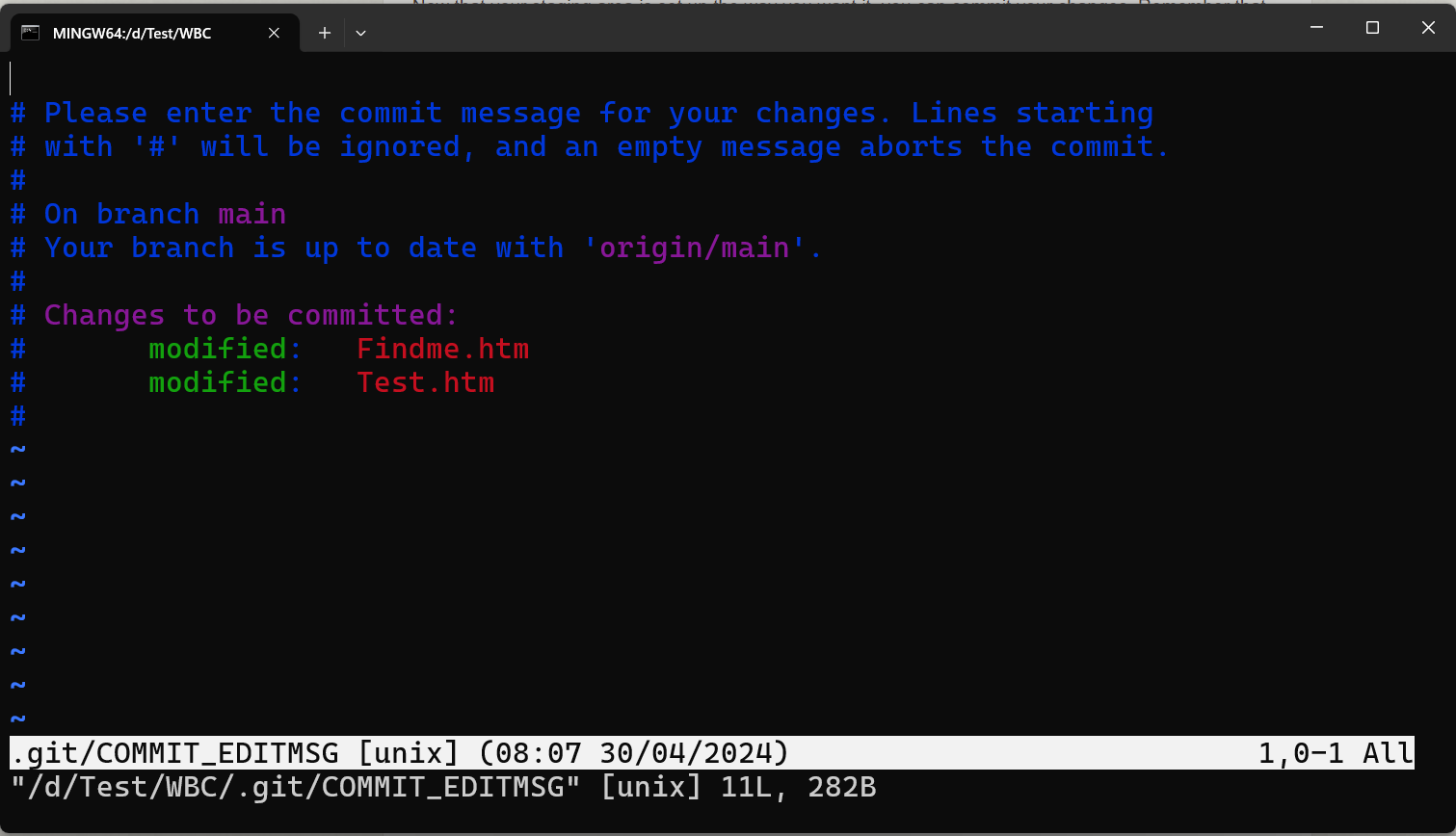
您可以跳過編輯器!您可以在 git commit 命令之後使用-m標誌直接編寫提交訊息。
例如:git commit -m "Fixed Test.htm"。這避免了開啟編輯器,並允許您內聯包含訊息。
$ git commit -m "changed the name"
輸出訊息如下
[gym-project 5c4824d] changed the name
2 files changed, 2 insertions(+), 1 deletion(-)
跳過暫存區
儘管暫存區有助於進行精確提交,但它也會增加複雜性。
Git 提供了一個快捷方式git commit -a來避免暫存。
因為此命令會在提交之前自動暫存所有已跟蹤的檔案,所以不需要git add。
當您希望一次提交所有更改時,它可以簡化工作流程。
$ git commit -a -m "added h2 tag"
輸出訊息如下
[gym-project c2a4e75] added h2 tag
1 file changed, 2 insertions(+), 1 deletion(-)
透過使用git commit -a(或 —all),您可以繞過單獨的git add步驟,並在提交之前自動暫存所有已跟蹤的檔案。
但請注意,它包含所有記錄的更改,其中可能包括意外的更改。考慮使用 git add 結合暫存區以獲得更精確的控制。
刪除檔案
當您從 Git 倉庫中刪除檔案時,需要從兩個地方刪除它
工作目錄:這是您檔案的本地副本。
暫存區:您已準備好進行下一次提交的檔案都儲存在此處。
您可以使用git rm命令來實現此目的。透過這樣做,檔案將從這兩個位置刪除,並確保將來不會作為未跟蹤檔案重新出現。
當您直接從工作目錄中刪除檔案而不使用git rm時,它會在git status輸出的未暫存以供提交的更改部分中列出。
$ rm about_us.html
$ git status
輸出訊息如下
On branch gym-project
Your branch is ahead of 'origin/gym-project' by 6 commits.
   (use "git push" to publish your local commits)

Changes not staged for commit:
   (use "git add/rm <file>..." to update what will be committed)
   (use "git restore <file>..." to discard changes in working directory)
         deleted:    about_us.html

no changes added to commit (use "git add" and/or "git commit -a")
隨後,執行git rm將檔案刪除操作暫存。
$ git rm about_us.html
輸出訊息如下
rm 'about_us.html'
$ git status
輸出訊息如下
On branch gym-project
Your branch is ahead of 'origin/gym-project' by 6 commits.
   (use "git push" to publish your local commits)

Changes not staged for commit:
   (use "git add/rm <file>..." to update what will be committed)
   (use "git restore <file>..." to discard changes in working directory)
         deleted:    about_us.html

no changes added to commit (use "git add" and/or "git commit -a")
刪除跟蹤檔案:提交後,檔案將從 Git 的跟蹤和您的工作目錄中刪除。
強制刪除:如果檔案已修改或已暫存,請使用-f選項強制刪除它。這可以防止意外刪除未提交的更改。
保持檔案未跟蹤:使用--cached選項僅從暫存區刪除檔案。
如果您錯誤地添加了檔案或希望將其保留在工作目錄中但將其從版本控制中排除,這將很有用。
$ git rm --cached Test.htm
檔案、目錄和檔案萬用字元模式都是git rm命令可接受的引數。憑藉這種靈活性,您可以執行以下任務
$ git rm docs/\*.txt
為了阻止 Git 展開檔名,此命令刪除 docs/ 目錄中任何具有 .txt 副檔名的檔案。
移動檔案
Git 重新命名檔案的機制:與其他一些版本管理系統不同,Git 沒有明確記錄重新命名檔案時發生的移動操作。
這意味著重新命名檔案會在首先刪除檔案後建立一個新檔案。
但是,Git 使用高階演算法稍後以智慧的方式識別這些重新命名。
Git 能夠使用mv命令在儲存庫中重新命名檔案,而無需顯式跟蹤檔案傳輸。
$ git mv file_from file_to\
當您執行這樣的命令並檢查狀態時,Git 實際上會將其識別為已重新命名的檔案
$ git mv homePage.html home_page.html
$ git status
輸出訊息如下
On branch gym-project
Your branch is ahead of 'origin/gym-project' by 6 commits.
   (use "git push" to publish your local commits)

Changes to be committed:
   (use "git restore --staged <file>..." to unstage)
         deleted:    about_us.html
         renamed:    homePage.html -> home_page.html
無論使用何種方法(手動或 git mv),Git 都會智慧地檢測重新命名。雖然git mv提供了一個方便的一步式解決方案,但 Git 保持其靈活性。
在提交之前,您可以使用任何工具處理新增/刪除階段和重新命名。