
- CouchDB 教程
- CouchDB - 首頁
- CouchDB - 簡介
- CouchDB - 安裝
- CouchDB - Curl 與 Futon
- CouchDB - HTTP API
- CouchDB - 建立資料庫
- CouchDB - 刪除資料庫
- CouchDB - 建立文件
- CouchDB - 更新文件
- CouchDB - 刪除文件
- CouchDB - 附加檔案
- CouchDB 有用資源
- CouchDB - 快速指南
- CouchDB - 資源
- CouchDB - 討論
CouchDB - Curl 與 Futon
cURL 工具
cURL 工具是一種與 CouchDB 通訊的方式。
它是一個使用支援的協議(HTTP、HTTPS、FTP、FTPS、TFTP、DICT、TELNET、LDAP 或 FILE)從伺服器傳輸資料到伺服器或從伺服器傳輸資料的工具。該命令旨在無需使用者互動即可工作。cURL 提供了大量有用的技巧,例如代理支援、使用者身份驗證、FTP 上傳、HTTP post、SSL (https:) 連線、Cookie、檔案傳輸恢復等等。
cURL 工具可在 UNIX、Linux、Mac OS X 和 Windows 等作業系統中使用。它是一個命令列工具,使用者可以使用它直接從命令列訪問 HTTP 協議。本章將教你如何使用 cURL 工具。
使用 cURL 工具
您可以透過簡單地鍵入 cURL 後跟網站地址來訪問任何網站,如下所示:
curl www.tutorialspoint.com/
預設情況下,cURL 工具返回請求頁面的原始碼。它在終端視窗中顯示此程式碼。
cURL 工具選項
cURL 工具提供各種選項可以使用,您可以在 cURL 工具幫助中看到它們。
以下程式碼顯示了 cURL 幫助的一部分。
$ curl --help
Usage: curl [options...] <url>
Options: (H) means HTTP/HTTPS only, (F) means FTP only
      --anyauth Pick "any" authentication method (H)
   -a/--append Append to target file when uploading (F/SFTP)
      --basic Use HTTP Basic Authentication (H)
      --cacert <file> CA certificate to verify peer against (SSL)
-d/--data <data> HTTP POST data (H)
      --data-ascii <data> HTTP POST ASCII data (H)
      --data-binary <data> HTTP POST binary data (H)
      --data-urlencode <name=data/name@filename> HTTP POST data
urlencoded (H)
      --delegation STRING GSS-API delegation permission
      --digest Use HTTP Digest Authentication (H)
      --disable-eprt Inhibit using EPRT or LPRT (F)
      --disable-epsv Inhibit using EPSV (F)

   -F/--form <name=content> Specify HTTP multipart POST data (H)
      --form-string <name=string> Specify HTTP multipart POST data (H)
      --ftp-account <data> Account data to send when requested by server
(F)
      --ftp-alternative-to-user <cmd> String to replace "USER [name]" (F)
      --ftp-create-dirs Create the remote dirs if not present (F)
      --ftp-method [multi cwd/no cwd/single cwd] Control CWD usage (F)
      --ftp-pasv Use PASV/EPSV instead of PORT (F)

   -G/--get Send the -d data with a HTTP GET (H)

   -H/--header <line> Custom header to pass to server (H)
   -I/--head Show document info only
   -h/--help This help text
      --hostpubmd5 <md5> Hex encoded MD5 string of the host public key.
(SSH)
   -0/--http1.0 Use HTTP 1.0 (H)
      --ignore-content-length Ignore the HTTP Content-Length header
   -i/--include Include protocol headers in the output (H/F)

   -M/--manual Display the full manual

   -o/--output <file> Write output to <file> instead of stdout
      --pass <pass> Pass phrase for the private key (SSL/SSH)
      --post301 Do not switch to GET after following a 301
redirect (H)
      --post302 Do not switch to GET after following a 302
redirect (H)
   -O/--remote-name Write output to a file named as the remote file
      --remote-name-all Use the remote file name for all URLs
   -R/--remote-time Set the remote file's time on the local output
   -X/--request <command> Specify request command to use
      --retry <num> Retry request <num> times if transient problems
occur
      --retry-delay <seconds> When retrying, wait this many seconds
between each
      --retry-max-time <seconds> Retry only within this period
   -T/--upload-file <file> Transfer <file> to remote site
      --url <URL> Set URL to work with
   -B/--use-ascii Use ASCII/text transfer
與 CouchDB 通訊時,廣泛使用了 cURL 工具的某些選項。以下是 cURL 工具的一些重要選項(包括 CouchDB 使用的選項)的簡要說明。
-X 標誌
(HTTP) 指定與 HTTP 伺服器通訊時使用的自定義請求方法。使用指定的請求代替否則使用的(預設為 GET)方法。閱讀 HTTP 1.1 規範以獲取詳細資訊和解釋。
(FTP) 指定在使用 ftp 執行檔案列表時使用的自定義 FTP 命令,而不是 LIST。
-H
(HTTP) 獲取網頁時使用額外標頭。請注意,如果您新增的自定義標頭與 cURL 將使用的內部標頭之一具有相同的名稱,則將使用您外部設定的標頭代替內部標頭。這允許您進行比 cURL 通常所能做的更復雜的處理。如果不完全瞭解自己在做什麼,則不應替換內部設定的標頭。用右側冒號後沒有內容的標頭替換內部標頭將阻止該標頭出現。
cURL 確保您新增/替換的每個標頭都以正確的行尾標記傳送。您不應將其作為標頭內容的一部分新增,也不應新增換行符或回車符來擾亂順序。
另請參見 -A/--user-agent 和 -e/--referer 選項。
此選項可以多次使用以新增/替換/刪除多個標頭。
-d 標誌
使用 cURL 的此標誌,您可以將資料與 HTTP POST 請求一起傳送到伺服器,就像使用者在表單中填寫並提交資料一樣。
示例
假設有一個網站,您想登入到它或使用 cURL 工具的 –d 標誌向網站傳送一些資料,如下所示。
curl -X PUT http://mywebsite.com/login.html -d userid=001 -d password=tutorialspoint
它傳送一個看起來像 **"userid=001&password=tutorialspoint"** 的 post 塊。同樣,您也可以使用 -d 標誌傳送文件(JSON)。
-o 標誌
使用此標誌,cURL 將請求的輸出寫入檔案。
示例
以下示例顯示了 cURL 工具 **-o** 標誌的使用。
$ curl -o example.html www.tutorialspoint.com/index.htm
% Total % Received % Xferd Average Speed Time Time Time Current
      Dload Upload Total Spent Left Speed
100 81193 0 81193 0 0 48168 0 --:--:-- 0:00:01 --:--:--
58077
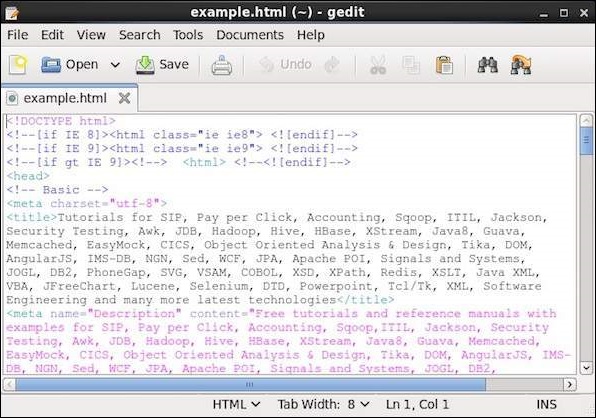
這將獲取 tutorialspoint.com 首頁的原始碼,建立一個名為 example.com 的檔案,並將輸出儲存到名為 example.html 的檔案中。
以下是 **example.html** 的快照。
-O
此標誌類似於 **–o**,唯一的區別是使用此標誌,將建立一個與請求的 url 同名的檔案,並將請求的 url 的原始碼複製到其中。
示例
以下示例顯示了 cURL 工具 **-O** 標誌的使用。
$ curl -O www.tutorialspoint.com/index.htm
% Total % Received % Xferd Average Speed Time Time Time Current
      Dload Upload Total Spent Left
Speed
100 81285 0 81285 0 0 49794 0 --:--:-- 0:00:01 --:--:--
60077
它建立一個名為 index.htm 的新檔案,並將 tutorialspoint.com 首頁的原始碼儲存在其中。
你好 CouchDB
您可以透過向已安裝的 CouchDB 例項傳送 GET 請求來訪問 CouchDB 的主頁。首先,確保您已在 Linux 環境中安裝 CouchDB 併成功執行,然後使用以下語法向 CouchDB 例項傳送 GET 請求。
curl http://127.0.0.1:5984/
這將為您提供一個 JSON 文件,如下所示,其中 CouchDB 指定了詳細資訊,例如版本號、供應商名稱和軟體版本。
$ curl http://127.0.0.1:5984/
{
   "couchdb" : "Welcome",
   "uuid" : "8f0d59acd0e179f5e9f0075fa1f5e804",
   "version" : "1.6.1",
   "vendor" : {
      "name":"The Apache Software Foundation",
      "version":"1.6.1"
   }
}
所有資料庫列表
您可以透過傳送帶有字串 **"_all_dbs 字串"** 的 GET 請求來獲取所有已建立資料庫的列表。以下是獲取 CouchDB 中所有資料庫列表的語法。
curl -X GET http://127.0.0.1:5984/_all_dbs
它將為您提供 CouchDB 中所有資料庫的列表,如下所示。
$ curl -X GET http://127.0.0.1:5984/_all_dbs
[ "_replicator" , "_users" ]
建立資料庫
您可以使用帶有 PUT 標頭的 cURL 在 CouchDB 中建立資料庫,語法如下:
$ curl -X PUT http://127.0.0.1:5984/database_name
示例
例如,使用上面給出的語法建立一個名為 **my_database** 的資料庫,如下所示。
$ curl -X PUT http://127.0.0.1:5984/my_database
{"ok":true}
驗證
透過列出所有資料庫來驗證是否已建立資料庫,如下所示。在這裡您可以看到列表中新建立的資料庫名稱 **"my_database"**。
$ curl -X GET http://127.0.0.1:5984/_all_dbs

[ "_replicator " , "_users" , "my_database" ]
獲取資料庫資訊
您可以使用 GET 請求和資料庫名稱來獲取有關資料庫的資訊。以下是獲取資料庫資訊的語法。
示例
例如,讓我們獲取名為 **my_database** 的資料庫的資訊,如下所示。在這裡您可以獲得有關資料庫的資訊作為響應。
$ curl -X GET http://127.0.0.1:5984/my_database

{
   "db_name" : "my_database",
   "doc_count" : 0,
   "doc_del_count" : 0,
   "update_seq" : 0,
   "purge_seq" : 0,
   "compact_running" : false,
   "disk_size" : 79,
   "data_size" : 0,
   "instance_start_time" : "1423628520835029",
   "disk_format_version" : 6,
   "committed_update_seq" : 0
 }
Futon
Futon 是 CouchDB 內建的基於 Web 的管理介面。它提供了一個簡單的圖形介面,您可以使用它與 CouchDB 互動。它是一個簡單的介面,可以完全訪問所有 CouchDB 功能。以下是這些功能的列表:
資料庫:- 建立資料庫。
- 銷燬資料庫。
- 建立文件。
- 更新文件。
- 編輯文件。
- 刪除文件。
啟動 Futon
確保 CouchDB 正在執行,然後在瀏覽器中開啟以下 url:
http://127.0.0.1:5984/_utils/
如果您開啟此 url,它將顯示 Futon 首頁,如下所示:
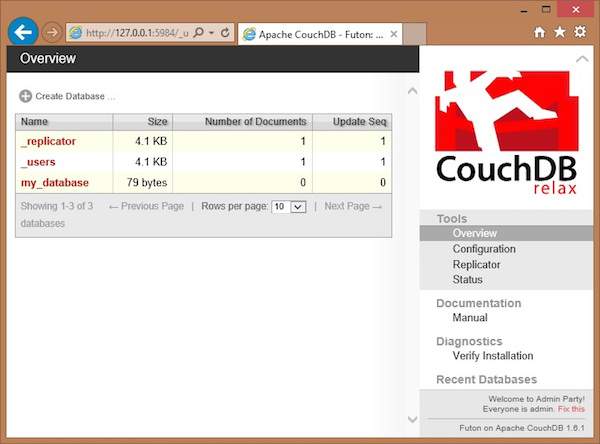
在此頁面的左側,您可以看到 CouchDB 所有當前資料庫的列表。在此示例中,我們有一個名為 **my_database** 的資料庫,以及系統定義的資料庫 **_replicator** 和 **_user**。
在右側,您可以看到以下內容:
**工具** - 在此部分中,您可以找到 **配置** 以配置 CouchDB,**複製器** 以執行復制,以及 **狀態** 以驗證 CouchDB 的狀態和最近對 CouchDB 進行的修改。
**文件** - 此部分包含 CouchDB 最新版本的完整文件。
**診斷** - 在此下,您可以驗證 CouchDB 的安裝。
**最近的資料庫** - 在此下,您可以找到最近新增的資料庫的名稱。