
 資料結構
資料結構 網路
網路 關係資料庫管理系統 (RDBMS)
 作業系統
作業系統 Java
Java MS Excel
 iOS
iOS HTML
HTML CSS
CSS Android
 Python
 C語言程式設計
 C++
C++ C#
C# MongoDB
 MySQL
MySQL Javascript
 PHP
PHP 物理學
物理學 化學
化學 生物學
生物學 數學
數學 英語
英語 經濟學
經濟學 心理學
心理學 社會學
社會學 服裝設計
服裝設計 法學
法學使用Tkinter構建按鈕回撥函式
建立圖形使用者介面 (GUI) 是許多軟體應用程式的基本方面,而Tkinter作為在Python中構建GUI的強大工具包而脫穎而出。Tkinter提供了一系列小部件,其中最常用的一種元素是按鈕。在本文中,我們將深入探討使用Tkinter構建按鈕回撥函式的細節,探索基礎知識、傳遞引數以及構建響應式介面。
Tkinter按鈕
Tkinter的Button小部件是許多GUI應用程式中使用者互動的基石。按鈕本質上是一個可點選區域,啟用時會執行預定義的操作。要將函式與按鈕關聯,我們使用command屬性。
示例
讓我們從一個簡單的例子開始:
import tkinter as tk

def on_button_click():
   print("Button clicked!")

# Creating the main application window
root = tk.Tk()
root.title("Button Callback Example")
root.geometry("720x250")

# Creating a button and associating the on_button_click function with its command
button = tk.Button(root, text="Click Me", command=on_button_click)
button.pack(pady=10)

# Running the Tkinter event loop
root.mainloop()
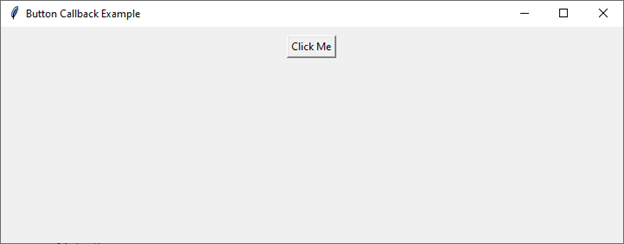
在這個基本的例子中,當單擊按鈕時,將執行on_button_click函式。command=on_button_click連結是建立按鈕和函式之間連線的關鍵。
輸出
執行程式碼後,您將獲得以下輸出視窗:
向回撥函式傳遞引數
按鈕通常需要執行需要額外資訊或上下文的動作。Tkinter允許我們使用lambda函式向回撥函式傳遞引數。考慮以下示例:
示例
import tkinter as tk

def on_button_click(message):
   print(f"Button clicked! Message: {message}")

root = tk.Tk()
root.title("Button Callback with Argument Example")
root.geometry("720x250")
message_to_pass = "Hello from the button!"

# Using a lambda function to pass arguments to the callback
button = tk.Button(root, text="Click Me", command=lambda: on_button_click(message_to_pass))
button.pack(pady=10)

root.mainloop()
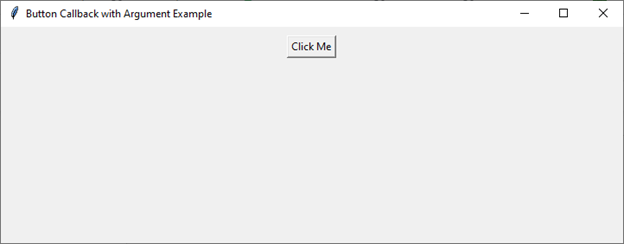
在這裡,lambda函式充當中間體,能夠將message_to_pass引數傳遞給on_button_click函式。當您需要動態資料由回撥函式處理時,此技術非常寶貴。
輸出
執行程式碼後,您將獲得以下輸出視窗:
動態UI更新
建立響應式UI涉及根據使用者互動更新介面元素。按鈕回撥函式在實現動態更新方面發揮著至關重要的作用。
示例
讓我們探討一個單擊按鈕會更改標籤文字的示例:
import tkinter as tk

def update_label_text():
   new_text = "Button clicked!"
   label.config(text=new_text)

root = tk.Tk()
root.title("Updating Label Text on Button Click")
root.geometry("720x250")

# Creating a label with initial text
label = tk.Label(root, text="Click the button to update me!")
label.pack(pady=10)

# Creating a button to trigger the update
button = tk.Button(root, text="Click Me", command=update_label_text)
button.pack(pady=10)

root.mainloop()
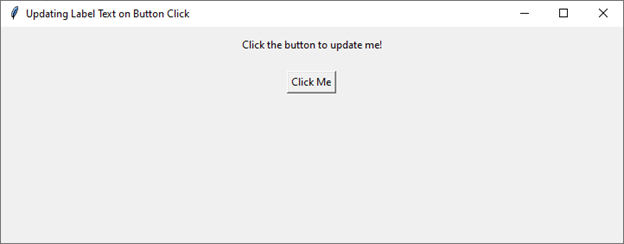
在這個例子中,當單擊按鈕時,update_label_text函式會修改標籤的文字。這種模式允許開發人員建立互動式和響應式介面,從而增強整體使用者體驗。
輸出
執行程式碼後,您將獲得以下輸出視窗:
處理使用者輸入
按鈕可以與輸入小部件無縫整合,以方便使用者輸入。考慮一個簡單的計算器應用程式,其中單擊數字按鈕會更新輸入小部件:
示例
import tkinter as tk

def update_entry_text(number):
   current_text = entry.get()
   new_text = current_text + str(number)
   entry.delete(0, tk.END)
   entry.insert(0, new_text)

root = tk.Tk()
root.title("Simple Calculator")
root.geometry("720x250")

# Creating an entry widget for displaying input
entry = tk.Entry(root, width=20)
entry.pack(pady=10)

# Creating number buttons and associating them with update_entry_text callback
for i in range(1, 10):
   button = tk.Button(root, text=str(i), command=lambda i=i: update_entry_text(i))
   button.pack(side=tk.LEFT, padx=5)

root.mainloop()
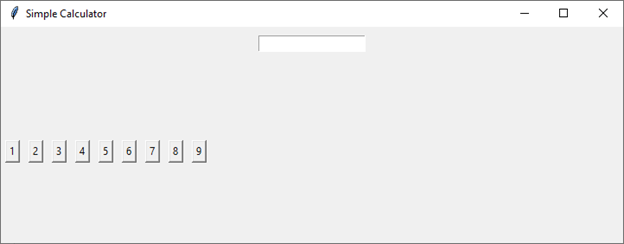
在這個例子中,每個數字按鈕都與update_entry_text回撥函式關聯,該函式將單擊的數字連線到當前的輸入文字。這演示了按鈕回撥函式在處理GUI中使用者輸入時的多功能性。
輸出
執行程式碼後,您將獲得以下輸出視窗:
回撥函式中的錯誤處理
健壯的GUI應用程式必須包含錯誤處理,以確保無縫的使用者體驗。在使用按鈕回撥函式時,務必預測並優雅地處理潛在的錯誤。使用try-except塊是一種有效的策略:
示例
import tkinter as tk
from tkinter import messagebox

def on_button_click():
   try:
      print("Button clicked!")
   except Exception as e:
      messagebox.showerror("Error", f"An error occurred: {str(e)}")

root = tk.Tk()
root.title("Error Handling in Callbacks")
root.geometry("720x250")

button = tk.Button(root, text="Click Me", command=on_button_click)
button.pack(pady=10)

root.mainloop()
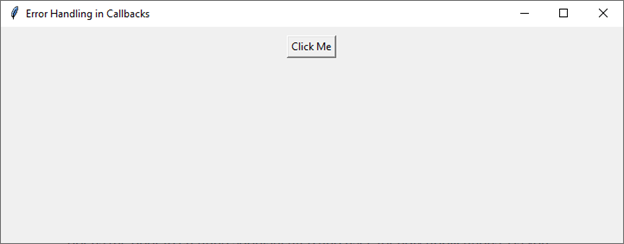
在這個例子中,try-except塊捕獲回撥函式中可能發生的任何異常。如果檢測到錯誤,則會顯示一個訊息框,以告知使用者該問題。此做法確保意外錯誤不會導致應用程式無響應或崩潰。
輸出
執行程式碼後,您將獲得以下輸出視窗:
結論
使用Tkinter構建按鈕回撥函式是任何參與使用Python進行GUI開發的人員的一項基本技能。從將函式連結到按鈕的基礎知識到處理使用者輸入,掌握按鈕回撥函式對於建立使用者友好的應用程式非常有幫助。

912 次瀏覽
