
 資料結構
資料結構 網路
網路 關係資料庫管理系統 (RDBMS)
 作業系統
作業系統 Java
Java MS Excel
 iOS
iOS HTML
HTML CSS
CSS Android
 Python
 C 程式設計
 C++
C++ C#
C# MongoDB
 MySQL
MySQL Javascript
 PHP
PHP 物理學
物理學 化學
化學 生物學
生物學 數學
數學 英語
英語 經濟學
經濟學 心理學
心理學 社會學
社會學 時尚研究
時尚研究 法律研究
法律研究Swift 在 iOS 中使用 Safari 開啟連結
在 Swift 中,有兩種方法可以開啟連結。一種方法是使用 UIApplication 類在 Safari 瀏覽器中開啟連結。另一種方法是在 iOS 中使用 SafariServices 框架。讓我們看看一些基於這些方法開啟連結的示例。
方法 1:使用 UIApplication 類
步驟 1 - 為要開啟的連結建立一個 URL 物件。您可以使用 URL(string:) 初始化器來完成此操作。
步驟 2 - 建立 UIApplication 類的例項。此類負責管理應用程式的行為,包括開啟 URL。
步驟 3 - 使用 UIApplication 類的 open(_:options:completionHandler:) 方法開啟 URL。此方法採用三個引數:要開啟的 URL、一個選項字典和一個完成處理程式。
您可以使用選項字典提供開啟 URL 的其他選擇,包括是否在前臺或後臺開啟它,以及如果無法開啟它是否顯示警報。在本例中,我們透過傳遞空字典來使用預設設定。
開啟 URL 後(或發生錯誤時),將呼叫名為完成處理程式的閉包。在本例中,我們透過傳遞 nil 來使用預設完成處理程式。
示例
將所有內容放在一起,這是一個使用 UIApplication 類開啟連結的示例:
import UIKit
class TestController: UIViewController {

   private lazy var clickButton: UIButton = {
      let button = UIButton()
      button.addTarget(self, action: #selector(handleButtonClick), for: .touchUpInside)
      button.backgroundColor = .darkGray
      button.setTitle("Click to open link", for: .normal)
      button.setTitleColor(.white, for: .normal)
      button.titleLabel?.font = UIFont.systemFont(ofSize: 18, weight: .semibold)
      button.layer.cornerRadius = 5
      button.translatesAutoresizingMaskIntoConstraints = false
      return button
   }()

   override func viewDidLoad() {
      super.viewDidLoad()
      initialSetup()
   }

   private func initialSetup() {

      view.backgroundColor = .white
      navigationItem.title = "Open Link"

      view.addSubview(clickButton)

      clickButton.widthAnchor.constraint(equalToConstant: 200).isActive = true
      clickButton.heightAnchor.constraint(equalToConstant: 50).isActive = true
      clickButton.centerYAnchor.constraint(equalTo: view.centerYAnchor).isActive = true
      clickButton.centerXAnchor.constraint(equalTo: view.centerXAnchor).isActive = true
   }

   @objc private func handleButtonClick() {
      if let url = URL(string: "https://tutorialspoint.tw") {
         let application = UIApplication.shared
         application.open(url, options: [:], completionHandler: nil)
      }
   }
}
輸出
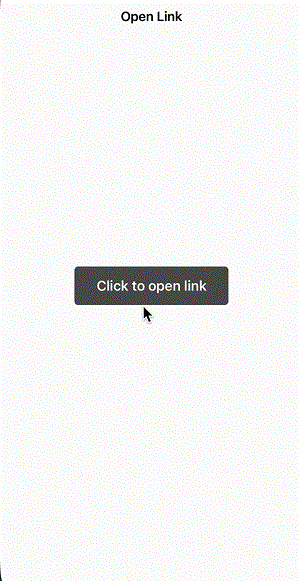
在上面的示例中,我們使用字串建立了一個 URL 物件。然後,我們使用共享 UIApplication 例項的 open 方法開啟 URL。
這將在裝置上的預設瀏覽器應用程式(通常是 iOS 上的 Safari)中開啟 URL。請注意,此方法會將使用者從您的應用程式切換到瀏覽器應用程式。
方法 2:使用 SafariServices 框架
步驟 1 - 首先,將 SafariServices 框架匯入到您的 Swift 檔案中。
步驟 2 - 為要開啟的連結建立一個 URL 物件。您可以使用 URL(string:) 初始化器來完成此操作。
步驟 3 - 接下來,建立一個 SFSafariViewController 例項並傳入要開啟的 URL。
步驟 4 - 使用檢視控制器的 present(_:animated:completion:) 方法呈現 SFSafariViewController。
SFSafariViewController 將負責顯示網頁並允許使用者與其互動。當用戶完成瀏覽後,他們只需關閉 SFSafariViewController 即可返回您的應用程式。
示例
將所有內容放在一起,這是一個使用 SafariServices 框架開啟連結的示例:
import UIKit
import SafariServices
class TestController: UIViewController {

   private lazy var clickButton: UIButton = {
      let button = UIButton()
      button.addTarget(self, action: #selector(handleButtonClick), for: .touchUpInside)
      button.backgroundColor = .darkGray
      button.setTitle("Click to open link", for: .normal)
      button.setTitleColor(.white, for: .normal)
      button.titleLabel?.font = UIFont.systemFont(ofSize: 18, weight: .semibold)
      button.layer.cornerRadius = 5
      button.translatesAutoresizingMaskIntoConstraints = false
      return button
   }()

   override func viewDidLoad() {
      super.viewDidLoad()
      initialSetup()
   }

   private func initialSetup() {

      view.backgroundColor = .white
      navigationItem.title = "Open Link"

      view.addSubview(clickButton)

      clickButton.widthAnchor.constraint(equalToConstant: 200).isActive = true
      clickButton.heightAnchor.constraint(equalToConstant: 50).isActive = true
      clickButton.centerYAnchor.constraint(equalTo: view.centerYAnchor).isActive = true
      clickButton.centerXAnchor.constraint(equalTo: view.centerXAnchor).isActive = true
   }

   @objc private func handleButtonClick() {
      if let url = URL(string: "https://tutorialspoint.tw") {
         let safariViewController = SFSafariViewController(url: url)
         present(safariViewController, animated: true, completion: nil)
      }
   }
}
輸出
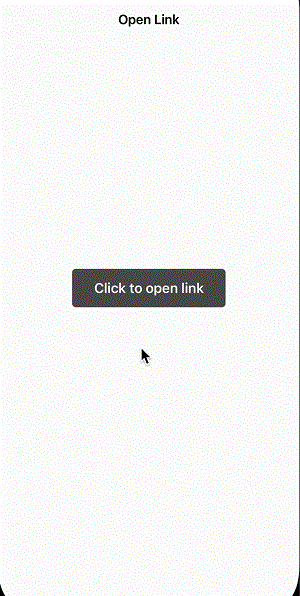
這將在您的應用程式中使用 Safari 瀏覽器檢視控制器開啟 URL,為您的使用者提供無縫的瀏覽體驗。SafariServices 框架還為瀏覽器檢視控制器提供了多個自定義選項,允許您調整瀏覽器的外觀和行為以匹配您的應用程式設計。
結論
總之,使用 SafariServices 框架在 Swift 中訪問連結是一種簡單有效的方法,可以為您的使用者提供流暢的瀏覽體驗。該框架的 SFSafariViewController 類使在您的應用程式內輕鬆顯示網路資訊,同時保持一致的外觀和感覺。
此外,SafariServices 框架還為瀏覽器檢視控制器提供多種自定義選項,使您可以修改瀏覽器的外觀和感覺,以符合您應用程式的設計。如果您需要在應用程式外部開啟連結,則可以替代地使用 UIApplication 類的 open(_:options:completionHandler:) 方法,但這會將使用者從您的應用程式切換到裝置的預設瀏覽器應用程式。

2K+ 瀏覽量
