
 資料結構
資料結構 網路
網路 關係資料庫管理系統 (RDBMS)
 作業系統
作業系統 Java
Java MS Excel
 iOS
iOS HTML
HTML CSS
CSS Android
 Python
 C語言程式設計
 C++
C++ C#
C# MongoDB
 MySQL
MySQL Javascript
 PHP
PHP 物理學
物理學 化學
化學 生物學
生物學 數學
數學 英語
英語 經濟學
經濟學 心理學
心理學 社會學
社會學 服裝設計
服裝設計 法學
法學在Android模擬器上執行Google Maps v2
介紹
如今許多Android應用程式都使用Google Maps來向用戶顯示地圖。例如,在許多外賣應用程式中,我們可以看到訂單狀態以及送貨員在Google Maps上的位置。在本文中,我們將瞭解如何在Android模擬器上執行Google Maps v2。
實現
我們將建立一個簡單的應用程式,在這個應用程式中,我們將顯示一個簡單的Google地圖,並在該地圖上新增一個標記到德里位置。我們將遵循逐步指南來構建此應用程式。現在讓我們轉向Android Studio建立一個新專案。
步驟1:在Android Studio中建立一個新專案
導航到Android Studio,如下面的螢幕所示。在下面的螢幕中,單擊“新建專案”以建立一個新的Android Studio專案。
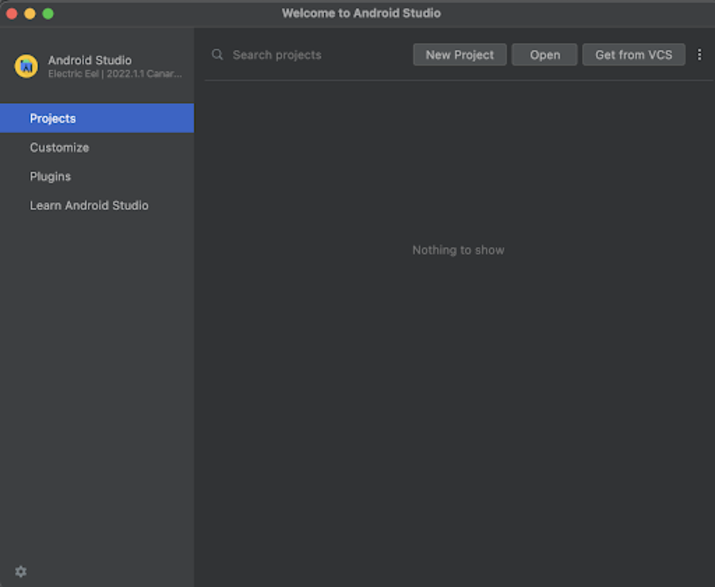
單擊“新建專案”後,您將看到下面的螢幕。
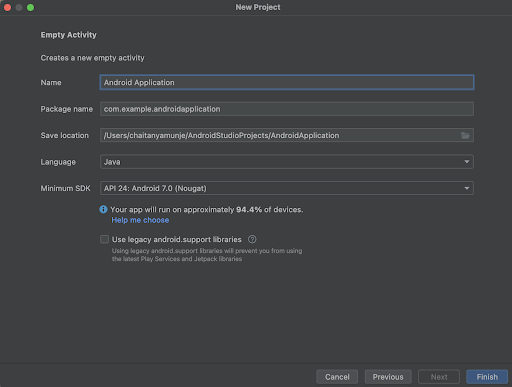
在這個螢幕中,我們只需選擇Google Maps Activity並單擊“下一步”。單擊“下一步”後,您將看到下面的螢幕。
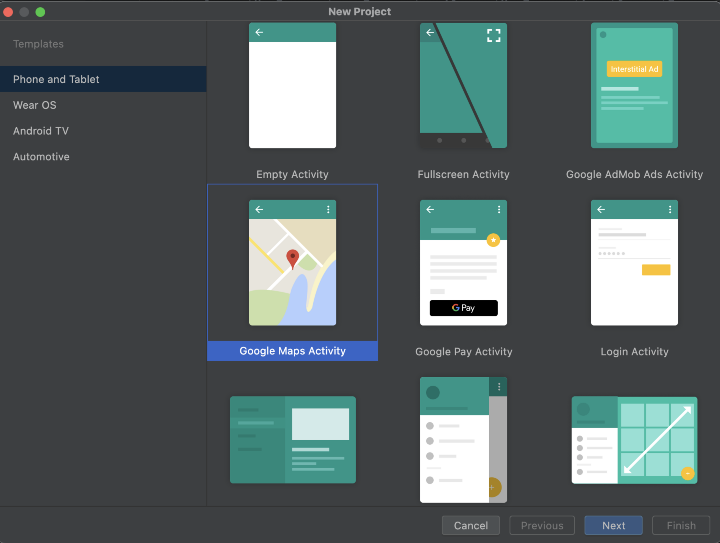
在這個螢幕中,我們只需指定專案名稱。然後包名將自動生成。
注意 − 確保選擇Java作為語言。
指定所有詳細資訊後,單擊“完成”以建立一個新的Android Studio專案。
專案建立完成後,我們將看到兩個開啟的檔案:activity_maps.xml和MapsActivity.java檔案。
步驟2:建立API金鑰以顯示Google Maps
訪問以下URL,您將找到關於如何建立Google Maps API金鑰的詳細文件,我們必須將其新增到我們的應用程式中才能顯示Google Maps。
步驟3:使用AndroidManifest.xml檔案
現在,我們已經生成了Google Maps API金鑰,我們必須在專案的AndroidManifest.xml檔案中使用此金鑰。導航到app>AndroidManifest.xml檔案,並將以下程式碼新增到其中。程式碼中添加了註釋以便詳細瞭解。
<?xml version="1.0" encoding="utf-8"?>
<manifest xmlns:android="http://schemas.android.com/apk/res/android"
   xmlns:tools="http://schemas.android.com/tools">
   <application
       android:allowBackup="true"
       android:dataExtractionRules="@xml/data_extraction_rules"
       android:fullBackupContent="@xml/backup_rules"
       android:icon="@mipmap/ic_launcher"
       android:label="@string/app_name"
       android:roundIcon="@mipmap/ic_launcher_round"
       android:supportsRtl="true"
       android:theme="@style/Theme.GoogleMapsProject"
       tools:targetApi="31">
       <!--
            TODO: Before you run your application, you need a Google Maps API key.
            To get one, follow the directions here:
               https://developers.google.com/maps/documentation/android-sdk/get-api-key
            Once you have your API key (it starts with "AIza"), define a new property in your
            project's local.properties file (e.g. MAPS_API_KEY=Aiza...), and replace the
            "YOUR_API_KEY" string in this file with "${MAPS_API_KEY}".
       -->
       <meta-data
           android:name="com.google.android.geo.API_KEY"
           android:value="Enter your API key here" />
       <activity
           android:name=".MapsActivity"
           android:exported="true"
           android:label="@string/title_activity_maps">
           <intent-filter>
              <action android:name="android.intent.action.MAIN" />
              <category android:name="android.intent.category.LAUNCHER" />
           </intent-filter>
       </activity>
   </application>
</manifest>
注意 − 確保將您生成的API金鑰新增到“輸入您的API金鑰”標籤的位置。
步驟4:使用activity_main.xml
導航到activity_maps.xml。如果此檔案不可見,則要開啟此檔案。在左側窗格中導航到app>res>layout>activity_maps.xml以開啟此檔案。開啟此檔案後,將以下程式碼新增到其中。程式碼中添加了註釋以便詳細瞭解。
<?xml version="1.0" encoding="utf-8"?>
<!-- on below line creating a fragment for displaying maps-->
<fragment xmlns:android="http://schemas.android.com/apk/res/android"
   xmlns:map="http://schemas.android.com/apk/res-auto"
   xmlns:tools="http://schemas.android.com/tools"
   android:id="@+id/map"
   android:name="com.google.android.gms.maps.SupportMapFragment"
   android:layout_width="match_parent"
   android:layout_height="match_parent"
   tools:context=".MapsActivity" />
說明 − 在上面的程式碼中,我們正在建立一個片段,我們將在其中顯示應用程式內的Google地圖。我們為這個片段指定了一個名為“支援地圖片段”的名稱。
步驟4:使用MapsActivity.java檔案
導航到MainActivity.java。如果此檔案不可見,則要開啟此檔案。在左側窗格中導航到app>res>layout>MainActivity.java以開啟此檔案。開啟此檔案後,將以下程式碼新增到其中。程式碼中添加了註釋以便詳細瞭解。
package com.example.googlemapsproject;
import androidx.fragment.app.FragmentActivity;
import android.os.Bundle;
import com.google.android.gms.maps.CameraUpdateFactory;
import com.google.android.gms.maps.GoogleMap;
import com.google.android.gms.maps.OnMapReadyCallback;
import com.google.android.gms.maps.SupportMapFragment;
import com.google.android.gms.maps.model.LatLng;
import com.google.android.gms.maps.model.MarkerOptions;
import com.example.googlemapsproject.databinding.ActivityMapsBinding;
public class MapsActivity extends FragmentActivity implements OnMapReadyCallback {
   private GoogleMap mMap;
   private ActivityMapsBinding binding;
   @Override
   protected void onCreate(Bundle savedInstanceState) {
       super.onCreate(savedInstanceState);
       binding = ActivityMapsBinding.inflate(getLayoutInflater());
       setContentView(binding.getRoot());
       // Obtain the SupportMapFragment and get notified when the map is ready to be used.
       SupportMapFragment mapFragment = (SupportMapFragment) getSupportFragmentManager()
               .findFragmentById(R.id.map);
       mapFragment.getMapAsync(this);
   }
   /**
   * Manipulates the map once available.
   * This callback is triggered when the map is ready to be used.
   * This is where we can add markers or lines, add listeners or move the camera. In this case,
   * we just add a marker near Sydney, Australia.
   * If Google Play services is not installed on the device, the user will be prompted to install
   * it inside the SupportMapFragment. This method will only be triggered once the user has
   * installed Google Play services and returned to the app.
   */
   @Override
   public void onMapReady(GoogleMap googleMap) {
       mMap = googleMap;

       // Add a marker in Delhi and move the camera
       LatLng sydney = new LatLng(28.7041, 77.1025);
       mMap.addMarker(new MarkerOptions().position(sydney).title("Marker in Delhi"));
       mMap.moveCamera(CameraUpdateFactory.newLatLng(sydney));
   }
}
說明 −在上面的程式碼中,首先我們為Google Maps和活動繫結建立變數。現在我們將看到onCreate方法。這是每個Android應用程式的預設方法。建立應用程式檢視時將呼叫此方法。在此方法中,我們設定內容檢視,即名為activity_maps.xml的佈局檔案,以設定該檔案中的UI。在onCreate方法中,我們初始化繫結變數,然後為支援片段建立一個變數,並使用我們在activity_maps.xml檔案中提供的片段ID初始化該變數。然後呼叫getMapAsync來同步我們的地圖。之後,我們覆蓋onMapReady方法。在此方法中,我們為將在德里位置顯示的標記建立緯度和經度。然後我們在地圖上新增一個標記。最後,將我們的相機移動到我們顯示標記的位置。
新增上述程式碼後,我們只需單擊頂部欄中的綠色圖示即可在移動裝置上執行我們的應用程式。
注意 − 確保已連線到您的真實裝置或模擬器。
輸出

結論
在本文中,我們瞭解瞭如何在Android模擬器上的Android應用程式中執行Google Maps v2。

665 次瀏覽
