
 資料結構
資料結構 網路
網路 關係型資料庫管理系統
 作業系統
作業系統 Java
Java MS Excel
 iOS
iOS HTML
HTML CSS
CSS Android
 Python
 C 程式設計
 C++
C++ C#
C# MongoDB
 MySQL
MySQL Javascript
 PHP
PHP 物理學
物理學 化學
化學 生物學
生物學 數學
數學 英語
英語 經濟學
經濟學 心理學
心理學 社會學
社會學 服裝設計
服裝設計 法律研究
法律研究PowerShell 中的 Out-GridView
描述
PowerShell 中的 Out-GridView 是 GUI 格式的輸出格式。通常,我們使用 **Format-Table** 或 **Format-List** 命令在控制檯上獲取輸出。類似地,**Out-GridView** 也是輸出格式,但由於 GUI 格式,我們可以與之互動。
此外,它還為我們提供了選擇單行或多行的選項,我們可以儲存選定的輸出並在指令碼中使用它們。
帶管道的 Out-Gridview
您可以像 Format-Table 或 Format-List 命令一樣將輸出透過管道傳遞到 Gridview。
示例 1 - 帶管道輸出
Get-Service | where{$_.StartType -eq 'Disabled'} | Out-GridView輸出
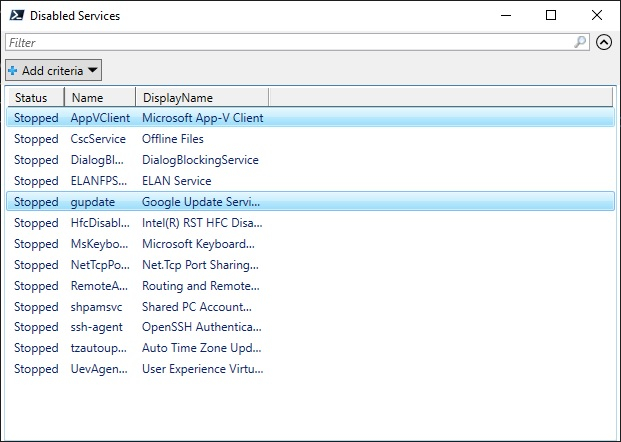
上述命令將獲取所有停用且自定義標題為“**Disabled Services**”的 Windows 服務。
示例 2 - 篩選 Out-Gridview 輸出
您還可以像下面所示向輸出新增過濾器。您可以根據需要應用多個過濾器。
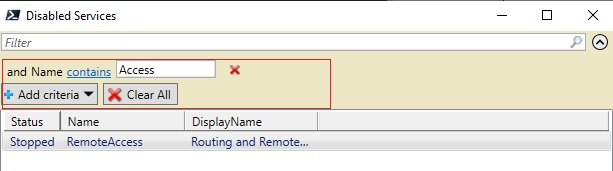
示例 3 - 從 Out-Gridview 中選擇輸出
有時在指令碼中,您需要從輸出中進行選擇,Out-GridView 可以使用 **OutputMode** 引數提供此功能。
單一輸出模式
您可以透過向 **OutputMode** 引數提供“**Single**”值來從輸出中選擇一行。
示例
Get-Service | where{$_.StartType -eq 'Disabled'} | Out-GridView -Title "Disabled
Services" -OutputMode Single
輸出
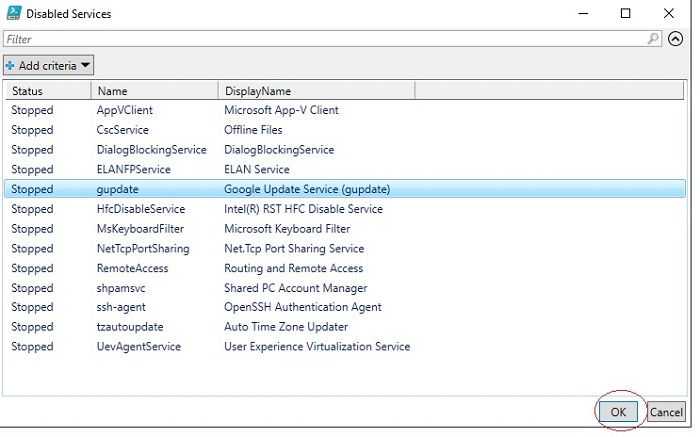
選擇單行並點選確定。

您可以將輸出儲存到變數中並在 PowerShell 中使用。
$ser = Get-Service | where{$_.StartType -eq 'Disabled'} | Out-GridView -Title
"Disabled Services" -OutputMode Single
$ser.DisplayName
多輸出模式。
當您使用 **Multiple** 而不是單一輸出模式時,您可以進行多個選擇並將它們儲存到變數中。
$services = Get-Service | where{$_.StartType -eq 'Disabled'} | Out-GridView -
Title "Disabled Services" -OutputMode Multiple
Write-Output "Services"
$services.Name
使用 PassThru。
與多輸出模式類似,**-PassThru** 引數允許您與單行或多行輸出進行互動。
示例
Get-Service | where{$_.StartType -eq 'Disabled'} | Out-GridView -Title "Disabled
Services" -PassThru
輸出
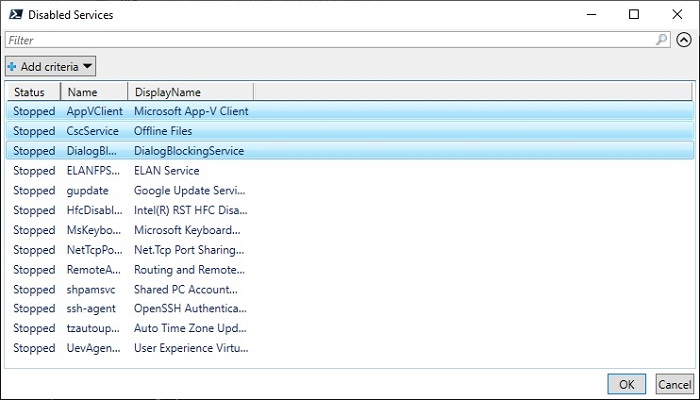
在這裡,我們選擇了前 3 行,輸出將是,

示例 4 - 將 Out-GridView 作為函式使用。
您可以將 Out-GridView cmdlet 作為函式使用。例如,在上述情況下,我們可以將選定的服務設定為手動狀態,如下所示。
Get-Service | where{$_.StartType -eq 'Disabled'} |`
   Out-GridView -Title "Disabled Services" -PassThru | `
   Set-Service -StartupType Manual -PassThru

更新於: 2022年2月18日
5K+ 瀏覽量

廣告