
 資料結構
資料結構 網路
網路 關係資料庫管理系統 (RDBMS)
 作業系統
作業系統 Java
Java MS Excel
 iOS
iOS HTML
HTML CSS
CSS Android
 Python
 C語言程式設計
 C++
C++ C#
C# MongoDB
 MySQL
MySQL Javascript
 PHP
PHP 物理學
物理學 化學
化學 生物學
生物學 數學
數學 英語
英語 經濟學
經濟學 心理學
心理學 社會學
社會學 服裝設計
服裝設計 法律研究
法律研究如何在 Excel 中根據單元格值快速更改字型大小?
在本文中,使用者將能夠理解根據提供的值更改字型大小的過程。本文簡要介紹了兩個常見的示例以演示所需的任務。學習此任務的好處 -
透過調整字型大小來提高資料的可讀性。這確保文字易於閱讀。對於有視覺問題的人,或者使用者想要在大螢幕或投影儀上顯示內容時,增大字型大小很有幫助。
字型大小允許使用者建立視覺重點並建立資訊層次結構。
增大字型大小對於維護文件的設計和美感很重要。仔細選擇合適的字型大小可以增強作品的視覺吸引力和專業性。
修改字型大小對於提高可訪問性至關重要,使內容更適合視覺能力各異的個人。
更改字型大小有助於使用者正確列印和顯示調整後的內容。
示例 1:使用 VBA 程式碼根據 Excel 中另一列的值更改字型大小
步驟 1
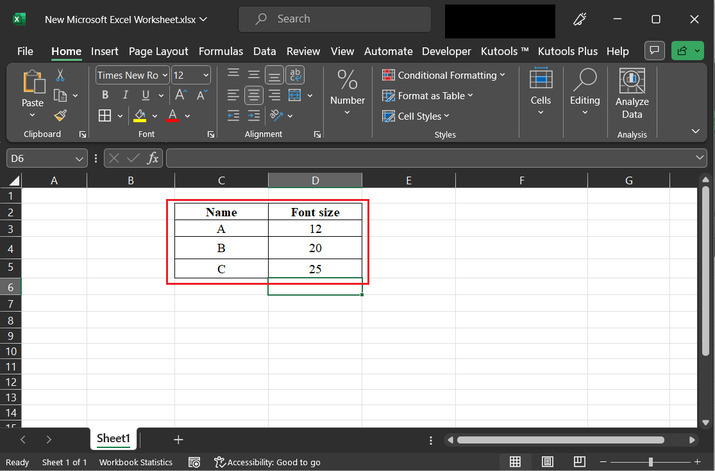
在本例中,我們將瞭解根據列值更改大小的過程。請考慮下圖所示的資料。
步驟 2
右鍵單擊工作表名稱,然後選擇“**檢視程式碼**”選項。為了便於參考,請考慮下圖 -

步驟 3
上述步驟將開啟一個“Microsoft Visual Basic for Application”程式碼視窗。開啟的對話方塊包含一些選項以及一個空白程式碼區域 -

步驟 4
將下面提供的程式碼貼上到編輯器中 -
' define method definition
Sub change_font()
   'declare required variables
   Dim range_x As Range
   Dim text_x As String
   Dim cell_x As Range
   On Error Resume Next
   ' if expression is greater than 1
   If ActiveWindow.RangeSelection.Count > 1 Then
      ' set the range selection
      text_x = ActiveWindow.RangeSelection.AddressLocal
   ' else block
   Else
   ' active sheet
      text_x = ActiveSheet.UsedRange.AddressLocal
   ' end of if block
   End If
   ' set the input box
   Set range_x = Application.InputBox("Select cells to change  font size:", "Excel", text_x, , , , , 8)
   ' if range is nothing
   If range_x Is Nothing Then Exit Sub
   ' if range is greater than 1
   If (range_x.Areas.Count > 1) Or (range_x.Columns.Count > 1) Then
      ' display message on data
      MsgBox "Select one column only", vbInformation, "Excel...."
      ' exit sub module
      Exit Sub
   ' end of if block
   End If
   ' screen update status to false
   Application.ScreenUpdating = False
   ' use for each cell in range
   For Each cell_x In range_x
      ' set font range
      cell_x.Font.Size = cell_x.Offset(, 1).Value
   ' next statement
   Next
   ' change screen update
   Application.ScreenUpdating = True
' end of sub module
End Sub
步驟 5
單擊“執行”按鈕以執行程式碼。請考慮下圖以作參考 -

步驟 6
上述步驟將顯示一個標題為“Excel”的對話方塊。此對話方塊包含用於訪問資料的輸入區域。從提供的 Excel 表格中選擇資料。例如,這裡將訪問 C3 到 C5 單元格的資料。然後單擊“確定”按鈕。

步驟 7
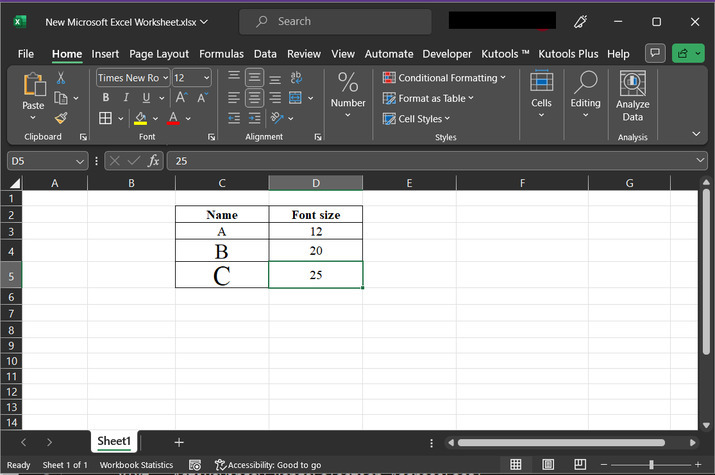
修改後的 Excel 表格如下所示 -
結論
本文包含詳細而精確的說明,以根據單元格值處理字型大小。本文對這兩個示例都進行了分步說明。

更新於:2023年8月29日
501 次瀏覽

廣告