
 資料結構
資料結構 網路
網路 RDBMS
RDBMS 作業系統
作業系統 Java
Java MS Excel
 iOS
iOS HTML
HTML CSS
CSS Android
 Python
 C 程式設計
 C++
C++ C#
C# MongoDB
 MySQL
MySQL Javascript
 PHP
PHP 物理
物理 化學
化學 生物
生物 數學
數學 英語
英語 經濟
經濟 心理學
心理學 社會研究
社會研究 時裝研究
時裝研究 法律研究
法律研究如何用 Swift 在 UITableView 中插入新行?
要在 UITableView 中插入新行,我們首先要建立一個表格檢視行,然後使用表格檢視的“Cell for row at”方法將其新增到表格檢視。
我們可以使用 Storyboard 建立行,或者建立 UITableViewCell 類的 nib。
在檢視控制器中拖放一個表格檢視,並將其 outlet 連線到 ViewController 類。
在我們剛才建立的表格檢視中建立一個行並建立它的類,稱其為 CustomCell,並將類分配給該行。
為其提供識別符號“CustomCell”
在單元格中新增一個標籤,將其更改為“CustomCell”,以便我們可以識別它,並將其垂直和水平放置在中間。
向我們的類新增以下程式碼
func numberOfSections(in tableView: UITableView) −> Int {
   return 1
}
func tableView(_ tableView: UITableView, numberOfRowsInSection section: Int) −> Int {
   return 5
}
func tableView(_ tableView: UITableView, cellForRowAt indexPath: IndexPath) −> UITableViewCell {
   let cell = tblView.dequeueReusableCell(withIdentifier: "CustomCell") as! CustomCell
   return cell
}
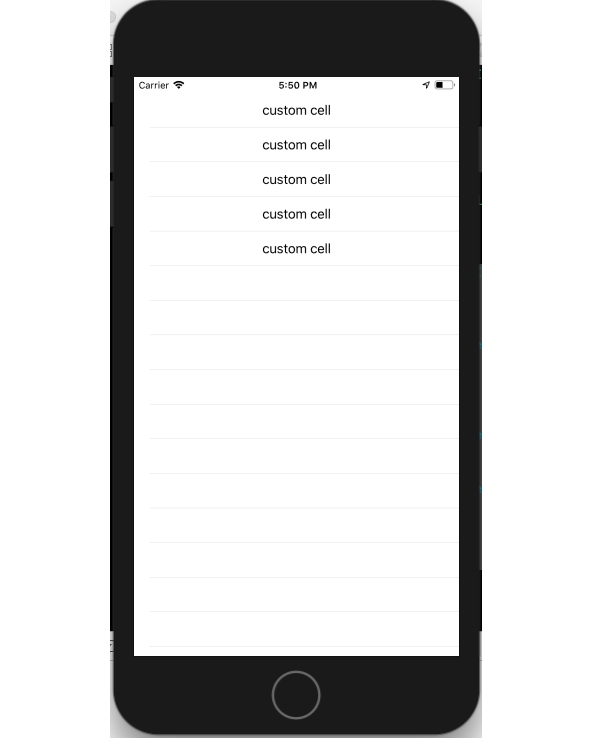
當我們執行此程式碼時,它在裝置上看起來是這樣的。

更新於: 07-30-2019
977 次瀏覽

廣告