
 資料結構
資料結構 網路
網路 關係資料庫管理系統 (RDBMS)
 作業系統
作業系統 Java
Java MS Excel
 iOS
iOS HTML
HTML CSS
CSS Android
 Python
 C語言程式設計
 C++
C++ C#
C# MongoDB
 MySQL
MySQL Javascript
 PHP
PHP 物理學
物理學 化學
化學 生物學
生物學 數學
數學 英語
英語 經濟學
經濟學 心理學
心理學 社會研究
社會研究 服裝研究
服裝研究 法律研究
法律研究如何在Excel中根據背景顏色刪除行
Excel是一個強大的電子表格程式,允許您輕鬆組織和分析資料。許多使用者需要根據特定條件刪除行。本課程將重點介紹根據單元格背景顏色刪除行。當您對資料進行顏色編碼或希望根據其外觀過濾特定行時,使用背景顏色非常方便。我們將介紹一種自動化方法,而不是手動滾動電子表格並逐行刪除行,這可以節省您的時間和精力。
根據背景顏色刪除Excel中的行
在這裡,我們將首先建立一個VBA模組,然後選擇具有要刪除的背景顏色的單元格。讓我們來看一個簡單的過程,瞭解如何在Excel中根據背景顏色刪除行。
步驟1
考慮一個Excel工作表,其中單元格具有多種背景顏色,如下面的螢幕截圖所示。
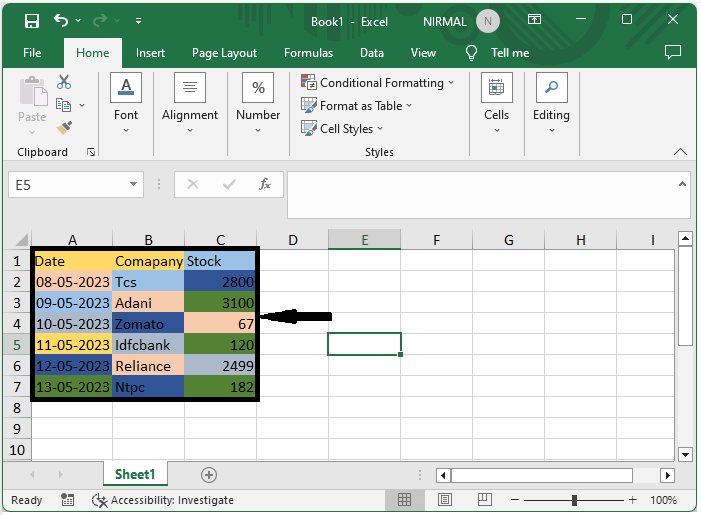
首先,右鍵單擊工作表名稱,然後選擇“檢視程式碼”以開啟VBA應用程式。
右鍵單擊 > 檢視程式碼。
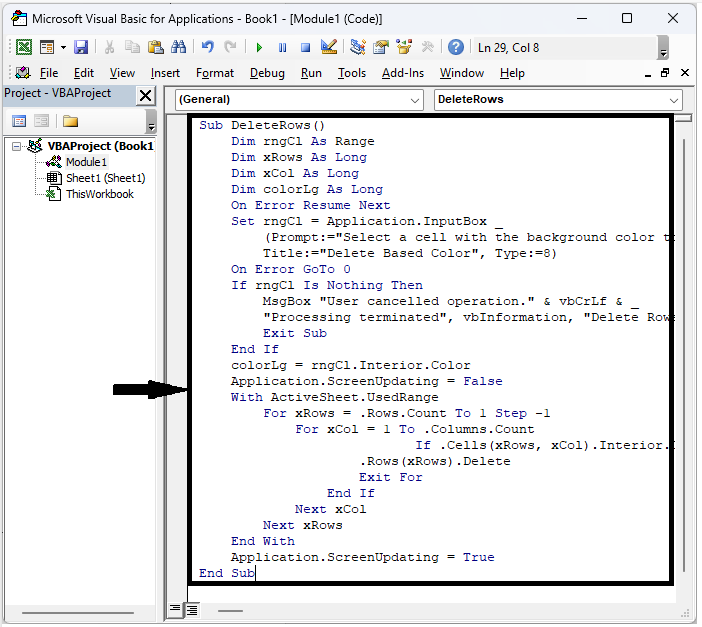
步驟2
然後單擊“插入”,選擇“模組”,並將下面的程式碼複製到文字框中。
插入 > 模組 > 複製。
示例
Sub DeleteRows()
    Dim rngCl As Range
    Dim xRows As Long
    Dim xCol As Long
    Dim colorLg As Long
    On Error Resume Next
    Set rngCl = Application.InputBox _
        (Prompt:="Select a cell with the background color to be deleted", _
        Title:="Delete Based Color", Type:=8)
    On Error GoTo 0
    If rngCl Is Nothing Then
        MsgBox "User cancelled operation." & vbCrLf & _
        "Processing terminated", vbInformation, "Delete Rows Color"
        Exit Sub
    End If
    colorLg = rngCl.Interior.Color
    Application.ScreenUpdating = False
    With ActiveSheet.UsedRange
        For xRows = .Rows.Count To 1 Step -1
            For xCol = 1 To .Columns.Count
                           If .Cells(xRows, xCol).Interior.Color = colorLg Then
                    .Rows(xRows).Delete
                    Exit For
                End If
            Next xCol
        Next xRows
    End With
    Application.ScreenUpdating = True
End Sub
步驟3
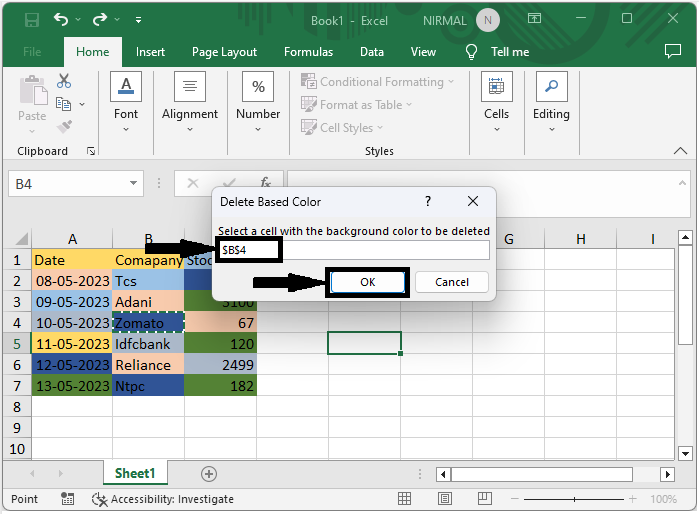
然後單擊F5轉到模組,選擇具有要刪除的背景顏色的單元格,然後單擊“確定”以刪除所有具有匹配背景顏色的單元格。
F5 > 選擇單元格 > 確定。
注意:如果您只想刪除單列中的單元格,請使用下面的程式碼。
示例
Sub deleterow()
   Dim xRg As Range, rgDel As Range
    For Each xRg In ThisWorkbook.ActiveSheet.Range("A2:A10")
        If xRg.Interior.ColorIndex = 20 Then
            If rgDel Is Nothing Then
                Set rgDel = xRg
            Else
                Set rgDel = Union(rgDel, xRg)
            End If
        End If
    Next xRg
    If Not rgDel Is Nothing Then rgDel.EntireRow.Delete
End Sub
在程式碼中,A2:A10是列的範圍。
結論
在本教程中,我們使用了一個簡單的示例來演示如何根據Excel中的背景顏色刪除行以突出顯示特定資料集。

更新於:2023年7月20日
671 次瀏覽

廣告