
 資料結構
資料結構 網路
網路 關係型資料庫管理系統
 作業系統
作業系統 Java
Java MS Excel
 iOS
iOS HTML
HTML CSS
CSS Android
 Python
 C 程式設計
 C++
C++ C#
C# MongoDB
 MySQL
MySQL Javascript
 PHP
PHP 物理學
物理學 化學
化學 生物學
生物學 數學
數學 英語
英語 經濟學
經濟學 心理學
心理學 社會學
社會學 時尚研究
時尚研究 法律研究
法律研究如何在 ReactJS 中建立日曆?
在一些 Web 應用程式中,我們要求使用者輸入日期。例如,我們需要獲取使用者的出生日期或任何其他特定日期作為輸入。在這種情況下,最好向使用者顯示日曆並讓他們選擇日期,而不是將日期輸入作為字串,因為使用者在輸入字串時可能會出錯。
在本教程中,我們將學習如何使用內建的 React JS 庫新增日曆元件,或者從頭開始建立日曆元件。
使用 React-calendar 庫在 ReactJS 中建立日曆
“react-calendar” 是一個內建的 React 庫,允許我們在 ReactJS 中嵌入日曆元件。此外,它接受 props 以根據我們的需求自定義日曆。
程式設計師可以在終端中執行以下命令,以在專案目錄中安裝“react-calendar”。
npm i react-calendar
語法
使用者可以按照以下語法使用“react-calendar”庫的日曆元件。
<Calendar value = {date} />
在以上語法中,我們將“date”變數的值作為 prop 傳遞以顯示所選日期。但是,我們還可以傳遞“react-calendar”庫文件中提供的其他 props。
示例
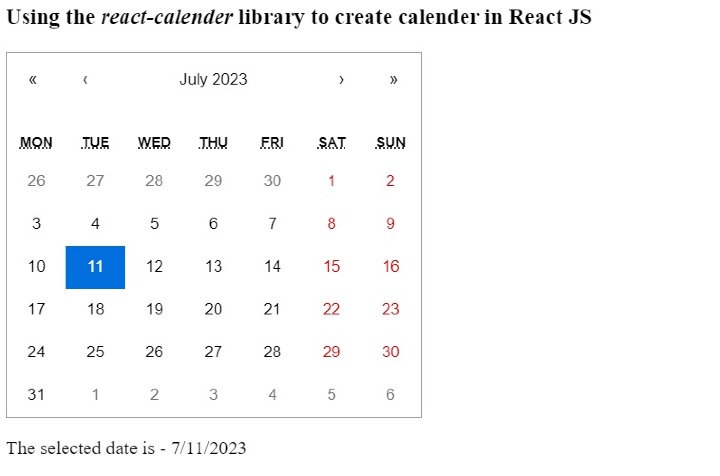
在下面的示例中,我們從“react-calendar”庫中匯入了“Calendar”元件。之後,我們定義了一個名為“date”的狀態變數來儲存所選日期。此外,我們使用“calendar”元件顯示日曆,並將“date”和“changeValue”函式作為 prop 傳遞。“changeValue”函式用於更改所選日期的值。
在輸出中,使用者可以選擇日期、月份、年份等。
import React, { useState } from "react";
import Calendar from "react-calendar";
import "react-calendar/dist/Calendar.css";

function App() {
   const [date, changeDate] = useState(new Date());

   function changeValue(val) {
      changeDate(val);
   }

   return (
      <div>
         <h3>
            {" "} Using the <i> react-calender </i> library to create calender in React JS{" "}
         </h3>
         <Calendar onChange = {changeValue} value = {date} />
         <p>The selected date is - {date.toLocaleDateString()}</p>
      </div>
   );
}
export default App;
輸出
示例
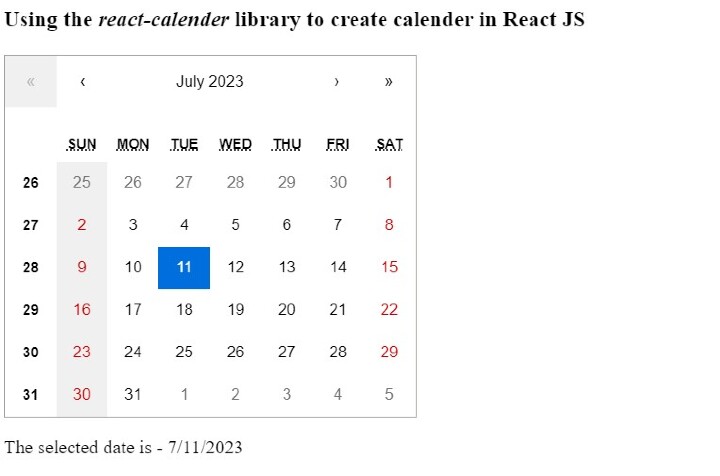
在下面的示例中,我們在“Calendar”元件中使用了更多 props。“minDate”和“maxDate”分別用於設定最小和最大日期選擇範圍。
“showWeekNumbers”根據日期選擇範圍顯示星期數,“calenderType”用於根據區域設定更改日曆型別。“tileDisabled” prop 用於停用“星期日”的選擇。
import React, { useState } from "react";
import Calendar from "react-calendar";
import "react-calendar/dist/Calendar.css";

function App() {
   const [date, changeDate] = useState(new Date());

   function changeValue(val) {
      changeDate(val);
   }

   return (
      <div>
         <h3>
            {" "}
            Using the <i> react-calender </i> library to create calender in React
            JS{" "}
         </h3>
         <Calendar
            onChange = {changeValue}
            value = {date}
            minDate = {new Date(2022, 8, 21)} // To set minimum date
            maxDate = {new Date(2025, 12, 22)} // To set maximum date
            showWeekNumbers = {true} // TO show week numbers
            showNeighboringMonth = {true}
            calendarType = "US" // Changing the calender type
            tileDisabled = {({ date }) => date.getDay() === 0} // Disabaling the sunday
         />

         <p>The selected date is - {date.toLocaleDateString()}</p>
      </div>
   );
}

export default App;
輸出
從頭開始建立日曆元件
當我們需要一個更自定義的日曆時,需要從頭開始建立日曆。在本節中,我們將使用 React 的基本功能來建立日曆元件,並使用 CSS 對其進行樣式設定。
示例
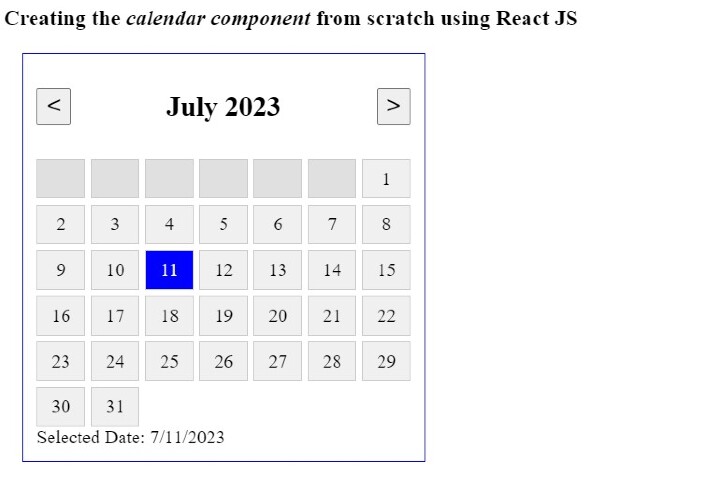
在下面的示例中,我們建立了日曆元件,它允許我們選擇特定日期。此外,日曆元件包含“上一個”和“下一個”按鈕,分別用於移動到上個月和下個月。
此外,我們在 App.CSS 檔案中編寫了一些 CSS 來設定日曆元件的樣式。使用者可以按照以下步驟瞭解示例程式碼。
步驟 1 - 建立“sDate”狀態變數以儲存所選日期。
步驟 2 - 建立 findMonthDays() 函式,使用 getDate() 方法查詢當前月份的總天數。
步驟 3 - 建立 findFirstDay() 函式,使用 getDay() 方法查詢當前月份的第一天。
步驟 4 - 定義 changeToPrevMonth() 函式以將月份更改為上個月。它將所選日期值設定為上個月的第一天。類似地,定義 changeToNextMonth() 函式以將月份更改為下個月。
步驟 5 - 定義 handleDateClick() 函式,以便在使用者點選任何一天時更改所選日期。
步驟 6 - 現在,定義 showCalendar() 函式以顯示日曆元件。
步驟 6.1 - 在 showCalendar() 函式中,獲取所選日期的年份、月份、總月份天數和第一天。
步驟 6.2 - 定義 allDays[] 陣列以將所有日期儲存到其中。
步驟 6.3 - 進行等於“fDay”的迭代以最初顯示空框。
步驟 6.4 - 然後,進行等於月份天數的迭代以將日期元件儲存到“allDays”陣列中。接下來,使用當前日期、月份和年份建立一個新日期,並將其推送到陣列中。如果日期已選擇,則將“selected”類名元件新增到該日期。
步驟 6.5 - 返回 allDays[] 陣列。
步驟 7 - 編寫 HTML 部分以顯示日曆元件。首先,在中間顯示“上一個”和“下一個”按鈕以及月份和年份。
步驟 8 - 之後,執行 showCalendar() 函式以顯示日曆網格。
步驟 9 - 最後,顯示所選日期。還要編寫所需的 CSS 程式碼。
檔名 - App.js
import React, { useState } from "react";
import "./App.css";

function App() {
   const [sDate, setsDate] = useState(new Date());

   const findMonthDays = (y, m) => {
      return new Date(y, m + 1, 0).getDate();
   };

   const findFirstDay = (y, m) => {
      return new Date(y, m, 1).getDay();
   };

   const changeToPrevMonth = () => {
      setsDate((pDate) => {
         const pMonth = pDate.getMonth() - 1;
         const pYear = pDate.getFullYear();
         return new Date(pYear, pMonth);
      });
   };

   const changeToNextMonth = () => {
      setsDate((pDate) => {
         const nMonth = pDate.getMonth() + 1;
         const nYear = pDate.getFullYear();
         return new Date(nYear, nMonth);
      });
   };

   const handleDateClick = (date) => {
      setsDate(date);
   };

   const showCalendar = () => {
      const currDate = new Date();
      const y = sDate.getFullYear();
      const m = sDate.getMonth();
      const mDays = findMonthDays(y, m);
      const fDay = findFirstDay(y, m);

      const allDays = [];

      // For empty cells
      for (let p = 0; p < fDay; p++) {
         allDays.push(<div key = {`em-${p}`} className = "box empty"></div>);
      }

      // Show actual days
      for (let d = 1; d <= mDays; d++) {
         const date = new Date(y, m, d);
         const isSelected = sDate && date.toDateString() === sDate.toDateString();

         allDays.push(
            <div
               key = {`d-${d}`}
               className = {`box ${isSelected ? "selected" : ""}`}
               onClick = {() => handleDateClick(date)}
               >
               {d}
            </div>
         );
      }

      return allDays;
   };

   return (
      <div>
      <h3>
         Creating the <i> calendar component </i> from scratch using React JS
      </h3>
      <div className = "main">
         <div className = "header">
            <button onClick = {changeToPrevMonth}> < </button>
            <h2>
               {sDate.toLocaleString("default", {
                  month: "long",
                  year: "numeric",
               })}
            </h2>
            <button onClick = {changeToNextMonth}> > </button>
         </div>
         <div className = "body">{showCalendar()} </div>
            {sDate && (
               <div className = "selected-date">
                  Selected Date: {sDate.toLocaleDateString()}
               </div>
            )}
         </div>
      </div>
   );
}

export default App;
檔名 – App.css
.main {
   width: 20rem;
   padding: 0.7rem;
   margin-left: 1rem;
   border: 1px solid blue;
}
.header {
   display: flex;
   margin-bottom: 0.7rem;
   justify-content: space-between;
   align-items: center;
}
.header button {
   font-size: 1.4rem;
   cursor: pointer;
}
.body {
   display: grid;
   grid-template-columns: repeat(7, 1fr);
   gap: 5px;
}
.box {
   height: 2rem;
   background-color: #f0f0f0;
   border: 1px solid #ccc;
   display: flex;
   justify-content: center;
   align-items: center;
   cursor: pointer;
}
.box.empty {
   background-color: #e0e0e0;
   cursor: default;
}
.box.selected {
   background-color: blue;
   color: white;
}
輸出
我們學習瞭如何使用“react-calendar”庫將日曆新增到 Web 應用程式中。此外,我們還學習瞭如何從頭開始建立日曆元件。但是,它僅包含日曆的基本功能,程式設計師可以根據需要新增它們。

5K+ 次瀏覽
