
 資料結構
資料結構 網路
網路 關係資料庫管理系統 (RDBMS)
 作業系統
作業系統 Java
Java MS Excel
 iOS
iOS HTML
HTML CSS
CSS Android
 Python
 C語言程式設計
 C++
C++ C#
C# MongoDB
 MySQL
MySQL Javascript
 PHP
PHP 物理學
物理學 化學
化學 生物學
生物學 數學
數學 英語
英語 經濟學
經濟學 心理學
心理學 社會學
社會學 服裝設計
服裝設計 法學
法學如何以程式設計方式建立按鈕?
在本文中,您將學習如何在 Swift 語言中以程式設計方式建立按鈕。在 iOS 中,有不同的方法可以以程式設計方式建立按鈕物件。讓我們透過示例來探索其中的一些方法。
我們將看到以下建立按鈕的方法:
步驟 1 - 在此步驟中,我們將建立一個按鈕物件,並在需要時對其進行自定義。
步驟 2 - 在此步驟中,我們將使用 lazy 關鍵字建立一個按鈕物件。
步驟 3 - 在此步驟中,我們將建立一個按鈕物件,稍後再設定其框架。
建立按鈕並稍後自定義
以下是如何使用 Swift 在 iOS 中以程式設計方式建立按鈕的示例:
示例
import UIKit
class TestController: UIViewController {
   private let loginButton = UIButton()
   override func viewDidLoad() {
      super.viewDidLoad()
      initialSetup()
   }
   private func initialSetup() {
      // basic setup
      view.backgroundColor = .white
      navigationItem.title = "UIButton"

      // login button customization
      loginButton.setTitle("Login", for: .normal)
      loginButton.setTitleColor(.white, for: .normal)
      loginButton.layer.cornerRadius = 10
      loginButton.layer.masksToBounds = true
      loginButton.backgroundColor = .darkGray
      loginButton.titleLabel?.font = UIFont.systemFont(ofSize: 18, weight: .semibold)
      loginButton.addTarget(self, action: #selector(handleLoginButtonTapped), for: .touchUpInside)

      // adding the constraints to login button
      view.addSubview(loginButton)
      loginButton.translatesAutoresizingMaskIntoConstraints = false
      loginButton.centerYAnchor.constraint(equalTo: view.centerYAnchor).isActive = true
      loginButton.centerXAnchor.constraint(equalTo: view.centerXAnchor).isActive = true
      loginButton.heightAnchor.constraint(equalToConstant: 50).isActive = true
      loginButton.widthAnchor.constraint(equalToConstant: 280).isActive = true
   }
   @objc private func handleLoginButtonTapped() {
      print("login button tapped...")
   }
}
輸出
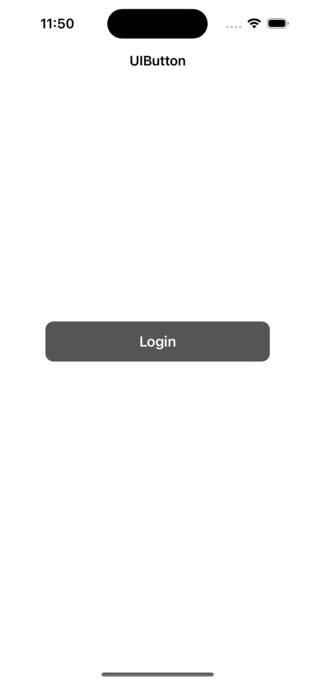
在上述步驟中,在控制器中建立了一個名為 loginButton 的按鈕物件。按鈕的標題設定為“登入”,標題顏色設定為白色。該按鈕還具有目標-動作對,以便當點選按鈕時,將呼叫“handleLoginButtonTapped”函式。最後,該按鈕被新增為當前檢視的子檢視。
您將看到,我們最初建立了一個按鈕物件。之後,我們將在 viewDidLoad() 方法中自定義按鈕。最後,使用一些必要的約束將其新增到父檢視。
使用 lazy 關鍵字建立按鈕
以下是如何使用 UIKit 中的 lazy 關鍵字在 iOS 中以程式設計方式建立按鈕的示例:
示例
import UIKit
class TestController: UIViewController {
   private lazy var loginButton: UIButton = {
      let button = UIButton()
      button.setTitle("Login", for: .normal)
      button.setTitleColor(.white, for: .normal)
      button.layer.cornerRadius = 10
      button.layer.masksToBounds = true
      button.backgroundColor = .darkGray
      button.titleLabel?.font = UIFont.systemFont(ofSize: 18, weight: .semibold)
      button.addTarget(self, action: #selector(handleLoginButtonTapped), for: .touchUpInside)
      button.translatesAutoresizingMaskIntoConstraints = false
      return button
   }()
   override func viewDidLoad() {
      super.viewDidLoad()
      initialSetup()
   }
   private func initialSetup() {
      // basic setup
      view.backgroundColor = .white
      navigationItem.title = "UIButton"

      // adding the constraints to login button
      view.addSubview(loginButton)
      loginButton.centerYAnchor.constraint(equalTo: view.centerYAnchor).isActive = true
      loginButton.centerXAnchor.constraint(equalTo: view.centerXAnchor).isActive = true
      loginButton.heightAnchor.constraint(equalToConstant: 50).isActive = true
      loginButton.widthAnchor.constraint(equalToConstant: 280).isActive = true
   }
   @objc private func handleLoginButtonTapped() {
      print("login button tapped...")
   }
}
輸出

在上述步驟中,使用 lazy 關鍵字在控制器中建立了一個名為 loginButton 的按鈕物件。按鈕的標題設定為“登入”,標題顏色設定為白色。該按鈕還具有目標-動作對,以便當點選按鈕時,將呼叫“handleLoginButtonTapped”函式。最後,該按鈕被新增為當前檢視的子檢視。
請注意,使用 lazy 關鍵字,您無需在按鈕宣告中將其新增為子檢視,您可以在需要時隨時新增。
使用框架建立按鈕
以下是如何使用 Swift 在 iOS 中以程式設計方式建立按鈕的示例:
示例
import UIKit
class TestController: UIViewController {
   private let loginButton = UIButton(type: .system)
   override func viewDidLoad() {
      super.viewDidLoad()
      initialSetup()
   }
   private func initialSetup() {
      // basic setup
      view.backgroundColor = .white
      navigationItem.title = "UIButton"

      // login button customization
      loginButton.frame = CGRect(x: 20, y: 150, width: 280, height: 50)
      loginButton.setTitle("Login", for: .normal)
      loginButton.setTitleColor(.white, for: .normal)
      loginButton.layer.cornerRadius = 10
      loginButton.layer.masksToBounds = true
      loginButton.backgroundColor = .darkGray
      loginButton.titleLabel?.font = UIFont.systemFont(ofSize: 18, weight: .semibold)
      loginButton.addTarget(self, action: #selector(handleLoginButtonTapped), for: .touchUpInside)

      view.addSubview(loginButton)
   }
   @objc private func handleLoginButtonTapped() {
      print("login button tapped...")
   }
}
輸出
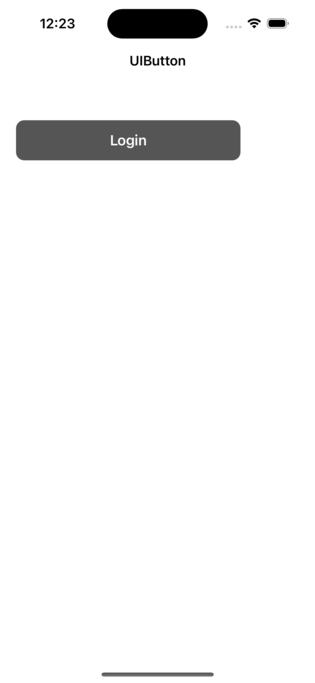
您可以根據需要更改 x、y、寬度和高度,也可以根據您的要求更改按鈕標題和操作。
結論
您可以透過多種方式以程式設計方式建立按鈕。您可以建立一個按鈕物件,並在需要時在程式碼中對其進行自定義。此外,可以使用 lazy 關鍵字建立按鈕物件。UIButton 類提供了在程式碼中稍後設定框架的靈活性。您可以在上面的示例中看到如何設定按鈕的框架。
使用 lazy 關鍵字是最推薦的方法。您可以在單個塊中建立一個按鈕物件並新增任何自定義項。此外,您還可以在同一個塊中新增目標。

1K+ 次瀏覽
