
 資料結構
資料結構 網路
網路 關係資料庫管理系統
 作業系統
作業系統 Java
Java MS Excel
 iOS
iOS HTML
HTML CSS
CSS Android
 Python
 C 程式設計
 C++
C++ C#
C# MongoDB
 MySQL
MySQL Javascript
 PHP
PHP 物理學
物理學 化學
化學 生物學
生物學 數學
數學 英語
英語 經濟學
經濟學 心理學
心理學 社會學
社會學 時尚研究
時尚研究 法律研究
法律研究如何在 Linux 上為 Oracle Virtual Box 新增磁碟儲存
本文面向那些希望在 Virtual Box 上安裝軟體但遇到磁碟空間不足問題的使用者。同時,您可能也需要透過建立新的、更大的驅動器來擴充套件現有驅動器,從而為 Oracle VirtualBox 新增磁碟儲存。以下是透過為 Virtual Box 新增虛擬驅動器來分配更多空間的步驟,虛擬機器正在執行 Red Hat Linux 6.7。
新增虛擬驅動器
開啟 Oracle VM Virtual Box 管理器,選擇要為其新增新磁碟的 Virtual Box,然後點選**設定**。

點選儲存,選擇硬碟,然後點選新增硬碟。
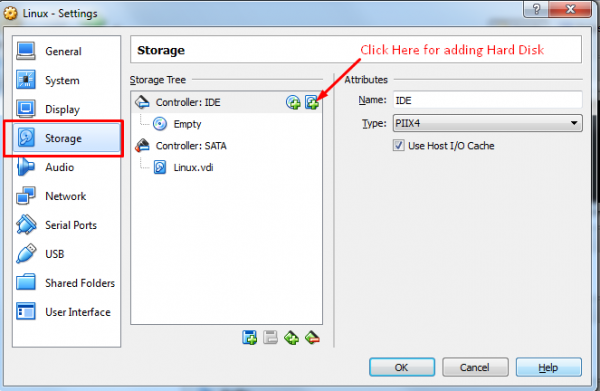
點選**建立新磁碟**。

按照螢幕上的說明建立新的硬碟驅動器。您也可以按照嚮導的提示,輸入新硬碟的名稱以及您希望建立磁碟檔案的位置。在 Windows 上提供您希望建立驅動器的目錄。
當嚮導完成時,點選**確定**關閉設定。
新驅動器的分割槽
通常,系統中的磁碟驅動器會分配以 hd 或 sd 開頭的裝置名稱,後跟一個字母表示裝置號。例如,第一個裝置可能是 /dev/sda,第二個是 /dev/sdb,依此類推。
執行以下命令列出可用的硬碟驅動器
# ls /dev/sd*
/dev/sda /dev/sda1 /dev/sda2 /dev/sdb
從以上輸出可以看到,新硬碟已分配給裝置檔案 /dev/sdb。目前驅動器沒有顯示任何分割槽(因為我們還沒有建立任何分割槽)。
建立 Linux 分割槽
下一步是在新磁碟驅動器上建立一個或多個 Linux 分割槽。這可以透過使用 fdisk 實用程式來實現,該實用程式將要分割槽的裝置作為命令列引數。
# fdisk /dev/sdb
Device contains neither a valid DOS partition table, nor Sun, SGI or OSF disklabel
Building a new DOS disklabel with disk identifier 0xd1082b01.
Changes will remain in memory only, until you decide to write them.
After that, of course, the previous content won't be recoverable.
Warning: invalid flag 0x0000 of partition table 4 will be corrected by w(rite)

WARNING: DOS-compatible mode is deprecated. It's strongly recommended to
   switch off the mode (command 'c') and change display units to
   sectors (command 'u').
Command (m for help):
As instructed, switch off DOS compatible mode and change the units to sectors by entering the c and u commands:
Command (m for help): c
DOS Compatibility flag is not set
Command (m for help): u
Changing display/entry units to sectors
In order to view the current partitions on the disk enter the p command:
Command (m for help): p

Disk /dev/sdb: 34.4 GB, 34359738368 bytes
255 heads, 63 sectors/track, 4177 cylinders
Units = cylinders of 16065 * 512 = 8225280 bytes
Sector size (logical/physical): 512 bytes / 512 bytes
I/O size (minimum/optimal): 512 bytes / 512 bytes
Disk identifier: 0xd1082b01
Device Boot    Start    End    Blocks    Id    System
從以上 fdisk 輸出可以看到,磁碟目前沒有分割槽,因為它之前未使用過。下一步是在磁碟上建立一個新分割槽,此任務透過輸入 n(表示新分割槽)和 p(表示主分割槽)來執行。
Command (m for help): n
Command action
   e    extended
   p    primary partition (1-4)
   p
Partition number (1-4):
我們只能建立一個分割槽,可以命名為**分割槽 1**。接下來,我們需要指定分割槽開始和結束的位置。由於這是第一個分割槽,我們可以從第一個可用扇區開始,並且由於我們希望使用整個磁碟,因此可以將最後一個扇區指定為結束。請注意,如果您希望建立多個分割槽 - 您甚至可以按扇區、位元組、千位元組或兆位元組指定每個分割槽的大小。
Partition number (1-4): 1
First sector (2048-67108863, default 2048):
Using default value 2048
Last sector, +sectors or +size{K,M,G} (2048-67108863, default 67108863):
Using default value 67108863
Now that we have specified the partition we need to write it to the disk using the w command:
Command (m for help): w
The partition table has been altered!
Calling ioctl() to re-read partition table.
Syncing disks.
If we now look at the devices again we will see that the new partition is visible as /dev/sdb1:
# ls /dev/sd*
/dev/sda /dev/sda1 /dev/sda2 /dev/sdb /dev/sdb1
下一步是在我們的新分割槽上建立一個檔案系統。
在 RHEL 6.7 磁碟分割槽上建立檔案系統
我們現在安裝了一個新磁碟,RHEL 6.7/CentOS 可以看到它,並且我們在磁碟上配置了一個 Linux 分割槽。下一步是在分割槽上建立一個 Linux 檔案系統,以便作業系統可以使用它來儲存檔案和資料。在分割槽上建立檔案系統的最簡單方法是使用**mkfs.ext4**實用程式,它將標籤和分割槽裝置作為引數。
# /sbin/mkfs.ext4 -L /backup /dev/sdb1
mke2fs 1.41.12 (17-May-2010)
Filesystem label=/backup
OS type: Linux
Block size=4096 (log=2)
Fragment size=4096 (log=2)
Stride=0 blocks, Stripe width=0 blocks
2097152 inodes, 8388352 blocks
419417 blocks (5.00%) reserved for the super user
First data block=0
Maximum filesystem blocks=4294967296
256 block groups
32768 blocks per group, 32768 fragments per group
8192 inodes per group
Superblock backups stored on blocks:
   32768, 98304, 163840, 229376, 294912, 819200, 884736, 1605632, 2654208,
   4096000, 7962624
Writing inode tables: done
Creating journal (32768 blocks): done
Writing superblocks and filesystem accounting information: done
此檔案系統會在 36 次掛載或 180 天后自動檢查,以先發生者為準。
使用 tune2fs -c 或 -i 覆蓋。
掛載檔案系統
現在我們已經在新磁碟驅動器的 Linux 分割槽上建立了一個新的檔案系統,我們需要掛載它才能訪問它。為此,我們需要建立一個**掛載點**。掛載點只是一個目錄或資料夾,檔案系統將掛載到其中。
在本例中,我們將建立一個** /backup **目錄以匹配我們的檔案系統標籤(儘管這兩個值不必匹配)。
# mkdir /backup
然後可以使用 mount 命令手動掛載檔案系統。
# mount /dev/sdb1 /backup
執行不帶任何引數的 mount 命令將顯示我們所有當前掛載的檔案系統(包括我們的新檔案系統)。
# mount
/dev/mapper/vg_rhel6-lv_root on / type ext4 (rw)
proc on /proc type proc (rw)
sysfs on /sys type sysfs (rw)
devpts on /dev/pts type devpts (rw,gid=5,mode=620)
tmpfs on /dev/shm type tmpfs (rw,rootcontext="system_u:object_r:tmpfs_t:s0")
/dev/sda1 on /boot type ext4 (rw)
none on /proc/sys/fs/binfmt_misc type binfmt_misc (rw)
sunrpc on /var/lib/nfs/rpc_pipefs type rpc_pipefs (rw)
/dev/sr0 on /media/RHEL_6.0 x86_64 Disc 1 type iso9660 (ro,nosuid,nodev,uhelper=udisks,uid=500,gid=500,iocharset=utf8,mode=0400,dmode=0500)
/dev/sdb1 on /backup type ext4 (rw)
配置 RHEL 6.7 自動掛載檔案系統
為了配置系統以便在啟動時自動掛載新磁碟,我們需要在** /etc/fstab 檔案**中新增一個條目。
以下是示例配置檔案,其中顯示了配置為自動掛載我們的 /backup 分割槽的 fstab 檔案。
# Vi /etc/fstab
/dev/mapper/vg_rhel6-lv_root /                   ext4       defaults       1 1
UUID=4a9886f5-9545-406a-a694-04a60b24df84 /boot                ext4       defaults 1 2
/dev/mapper/vg_rhel6-lv_swap swap                swap       defaults          0 0
tmpfs                   /dev/shm             tmpfs    defaults          0 0
devpts                  /dev/pts             devpts   gid=5,mode=620    0 0
sysfs                   /sys                 sysfs    defaults          0 0
proc                    /proc                proc     defaults          0 0
LABEL=/backup           /backup              ext4     defaults          1 2
結論
成功配置和設定後,您的 VirtualBox 現在擁有更多空間。我們可以新增任意數量的硬碟,透過以上步驟,為 Linux 機器增加儲存不同型別儲存的空間。

17K+ 瀏覽量
