
 資料結構
資料結構 網路
網路 關係資料庫管理系統 (RDBMS)
 作業系統
作業系統 Java
Java MS Excel
 iOS
iOS HTML
HTML CSS
CSS Android
 Python
 C語言程式設計
 C++
C++ C#
C# MongoDB
 MySQL
MySQL Javascript
 PHP
PHP 物理學
物理學 化學
化學 生物學
生物學 數學
數學 英語
英語 經濟學
經濟學 心理學
心理學 社會學
社會學 時尚研究
時尚研究 法學研究
法學研究隱藏或移除Python Tkinter中的選單欄
Tkinter 是一個功能強大且流行的 Python GUI(圖形使用者介面)工具包。它提供了一套小部件和函式,用於建立視覺上吸引人且互動式的應用程式。任何 GUI 應用程式的一個重要組成部分是選單欄,它通常包含允許使用者導航和與應用程式互動的選單和命令。但是,在某些情況下,您可能希望完全隱藏或移除選單欄。在本文中,我們將探討如何在 Tkinter Python 中實現這一點。
預設情況下,Tkinter 在應用程式視窗頂部建立一個選單欄,其中包括標準的“檔案”、“編輯”、“檢視”和其他選單。選單欄可用於方便地訪問各種應用程式功能。但是,在某些情況下,您可能希望隱藏或移除它以建立更簡潔或更專業的使用者介面。
要在 Tkinter 中隱藏或移除選單欄,我們需要了解典型 Tkinter 應用程式的結構。Tkinter 使用分層結構,其中選單欄是應用程式主視窗的一部分。我們可以使用主視窗物件的“menu”屬性訪問和修改選單欄。
首先,讓我們匯入必要的模組並建立一個基本的 Tkinter 視窗:
#Import the necessary libraries
import tkinter as tk
#Create the Tkinter application
root = tk.Tk()
# Set the geometry of Tkinter Frame
root.geometry("720x250")
#Set the title of Tkinter Frame
root.title("Hide or Remove Menubar")
現在,讓我們建立一個帶有一些選單的選單欄,並將其新增到主視窗:
# Create a menubar
menubar = tk.Menu(root)

# Add a menu to the menubar
file_menu = tk.Menu(menubar, tearoff=0)
file_menu.add_command(label="New")
file_menu.add_command(label="Open")
file_menu.add_separator()
file_menu.add_command(label="Exit", command=root.quit)

edit_menu = tk.Menu(menubar, tearoff=0)
edit_menu.add_command(label="Cut")
edit_menu.add_command(label="Copy")
edit_menu.add_command(label="Paste")

menubar.add_cascade(label="File", menu=file_menu)
menubar.add_cascade(label="Edit", menu=edit_menu)
# Set the menubar on the main window
root.config(menu=menubar)
在上面的程式碼中,我們使用 Menu 類建立一個選單欄,並使用 config(menu=menubar) 方法將其與根視窗關聯。我們還建立了兩個選單“檔案”和“編輯”,並使用 add_cascade 方法將其作為級聯選單新增到選單欄。每個選單都是使用 Menu 類建立的,並使用 add_command 方法填充命令。
現在我們已經建立了選單欄,讓我們探討如何隱藏或移除它。
要完全從視窗中移除選單欄,我們需要使用 root.config 方法並將 menu 屬性設定為“ ”:
# Remove the menubar
root.config(menu="")
透過將 menu 屬性設定為“ ”,我們從視窗中分離選單欄,從而有效地將其移除。當您想要建立一個沒有任何基於選單的互動的自定義使用者介面時,這種方法非常適合。
需要注意的是,一旦選單欄被隱藏或移除,使用者將無法再訪問它包含的選單和命令。因此,如果您隱藏或移除選單欄,請確保提供訪問其提供功能的替代方法。這可能包括鍵盤快捷鍵、上下文選單、工具欄按鈕或任何其他適合您的應用程式的使用者介面元素。
示例
讓我們將所有內容放在一起,看看隱藏和移除選單欄的完整程式碼:
#Import the necessary libraries
import tkinter as tk
#Create the Tkinter application
root = tk.Tk()
# Set the geometry of Tkinter Frame
root.geometry("720x250")
#Set the title of Tkinter Frame
root.title("Hide or Remove Menubar")

# Create a menubar
menubar = tk.Menu(root)

# Add a menu to the menubar
file_menu = tk.Menu(menubar, tearoff=0)
file_menu.add_command(label="New")
file_menu.add_command(label="Open")
file_menu.add_separator()
file_menu.add_command(label="Exit", command=root.quit)

edit_menu = tk.Menu(menubar, tearoff=0)
edit_menu.add_command(label="Cut")
edit_menu.add_command(label="Copy")
edit_menu.add_command(label="Paste")

menubar.add_cascade(label="File", menu=file_menu)
menubar.add_cascade(label="Edit", menu=edit_menu)
# Set the menubar on the main window
root.config(menu=menubar)

# Function to remove the menubar
def remove_func():
    root.config(menu="")

remove_button = tk.Button(root, text="Remove/Hide", command=remove_func, width=10, height=2)
remove_button.pack()
# Run the Tkinter event loop
root.mainloop()
輸出
執行上述程式碼將顯示一個包含選單欄的 Tkinter 視窗,選單欄有兩個選單項,即“檔案”和“編輯”。
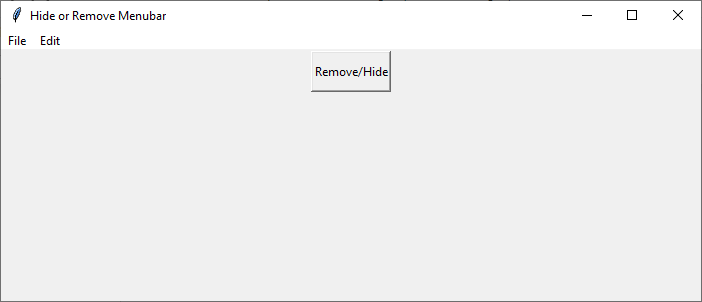
在上面的程式碼中,我們還建立了一個名為“移除/隱藏”的按鈕。單擊該按鈕時,它將隱藏選單欄,如下所示:

結論
Tkinter 使開發人員能夠靈活地管理 Python GUI 應用程式中的選單欄。無論您需要暫時隱藏它還是永久移除它,Tkinter 都提供了簡單的方法來實現您所需的使用者介面設計。透過明智地使用這些技術,您可以建立符合使用者需求的自定義和直觀的應用程式。利用 Tkinter 的功能,您可以建立視覺上吸引人的介面,同時確保無縫的功能和令人滿意的使用者體驗。利用 Tkinter 的功能來最佳化選單欄並提升 Python 應用程式的整體可用性。

648 次瀏覽
