
 資料結構
資料結構 網路
網路 關係資料庫管理系統 (RDBMS)
 作業系統
作業系統 Java
Java MS Excel
 iOS
iOS HTML
HTML CSS
CSS Android
 Python
 C語言程式設計
 C++
C++ C#
C# MongoDB
 MySQL
MySQL Javascript
 PHP
PHP 物理學
物理學 化學
化學 生物學
生物學 數學
數學 英語
英語 經濟學
經濟學 心理學
心理學 社會學
社會學 服裝設計
服裝設計 法學
法學使用Java解釋OpenCV中的形態學閉運算。
形態學運算是一組根據給定形狀處理影像的運算。腐蝕和膨脹是兩種基本的形態學運算。
在膨脹過程中,額外的畫素被新增到影像邊界。
在腐蝕過程中,額外的畫素從影像邊界移除。
新增/移除的畫素總數取決於所用結構元素的尺寸。可以使用`erode()`和`dilate()`方法分別執行腐蝕和膨脹運算。
除了膨脹之外,OpenCV還提供更多形態學變換,例如開運算、閉運算、形態學梯度、頂帽、黑帽。
形態學閉運算
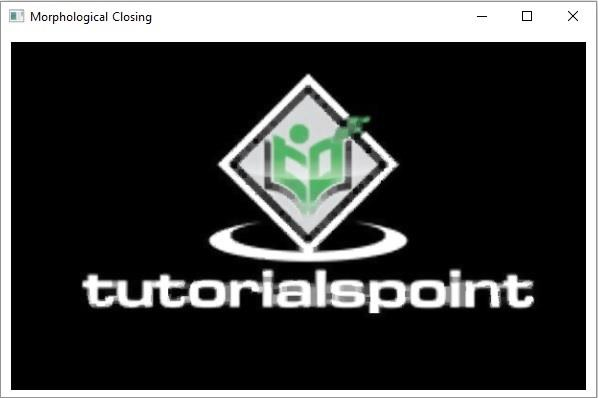
這是一種等效於對影像進行膨脹然後腐蝕所得影像的運算。使用此方法,可以去除/填充影像中的小孔。簡而言之,形態學閉運算用於去除影像噪聲。
可以使用**`morphologyEx()`**方法將其應用於影像。此方法接受:
兩個Mat物件,分別表示源影像和目標影像。
一個整數變數,表示形態學運算的型別。
一個Mat物件,表示核矩陣。
要將形態學閉運算應用於影像,需要透過傳遞**`Imgproc.MORPH_CLOSE`**作為(第三個)引數來呼叫上述方法,以及源、目標和核矩陣。
示例
import java.awt.Image;
import java.awt.image.BufferedImage;
import java.io.IOException;
import javafx.application.Application;
import javafx.embed.swing.SwingFXUtils;
import javafx.scene.Group;
import javafx.scene.Scene;
import javafx.scene.image.ImageView;
import javafx.scene.image.WritableImage;
import javafx.stage.Stage;
import org.opencv.core.Core;
import org.opencv.core.CvType;
import org.opencv.core.Mat;
import org.opencv.highgui.HighGui;
import org.opencv.imgcodecs.Imgcodecs;
import org.opencv.imgproc.Imgproc;
public class MorphologicalClosing extends Application {
   public void start(Stage stage) throws IOException {
      //Loading the OpenCV core library
      System.loadLibrary( Core.NATIVE_LIBRARY_NAME );
      //Reading image data
      String file ="D:\Images\morph_input2.jpg";
      Mat src = Imgcodecs.imread(file);
      //Creating destination matrix
      Mat dst = new Mat(src.rows(), src.cols(), src.type());
      //Preparing the kernel matrix object
      Mat kernel = Mat.ones(5,5, CvType.CV_32F);
      //Applying dilate on the Image
      Imgproc.morphologyEx(src, dst, Imgproc.MORPH_CLOSE, kernel);
      //Converting matrix to JavaFX writable image
      Image img = HighGui.toBufferedImage(dst);
      WritableImage writableImage= SwingFXUtils.toFXImage((BufferedImage) img, null);
      //Setting the image view
      ImageView imageView = new ImageView(writableImage);
      imageView.setX(10);
      imageView.setY(10);
      imageView.setFitWidth(575);
      imageView.setPreserveRatio(true);
      //Setting the Scene object
      Group root = new Group(imageView);
      Scene scene = new Scene(root, 595, 400);
      stage.setTitle("Dilation Example");
      stage.setScene(scene);
      stage.show();
   }
   public static void main(String args[]) {
      launch(args);
   }
}
輸入影像

輸出
執行上述程式後,將生成以下輸出:

更新於:2020年4月13日
381 次瀏覽

廣告