
 資料結構
資料結構 網路
網路 關係資料庫管理系統(RDBMS)
 作業系統
作業系統 Java
Java MS Excel
 iOS
iOS HTML
HTML CSS
CSS Android
 Python
 C語言程式設計
 C++
C++ C#
C# MongoDB
 MySQL
MySQL Javascript
 PHP
PHP 物理
物理 化學
化學 生物
生物 數學
數學 英語
英語 經濟學
經濟學 心理學
心理學 社會學
社會學 時尚研究
時尚研究 法學研究
法學研究使用pack幾何管理器建立自動隱藏Tkinter畫布捲軸
Tkinter是Python的標準GUI工具包,它提供了一套多功能的工具來構建圖形使用者介面。在Tkinter畫布中處理大量資料或內容時,實現捲軸對於有效的導航至關重要。在本文中,我們將探討在Tkinter畫布中自動隱藏捲軸的概念,特別是使用pack幾何管理器。自動隱藏捲軸透過僅在需要時出現來增強使用者體驗,提供了一個乾淨整潔的介面。
自動隱藏捲軸的概念
自動隱藏捲軸是一個使用者友好的功能,它根據Tkinter畫布中的內容動態調整捲軸的可見性。其目標是僅當內容超過可見區域時才顯示捲軸,從而最佳化螢幕空間並減少視覺干擾。實現此功能需要監控畫布尺寸並智慧地切換捲軸的可見性。Tkinter中的pack幾何管理器允許直接組織和放置視窗部件,使其成為實現自動隱藏捲軸的合適選擇。
分步實施
讓我們看看使用pack幾何管理器在Tkinter畫布中實現自動隱藏捲軸的方法。
步驟1:設定Tkinter畫布
讓我們首先使用pack幾何管理器建立一個帶有Canvas視窗部件的Tkinter視窗。我們將使用滾動區域配置畫布,新增水平和垂直捲軸,並將它們的可見性繫結到畫布尺寸。此外,我們將設定事件繫結以在畫布調整大小事件或滑鼠滾輪滾動時觸發操作。
import tkinter as tk

def on_canvas_configure(event):
   ----------
   ----------
def check_scrollbar_visibility():
   ----------
   ----------

def on_mousewheel(event):
   ----------
   ----------
# Create Tkinter window
root = tk.Tk()
root.title("Auto-Hide Scrollbars Using Pack Geometry")
# Set window dimensions
root.geometry("720x250")

# Create a canvas
canvas = tk.Canvas(root, bg="white", width=300, height=200, scrollregion=(0, 0, 500, 500))
canvas.pack(expand=True, fill="both")

# Create vertical scrollbar
y_scrollbar = tk.Scrollbar(root, orient="vertical", command=canvas.yview)

# Create horizontal scrollbar
x_scrollbar = tk.Scrollbar(root, orient="horizontal", command=canvas.xview)

# Configure canvas to use the scrollbars
canvas.configure(yscrollcommand=y_scrollbar.set, xscrollcommand=x_scrollbar.set)

# Bind events
canvas.bind("<Configure>", on_canvas_configure)
canvas.bind("<MouseWheel>", on_mousewheel)

# Initial check for scrollbar visibility
check_scrollbar_visibility()

# Add some content to the canvas
for i in range(50):
   canvas.create_text(20, 20 * i, text=f"Item {i+1}", anchor="w")

# Start the Tkinter event loop
root.mainloop()
步驟2:實現自動隱藏捲軸
自動隱藏捲軸的核心在於根據畫布內容動態確定何時顯示或隱藏它們。on_canvas_configure函式在畫布調整大小事件上更新滾動區域,check_scrollbar_visibility函式根據畫布尺寸與內容大小智慧地切換捲軸的可見性。
def on_canvas_configure(event):
   canvas.configure(scrollregion=canvas.bbox("all"))
   check_scrollbar_visibility()

def check_scrollbar_visibility():
   # Check and set visibility for vertical scrollbar
   if canvas.winfo_reqheight() < canvas.winfo_height():
      y_scrollbar.pack_forget()  # Hide the scrollbar
   else:
      y_scrollbar.pack(side="right", fill="y")

   # Check and set visibility for horizontal scrollbar
   if canvas.winfo_reqwidth() < canvas.winfo_width():
      x_scrollbar.pack_forget()  # Hide the scrollbar
   else:
      x_scrollbar.pack(side="bottom", fill="x")
步驟3:處理使用者互動
為了增強使用者互動,我們實現了使用滑鼠滾輪的滾動功能。on_mousewheel函式繫結到Canvas視窗部件,允許使用者使用滑鼠滾輪垂直滾動。
def on_mousewheel(event):
   canvas.yview_scroll(-1 * (event.delta // 120), "units")
步驟4:啟動Tkinter事件迴圈
最後,我們需要啟動Tkinter事件迴圈,如下所示:
root.mainloop()
示例
讓我們將這些步驟組合在一起,以獲得完整的實現程式碼:
import tkinter as tk

def on_canvas_configure(event):
   canvas.configure(scrollregion=canvas.bbox("all"))
   check_scrollbar_visibility()

def check_scrollbar_visibility():
   # Check and set visibility for vertical scrollbar
   if canvas.winfo_reqheight() < canvas.winfo_height():
      y_scrollbar.pack_forget()  # Hide the scrollbar
   else:
      y_scrollbar.pack(side="right", fill="y")

   # Check and set visibility for horizontal scrollbar
   if canvas.winfo_reqwidth() < canvas.winfo_width():
      x_scrollbar.pack_forget()  # Hide the scrollbar
   else:
      x_scrollbar.pack(side="bottom", fill="x")

def on_mousewheel(event):
   canvas.yview_scroll(-1 * (event.delta // 120), "units")

# Create Tkinter window
root = tk.Tk()
root.title("Auto-Hide Scrollbars Using Pack Geometry")
# Set window dimensions
root.geometry("720x250")

# Create a canvas
canvas = tk.Canvas(root, bg="white", width=300, height=200, scrollregion=(0, 0, 500, 500))
canvas.pack(expand=True, fill="both")

# Create vertical scrollbar
y_scrollbar = tk.Scrollbar(root, orient="vertical", command=canvas.yview)

# Create horizontal scrollbar
x_scrollbar = tk.Scrollbar(root, orient="horizontal", command=canvas.xview)

# Configure canvas to use the scrollbars
canvas.configure(yscrollcommand=y_scrollbar.set, xscrollcommand=x_scrollbar.set)

# Bind events
canvas.bind("<Configure>", on_canvas_configure)
canvas.bind("<MouseWheel>", on_mousewheel)

# Initial check for scrollbar visibility
check_scrollbar_visibility()

# Add some content to the canvas
for i in range(50):
   canvas.create_text(20, 20 * i, text=f"Item {i+1}", anchor="w")

# Start the Tkinter event loop
root.mainloop()
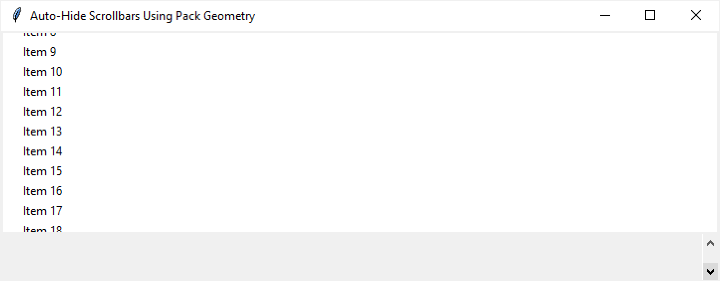
此示例演示了一個帶有畫布的Tkinter視窗,包括垂直和水平捲軸,以及根據畫布內容檢查和調整捲軸可見性的函式。
輸出
結論
總之,使用pack幾何管理器將自動隱藏捲軸整合到Tkinter畫布中,為建立直觀且節省空間的介面提供了一種優雅的解決方案。分步指南以及Python程式碼闡明瞭實現細節,強調了Tkinter和pack幾何管理器之間的協同作用。透過採用這種方法,開發人員可以無縫最佳化螢幕空間,從而為Tkinter應用程式帶來完善且以使用者為中心的使用體驗。這種動態捲軸解決方案不僅簡化了對大量內容的導航,而且還有助於建立精緻美觀的圖形使用者介面。

335 次瀏覽
