
 資料結構
資料結構 網路
網路 關係型資料庫管理系統
 作業系統
作業系統 Java
Java MS Excel
 iOS
iOS HTML
HTML CSS
CSS Android
 Python
 C 程式設計
 C++
C++ C#
C# MongoDB
 MySQL
MySQL Javascript
 PHP
PHP 物理學
物理學 化學
化學 生物學
生物學 數學
數學 英語
英語 經濟學
經濟學 心理學
心理學 社會學
社會學 時尚研究
時尚研究 法律研究
法律研究在 Swift 中以程式設計方式更改 UIButton 的文字
要更改 Swift 中 UIButton 的文字,可以使用按鈕的 setTitle() 方法。此方法接受一個引數來為特定狀態設定按鈕標題。通常,我們使用普通按鈕狀態。
我們將透過以下步驟以程式設計方式更改按鈕的文字:
步驟 1 − 在此步驟中,我們將建立兩個按鈕(登入和條款與條件)並新增基本自定義。
步驟 2 − 在此步驟中,我們將更改登入按鈕的文字。
步驟 3 − 在此步驟中,我們將更改條款和條件按鈕的文字。
示例
在此示例中,我們將建立兩個按鈕。第一個用於設定普通文字,另一個用於設定屬性文字。在此步驟中,我們將新增和自定義按鈕。之後,我們將向這兩個按鈕新增約束。以下是程式碼。
import UIKit
class TestController: UIViewController {
   private let loginButton = UIButton()
   private let termsConditionButton = UIButton()
   override func viewDidLoad() {
      super.viewDidLoad()
      initialSetup()
   }
   private func initialSetup() {
      // basic setup
      view.backgroundColor = .white
      navigationItem.title = "UIButton"

      // login button customization
      loginButton.backgroundColor = UIColor.gray
      loginButton.setTitleColor(.white, for: .normal)
      loginButton.layer.cornerRadius = 8
      loginButton.clipsToBounds = true

      // terms and conditions button customization
      termsConditionButton.backgroundColor = UIColor.gray
      termsConditionButton.setTitleColor(.white, for: .normal)
      termsConditionButton.layer.cornerRadius = 8
      termsConditionButton.clipsToBounds = true

      // adding the constraints to login button
      view.addSubview(loginButton)
      loginButton.translatesAutoresizingMaskIntoConstraints = false
      loginButton.centerYAnchor.constraint(equalTo: view.centerYAnchor).isActive = true
      loginButton.centerXAnchor.constraint(equalTo: view.centerXAnchor).isActive = true
      loginButton.heightAnchor.constraint(equalToConstant: 50).isActive = true
      loginButton.widthAnchor.constraint(equalToConstant: 280).isActive = true

      // adding the constraints to the terms & conditions button
      view.addSubview(termsConditionButton)
      termsConditionButton.translatesAutoresizingMaskIntoConstraints = false
      termsConditionButton.centerXAnchor.constraint(equalTo: view.centerXAnchor).isActive = true
      termsConditionButton.heightAnchor.constraint(equalToConstant: 50).isActive = true
      termsConditionButton.widthAnchor.constraint(equalToConstant: 280).isActive = true
      termsConditionButton.topAnchor.constraint(equalTo: loginButton.bottomAnchor, constant: 30).isActive = true
   }
}
輸出
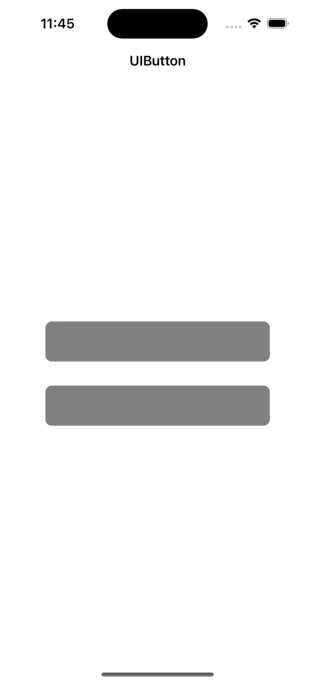
在上面的示例中,兩個按鈕都已透過程式設計約束自定義並新增到檢視中。現在,我們將設定文字。
更改登入按鈕的文字
在下面的示例中,我們將使用 setTitle() 方法更改文字。這是一個示例。
示例
private func initialSetup() {
   // other statements
   setLoginButtonTitle()
}
private func setLoginButtonTitle() {
   loginButton.setTitle("Login", for: .normal)
}
輸出
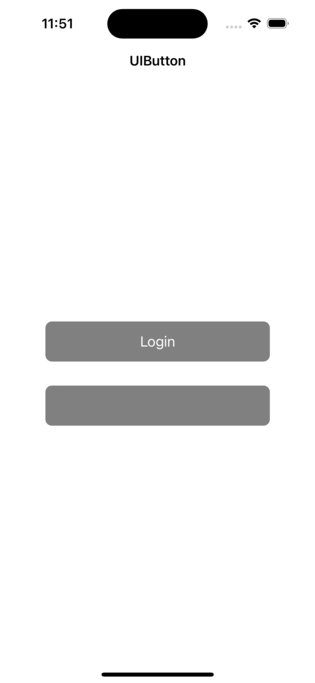
在上面的程式碼中,我們透過呼叫 setTitle() 方法設定按鈕的文字。在此方法中,我們傳遞要設定文字的按鈕狀態。這是因為按鈕元素中提供了不同的狀態。但大多數情況下,我們處理的是普通狀態。按鈕處於正常模式下的預設狀態。對於不同的狀態,將使用相同的方法來設定文字。
更改條款和條件按鈕的文字
在此示例中,我們將設定按鈕的屬性標題。這是一個示例。
示例
private func initialSetup() {
   // other statements
   setConditionsButtonTitle()
}
private func setConditionsButtonTitle() {
   termsConditionButton.backgroundColor = .clear
   let attributes: [NSAttributedString.Key: Any] = [
      .foregroundColor: UIColor.blue,
      .font: UIFont.systemFont(ofSize: 18, weight: .semibold),
      .underlineStyle: NSUnderlineStyle.single.rawValue
   ]
   let attributedText = NSAttributedString(string: "Terms & Conditions", attributes: attributes)
   termsConditionButton.setAttributedTitle(attributedText, for: .normal)
}
輸出
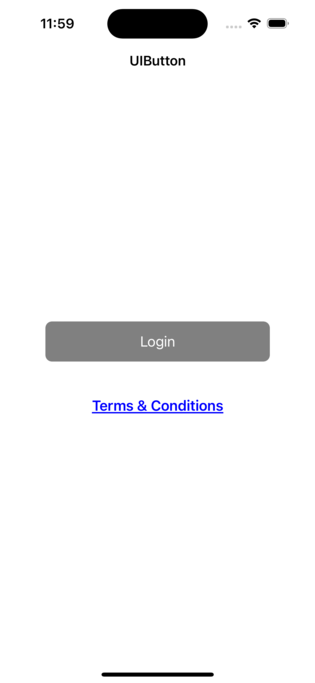
在上面的程式碼中,我們設定了按鈕的屬性標題。我們將前景色和下劃線樣式應用於按鈕。
結論
在本文中,您瞭解了設定文字和屬性文字的 setTitle() 方法。可以使用相同的方法應用文字。您可以使用相同的方法為不同的狀態設定標題。

更新於: 2023年2月28日
7K+ 瀏覽量

廣告