
 資料結構
資料結構 網路
網路 關係型資料庫管理系統
 作業系統
作業系統 Java
Java MS Excel
 iOS
iOS HTML
HTML CSS
CSS Android
 Python
 C語言程式設計
 C++
C++ C#
C# MongoDB
 MySQL
MySQL Javascript
 PHP
PHP 物理學
物理學 化學
化學 生物學
生物學 數學
數學 英語
英語 經濟學
經濟學 心理學
心理學 社會學
社會學 服裝設計
服裝設計 法律研究
法律研究Psensor Linux圖形化硬體溫度監控工具
一般來說,Linux管理員應該跟蹤計算機硬體效能問題或意外故障。有時,由於各種軟體問題(例如錯誤的顯示卡驅動程式、配置錯誤的風扇控制程式、故障的 CPU 頻率縮放守護程式等)可能會出現過熱問題。如果這些問題沒有及早發現,可能會變成嚴重威脅,可能導致硬體永久損壞。因此,密切關注過熱問題應該是您的首要任務。
Psensor 被認為是最簡單的應用程式之一,用於監控硬體溫度並從原始資料繪製即時分析,以便快速檢視。
Psensor 的功能
以下是 psensor 工具的一些關鍵屬性:
- 顯示主機板、CPU、GPU(Nvidia)、硬碟驅動器的溫度
- 顯示 CPU 風扇速度
- 能夠顯示**遠端伺服器**的**溫度**和風扇速度
- 可以檢測硬體裝置並以文字格式報告溫度
- 能夠使用警報聲音提醒關鍵溫度問題
- 易於使用,配置要求低
依賴項
Psensor 依賴於**lm-sensor** 和**hddtemp** 軟體包來獲取有關溫度和風扇速度的報告。要安裝這些軟體包,請使用以下命令:
# apt-get install lm-sensors hddtemp
以上命令需要**root許可權**。
示例輸出應如下所示:
Reading package lists... Done
Building dependency tree
Reading state information... Done
Suggested packages:
ksensors fancontrol sensord read-edid i2c-tools
The following NEW packages will be installed:
hddtemp lm-sensors
0 upgraded, 2 newly installed, 0 to remove and 0 not upgraded.
Need to get 137 kB of archives.
After this operation, 673 kB of additional disk space will be used.
Get:1 http://in.archive.ubuntu.com/ubuntu/ trusty/universe hddtemp amd64 0.3-beta15-52 [52.8 kB]
...
安裝 Psensor
要從 Linux 命令列工具安裝**Psensor**,請使用以下命令:
# apt-get install psensor
示例輸出應如下所示:
Reading package lists... Done
Building dependency tree
Reading state information... Done
The following extra packages will be installed:
psensor-common
The following NEW packages will be installed:
psensor psensor-common
0 upgraded, 2 newly installed, 0 to remove and 0 not upgraded.
Need to get 89.5 kB of archives.
After this operation, 715 kB of additional disk space will be used.
Do you want to continue? [Y/n]
Get:1 http://in.archive.ubuntu.com/ubuntu/ trusty/universe psensor-common all 0.8.0.3-1ubuntu3 [36.7 kB]
Get:2 http://in.archive.ubuntu.com/ubuntu/ trusty/universe psensor amd64 0.8.0.3-1ubuntu3 [52.8 kB]
....
下載最新的穩定版 Psensor(即版本 1.1.3)原始碼,並使用以下命令進行編譯:
# wget http://wpitchoune.net/psensor/files/psensor-1.1.3.tar.gz
# tar zxvf psensor-1.1.3.tar.gz
# cd psensor-1.1.3/
# ./configure
Psensor 的測試和使用
要從 Linux 命令列開啟**Psensor** 工具,請使用以下命令:
$ sensors
示例輸出應如下所示:
acpitz-virtual-0
Adapter:    Virtual device
temp1:     +46.5°C (crit = +99.0°C)
dell_smm-virtual-0
Adapter:        Virtual device
Processor Fan:  0 RPM
CPU:           +46.0°C
Ambient:       +49.0°C
Other:         +44.0°C
GPU:           +16.0°C
coretemp-isa-0000
Adapter: ISA adapter
Physical id 0:   +46.0°C (high = +100.0°C, crit = +100.0°C)
Core 0:          +46.0°C (high = +100.0°C, crit = +100.0°C)
Core 1:          +45.0°C (high = +100.0°C, crit = +100.0°C)
從上面,我們將能夠清楚地看到結果以及 CPU 和處理器風扇的溫度。
要從**桌面應用程式選單**執行 Psensor 工具以獲得圖形化檢視,輸出應如下所示:
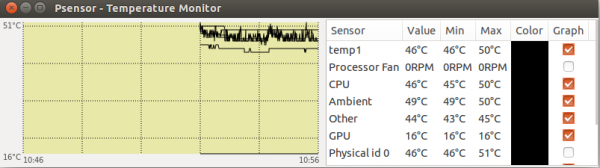
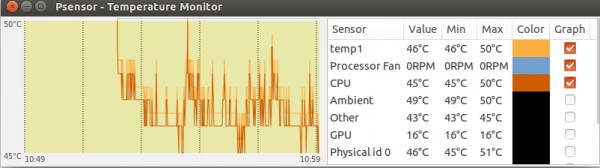
選中所有感測器以繪製圖形。您可能會注意到如下所示的顏色程式碼:
自定義 Psensor
轉到**選單 Psensor** → **首選項** → **介面**
根據您的需求選擇首選項。以下是“編輯首選項”視窗的示例螢幕截圖:

恭喜!現在,您已經瞭解了“如何在 Linux 中監控硬體溫度”。我們將在下一篇 Linux 文章中進一步學習此類命令。繼續關注!

更新於:2019年10月21日
317 次檢視

廣告