
 資料結構
資料結構 網路
網路 RDBMS
RDBMS 作業系統
作業系統 Java
Java MS Excel
 iOS
iOS HTML
HTML CSS
CSS Android
 Python
 C 程式設計
 C++
C++ C#
C# MongoDB
 MySQL
MySQL Javascript
 PHP
PHP 物理學
物理學 化學
化學 生物學
生物學 數學
數學 英語
英語 經濟學
經濟學 心理學
心理學 社會學
社會學 服裝設計
服裝設計 法律研究
法律研究Python Tkinter PDF 閱讀器
Python 以其大量的庫和擴充套件而聞名,每個庫和擴充套件都具有不同的功能、屬性和用例。為了處理 PDF 檔案,Python 提供了 **PyPDF2** 工具包,該工具包能夠處理、提取、合併多個頁面、加密 PDF 檔案等等。對於管理和操作 PDF 等檔案流,它是一個非常有用的包。使用 PyPDF2,我們將建立一個 Tkinter 應用程式,該應用程式透過要求使用者從本地目錄選擇並開啟 PDF 檔案來讀取 PDF 檔案。
要建立應用程式,我們將按照以下步驟操作:
透過鍵入以下命令安裝需求:
pip install PyPDF2
在命令列中。安裝完成後,使用 **import Pypdf2** 在 Notebook 中匯入庫。匯入 **filedialog** 以建立用於從本地目錄選擇檔案的對話方塊。
建立一個文字小部件,並向其中新增一些選單,例如開啟、清除和退出。
為每個選單定義一個函式。
定義一個開啟檔案的函式。在此函式中,首先,我們將使用 PdfFileReader(file) 讀取檔案。然後,從檔案中提取頁面。
將內容插入文字框。
定義退出選單的函式。
示例
#Import the required Libraries
import PyPDF2
from tkinter import *
from tkinter import filedialog
#Create an instance of tkinter frame
win= Tk()
#Set the Geometry
win.geometry("750x450")
#Create a Text Box
text= Text(win,width= 80,height=30)
text.pack(pady=20)
#Define a function to clear the text
def clear_text():
   text.delete(1.0, END)
#Define a function to open the pdf file
def open_pdf():
   file= filedialog.askopenfilename(title="Select a PDF", filetype=(("PDF    Files","*.pdf"),("All Files","*.*")))
   if file:
      #Open the PDF File
      pdf_file= PyPDF2.PdfFileReader(file)
      #Select a Page to read
      page= pdf_file.getPage(0)
      #Get the content of the Page
      content=page.extractText()
      #Add the content to TextBox
      text.insert(1.0,content)

#Define function to Quit the window
def quit_app():
   win.destroy()
#Create a Menu
my_menu= Menu(win)
win.config(menu=my_menu)
#Add dropdown to the Menus
file_menu=Menu(my_menu,tearoff=False)
my_menu.add_cascade(label="File",menu= file_menu)
file_menu.add_command(label="Open",command=open_pdf)
file_menu.add_command(label="Clear",command=clear_text)
file_menu.add_command(label="Quit",command=quit_app)
win.mainloop()
輸出
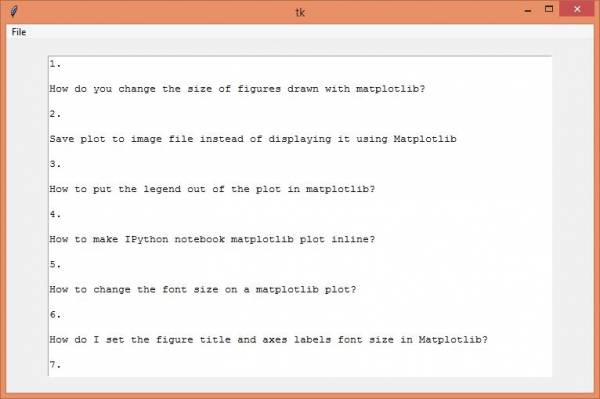
執行以上程式碼將顯示一個功能齊全的 tkinter 應用程式。它具有開啟檔案、清除檔案和退出以終止應用程式的功能。

單擊應用程式左上角的“檔案”選單,在文字框中開啟一個新的 PDF 檔案。

更新於: 2021年4月22日
6K+ 次瀏覽

廣告