
 資料結構
資料結構 網路
網路 RDBMS
RDBMS 作業系統
作業系統 Java
Java MS Excel
 iOS
iOS HTML
HTML CSS
CSS Android
 Python
 C 程式設計
 C++
C++ C#
C# MongoDB
 MySQL
MySQL Javascript
 PHP
PHP 物理學
物理學 化學
化學 生物學
生物學 數學
數學 英語
英語 經濟學
經濟學 心理學
心理學 社會學
社會學 時尚研究
時尚研究 法律研究
法律研究Java 程式旋轉影像
影像檔案可以順時針或逆時針旋轉。要旋轉影像,需要下載一個隨機影像檔案並將其儲存在系統上的任何資料夾中。此外,需要一個 .pdf 檔案來建立並在該特定 .pdf 檔案中開啟下載的影像後旋轉一定的角度。對於 90 度旋轉,新影像的錨點有助於我們使用 Java 中的平移變換執行旋轉操作。錨點是任何特定影像的中心。
使用 Java 旋轉影像的演算法
“AffineTransformOp”類是使用 Java 旋轉影像檔案的最簡單方法。使用者可以將影像資料載入為 Buffered Image,並使用錨點應用旋轉操作,以生成下一步的新 BufferedImage。始終建議對這些操作使用 JPEG 檔案,並使用 JDeli(具有廣泛範圍的檔案型別)。
要使用 Java 程式旋轉影像,編碼人員可以使用一些內建方法,例如 BufferedImage 類和 Color c。
使用此過程,我們需要將影像作為 BufferedImage 載入到 Java 中,然後使用相同的功能旋轉影像並將資料儲存到新檔案。
現在,讓我們討論一下演算法,以便更廣泛地理解上述操作。
步驟 1 - 讀取和寫入影像並匯入到表示目錄路徑的檔案類中。
步驟 2 - 使用 IOException:處理錯誤。
步驟 3 - 使用名為 BufferedImage 的物件來儲存特定影像,使用靜態方法將資料儲存在 RAM 中。
步驟 4 - 使用 ImageIO 執行讀寫操作。
步驟 5 - 使用 Graphics2D 類渲染 2D 形狀。
語法
Code declaration: public static Image rotate(Image image, double angle)
根據此語法,有一些步驟需要理解。
引數 -
影像 - 執行旋轉操作
角度 - 弧度旋轉
返回值 - 旋轉後的影像檔案
以下過程可用於使用 Java 程式旋轉影像檔案 -
步驟 1 - 將影像檔案作為 BufferedImage 載入到 Java 環境中,以在 Java 中載入影像檔案 -
BufferedImage image = ImageIO.read(new File("C:\path\to\image name.jpg"));
步驟 2 - 旋轉影像 90 度
要將影像檔案旋轉 90 度,請遵循以下程式碼 -
final double rads = Math.toRadians(90);
final Rotate rotate = new Rotate(90);
BufferedImage rotatedImage = rotate.apply(image);
步驟 3 - 儲存影像檔案
Use Java ImageIO
ImageIO.write(rotatedImage,"JPG",newFile("C:\path\to\rotatedImagename.jpg"));
示例
import java.awt.*;
import java.awt.image.BufferedImage;
public class Main {
   public static Image rotate(Image image, double angle) {
      BufferedImage bufImg = toBufferedImage(image);
      double sin = Math.abs(Math.sin(angle)), cos = Math.abs(Math.cos(angle));
      int w = bufImg.getWidth(), h = bufImg.getHeight();
      int neww = (int) Math.floor(w * cos + h * sin), newh = (int) Math.floor(h * cos + w * sin);
      BufferedImage result = new BufferedImage(neww, newh, Transparency.TRANSLUCENT);
      Graphics2D g = result.createGraphics();
      g.translate((neww - w) / 2, (newh - h) / 2);
      g.rotate(angle, w / 2, h / 2);
      g.drawRenderedImage(bufImg, null);
      g.dispose();
      return result;
   }
   public static BufferedImage toBufferedImage(Image image) {
      if (image instanceof BufferedImage) {
         return (BufferedImage) image;
      }
      BufferedImage buff = new BufferedImage(image.getWidth(null), image.getHeight(null),
      BufferedImage.TYPE_INT_ARGB);
      Graphics2D g = buff.createGraphics();
      g.drawImage(image, 0, 0, null);
      g.dispose();
      return buff;
   }
}
使用 BufferedImage 函式旋轉影像
透過使用 try-catch 塊方法,我們可以處理異常,因為它們可能會干擾程式碼的流程。
文件類 - 文件類主要用於呈現 pdf 文件。在此特定 Java 程式中,我們需要使用 ie.documentobj 函式建立一個文件類。此函式用於開啟和關閉 pdf 檔案。
PDF Writer 類 - 該函式支援 PDF、XML、RTF 檔案生成,以對影像檔案旋轉進行編碼。我們在此處使用的目錄函式是 fileOutputStream(),用於處理 Java 程式碼的檔案。
輸出函式 - output.pdf 是一個函式類,表示使用 Java 程式碼執行操作後的輸出。此函式有助於根據提供的輸入獲取輸出。
函式 -
image class.imgage.scaleToFit() - 該函式幫助我們在預設的輸入檔案中設定大小。
imageobj.setRotationDegrees() - 編碼人員可以使用此函式以某個角度旋轉影像。它可以用作我們使用的方法中的引數。
documentobj.open() - 該函式幫助使用者在操作時開啟檔案。
documentobj.close() - 用於關閉 .pdf 檔案。
示例
package JavaApplication29;
import java.io.FileOutputStream;
import com.itextpdf.text.Document;
import com.itextpdf.text.Image;
import com.itextpdf.text.PageSize;
import com.itextpdf.text.pdf.PdfWriter;

public class JavaApplication29 {
   public static void main(String[] args) {
      try {
         Document documentobj = new Document(PageSize.A4, 20, 20, 20, 20);
         PdfWriter.getInstance(documentobj, new FileOutputStream("output.pdf"));
         documentobj.open();
         Image imageobj = Image.getInstance("C:\Users\lenovo\Desktop\RDD\Logo Org.jpg");
         imageobj.scaleToFit(200f, 200f);
         imageobj.setRotationDegrees(90);
         documentobj.add(imageobj);
         documentobj.close();
         System.out.println("Task completed");
      } catch (Exception e) {
         System.out.println("Exception occurred");
      }
   }
}
輸出
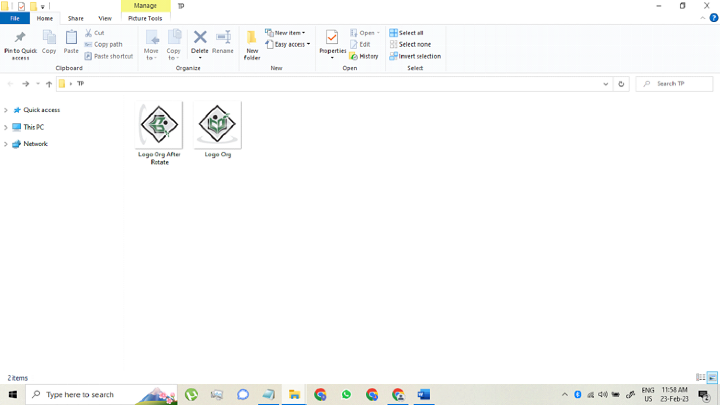
透過使用程式中編碼的可能方法,控制檯顯示尺寸和執行彈出視窗。旋轉後會儲存一個新影像。
結論
在本文中,上述討論的過程有助於旋轉影像檔案。對於 90 度旋轉,程式需要設定一個新影像,所有引數都需要更改。由於錨點保持在影像的中心,因此順時針和逆時針旋轉的操作相同。
2K+ 次檢視
