
 資料結構
資料結構 網路
網路 關係資料庫管理系統(RDBMS)
 作業系統
作業系統 Java
Java MS Excel
 iOS
iOS HTML
HTML CSS
CSS Android
 Python
 C語言程式設計
 C++
C++ C#
C# MongoDB
 MySQL
MySQL Javascript
 PHP
PHP 物理
物理 化學
化學 生物
生物 數學
數學 英語
英語 經濟學
經濟學 心理學
心理學 社會學
社會學 時尚研究
時尚研究 法學研究
法學研究使用JEditorPane顯示網頁的Java程式
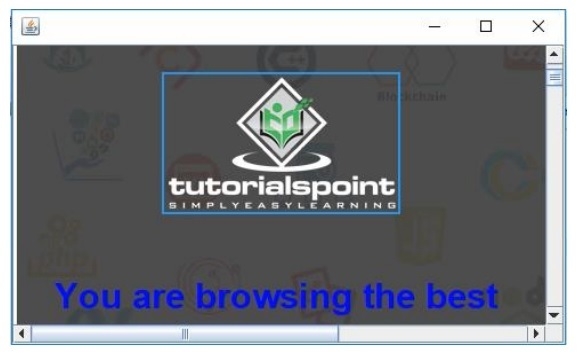
在這篇文章中,我們將學習如何使用Java在JEditorPane中顯示網頁。程式將載入指定的網頁,並在GUI視窗中顯示它。如果無法連線到網頁,則會顯示一條訊息指示連線問題。此設定可用於在Java應用程式中嵌入簡單的Web內容。
在JEditorPane中顯示網頁的步驟
以下是使用JEditorPane顯示網頁的步驟:
- 我們將從java.io包和javax.swing包匯入必要的類。
- 建立一個JEditorPane物件,作為顯示網頁的元件。
- 使用JEditorPane的setPage()方法載入指定的網頁URL。
- 新增異常處理以捕獲任何IOException(如果網頁載入失敗),在這種情況下顯示錯誤訊息為HTML。
- 將JEditorPane新增到JScrollPane中,以便如果網頁內容超過檢視區域,則可以滾動。
- 建立一個JFrame作為主應用程式視窗,並將包含JEditorPane的JScrollPane新增到其中。
- 設定視窗大小並使其可見以顯示網頁。
使用JEditorPane顯示網頁的Java程式
以下是JEditorPane中顯示網頁的示例:
import java.io.IOException;
import javax.swing.JEditorPane;
import javax.swing.JFrame;
import javax.swing.JScrollPane;
public class SwingDemo {
   public static void main(String[] args) {
      JEditorPane editorPane = new JEditorPane();
      try {
         editorPane.setPage("https://tutorialspoint.tw");
      } catch (IOException e) {
         editorPane.setContentType("text/html");
         editorPane.setText("<html>Connection issues!</html>");
      }
      JScrollPane pane = new JScrollPane(editorPane);
      JFrame frame = new JFrame();
      frame.setDefaultCloseOperation(JFrame.EXIT_ON_CLOSE);
      frame.getContentPane().add(pane);
      frame.setSize(500, 300);
      frame.setVisible(true);
   }
}
輸出
程式碼解釋
程式首先建立一個JEditorPane物件來儲存網頁。它嘗試使用editorPane.setPage()和URL設定頁面。如果出現IOException(例如連線問題),catch塊將透過將內容型別設定為HTML並顯示簡單的“連線問題!”訊息來處理它。
然後,JEditorPane被包裝在JScrollPane(pane)中,這為網頁內容提供了可滾動的檢視。建立一個JFrame(frame)來承載JScrollPane。當視窗關閉時,框架的預設關閉操作設定為退出應用程式,其大小設定為500x300畫素。最後,框架變為可見,顯示網頁或載入失敗時的錯誤訊息。

更新於:2024年11月13日
563 次瀏覽

廣告