
 資料結構
資料結構 網路
網路 關係資料庫管理系統 (RDBMS)
 作業系統
作業系統 Java
Java MS Excel
 iOS
iOS HTML
HTML CSS
CSS Android
 Python
 C語言程式設計
 C++
C++ C#
C# MongoDB
 MySQL
MySQL Javascript
 PHP
PHP 物理學
物理學 化學
化學 生物學
生物學 數學
數學 英語
英語 經濟學
經濟學 心理學
心理學 社會學
社會學 服裝設計
服裝設計 法學
法學如何在Android TextView中使用getChars()?
此示例演示如何在Android TextView中使用getChars()。
步驟1 - 在Android Studio中建立一個新專案,轉到檔案 ⇒ 新建專案,並填寫所有必需的詳細資訊以建立新專案。
步驟2 - 將以下程式碼新增到res/layout/activity_main.xml。
<?xml version="1.0" encoding="utf-8"?>
<LinearLayout xmlns:android="http://schemas.android.com/apk/res/android"
   xmlns:app="http://schemas.android.com/apk/res-auto"
   xmlns:tools="http://schemas.android.com/tools"
   android:layout_width="match_parent"
   android:layout_height="match_parent"
   android:orientation="vertical"
   android:gravity="center"
   tools:context=".MainActivity">
   <EditText
      android:id="@+id/name"
      android:layout_width="match_parent"
      android:hint="Enter name"
      android:layout_height="wrap_content" />
   <Button
      android:id="@+id/click"
      android:text="Click"
      android:layout_width="wrap_content"
      android:layout_height="wrap_content" />
   <TextView
      android:id="@+id/textview"
      android:layout_width="wrap_content"
      android:textSize="25sp"
      android:layout_height="wrap_content" />
</LinearLayout>
在上面的程式碼中,我們使用EditText作為名稱輸入框,當用戶點選按鈕時,它將獲取資料並返回從字串第9個字元到字串結尾的字元。
步驟3 - 將以下程式碼新增到src/MainActivity.java
package com.example.myapplication;

import android.os.Bundle;
import android.support.v7.app.AppCompatActivity;
import android.view.View;
import android.widget.Button;
import android.widget.EditText;
import android.widget.TextView;

public class MainActivity extends AppCompatActivity {
   EditText name;
   Button button;
   TextView text;

   @Override
   protected void onCreate(Bundle savedInstanceState) {
      super.onCreate(savedInstanceState);
      setContentView(R.layout.activity_main);
      name = findViewById(R.id.name);
      button = findViewById(R.id.click);
      text = findViewById(R.id.textview);
      button.setOnClickListener(new View.OnClickListener() {
         @Override
         public void onClick(View v) {
            if (!name.getText().toString().isEmpty()) {
               if (name.getText().toString().length() >= 0) {
                  char[] ch=new char[10];
                  name.getText().toString().getChars(9,name.getText().length(),ch,0);
                  text.setText(String.valueOf(ch));
               }
            } else {
               name.setError("Plz enter name");
            }
         }
      });
   }
}
讓我們嘗試執行您的應用程式。我假設您已將您的Android移動裝置連線到您的電腦。要在Android Studio中執行應用程式,開啟您的專案中的一個activity檔案,然後點選執行  工具欄中的圖示。選擇您的移動裝置作為選項,然後檢查您的移動裝置,它將顯示您的預設螢幕 -
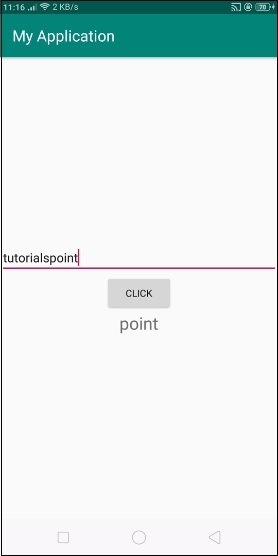
在上面的結果中,輸入字串“tutorialspoint”,它返回“point”,因為它將從第9個位置擷取字串到字串的結尾。
點選 這裡 下載專案程式碼

更新於:2019年7月30日
164 次瀏覽

廣告