
 資料結構
資料結構 網路
網路 關係資料庫管理系統
 作業系統
作業系統 Java
Java MS Excel
 iOS
iOS HTML
HTML CSS
CSS Android
 Python
 C 程式設計
 C++
C++ C#
C# MongoDB
 MySQL
MySQL Javascript
 PHP
PHP 物理
物理 化學
化學 生物
生物 數學
數學 英語
英語 經濟學
經濟學 心理學
心理學 社會學
社會學 服裝設計
服裝設計 法律研究
法律研究如何在 Python Tkinter 中停止事件傳播?
Tkinter 事件在處理小部件的不同物件和屬性以及應用程式的元素方面非常強大。例如滑鼠事件和鍵盤按鈕事件,可以透過將事件或回撥函式繫結到按鈕來處理。
假設我們正在建立一個應用程式,該應用程式具有兩個在畫布小部件中定義的物件的單擊事件。這兩個物件基本上是在畫布內定義的形狀(矩形和橢圓)。
我們可以執行諸如按鈕單擊事件之類的操作來驗證使用者是否單擊了矩形或橢圓。要執行此操作,我們可以使用 **tag_bind(shape, "Button", callback)** 函式,該函式在按鈕單擊特定形狀時觸發回撥事件。
示例
以下示例演示了此應用程式的工作原理。在這裡,我們建立了兩個函式,當用戶單擊特定形狀時,這些函式將列印資訊。
# Import the required libraries
from tkinter import *

# Create an instance of tkinter frame or window
win = Tk()

# Set the size of the window
win.geometry("700x350")

def oval_mouse_click(event):
   event.widget.tag_click = True
   print("You have clicked the oval")

def rec_mouse_click(event):
   event.widget.tag_click=True
   print("You have clicked the rectangle")

def canvas_click(event):
   if event.widget.tag_click:
      event.widget.tag_click = False
      return

# Create a canvas widget
canvas = Canvas(win)

# Create an oval inside the canvas
oval = canvas.create_oval(500 / 2 - 10, 400 / 2 - 10, 500 / 2 + 10, 400 / 2 + 10, fill='red')

# Create a rectangle inside the canvas
rectangle = canvas.create_rectangle(50, 0, 100, 50, fill='blue')

canvas.tag_bind(oval, "<Button-1>", oval_mouse_click)
canvas.tag_bind(rectangle, "<Button-1>", rec_mouse_click)
canvas.bind("<Button-1>", canvas_click)
canvas.pack()

win.mainloop()
輸出
執行以上程式碼將顯示一個帶有兩個形狀(矩形和橢圓)的視窗。單擊每個形狀將在主螢幕上列印訊息,驗證發生了哪個事件。
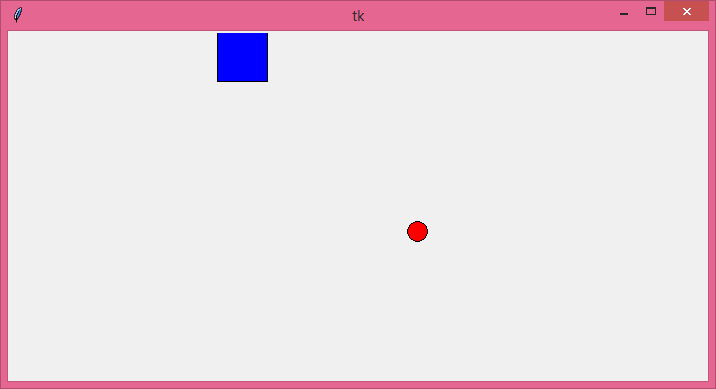
單擊圓形時,您將收到以下響應:
You have clicked the oval
單擊矩形時,您將收到以下響應:
You have clicked the rectangle
但是,單擊畫布時,您將不會收到任何響應,因為我們已設定 **"event.widget.tag_click = False"**。
示例
現在,讓我們在所有三個函式中註釋掉 **event.widget.tag_click** 部分。程式碼如下所示:
# Import the required libraries
from tkinter import *

# Create an instance of tkinter frame or window
win = Tk()

# Set the size of the window
win.geometry("700x350")

def oval_mouse_click(event):
   # event.widget.tag_click = True
   print("You have clicked the oval")

def rec_mouse_click(event):
   # event.widget.tag_click=True
   print("You have clicked the rectangle")

def canvas_click(event):
   # if event.widget.tag_click:
   #    event.widget.tag_click = False
   #    return
   print ("You have clicked the Canvas")

# Create a canvas widget
canvas = Canvas(win)

# Create an oval inside the canvas
oval = canvas.create_oval(500 / 2 - 10, 400 / 2 - 10, 500 / 2 + 10, 400 / 2 + 10, fill='red')

# Create a rectangle inside the canvas
rectangle = canvas.create_rectangle(50, 0, 100, 50, fill='blue')

canvas.tag_bind(oval, "<Button-1>", oval_mouse_click)
canvas.tag_bind(rectangle, "<Button-1>", rec_mouse_click)
canvas.bind("<Button-1>", canvas_click)
canvas.pack()

win.mainloop()
輸出
現在,當您單擊畫布上的某個物件(例如矩形物件)時,它將引發事件並呼叫 **rec_mouse_click(event)**,但它不會就此停止。它將進一步傳播事件並呼叫 **canvas_click(event)**。因此,您將獲得以下輸出:
You have clicked the rectangle
You have clicked the Canvas

更新於: 2023年9月5日
610 次檢視

廣告