
 資料結構
資料結構 網路
網路 關係型資料庫管理系統
 作業系統
作業系統 Java
Java MS Excel
 iOS
iOS HTML
HTML CSS
CSS Android
 Python
 C 程式設計
 C++
C++ C#
C# MongoDB
 MySQL
MySQL Javascript
 PHP
PHP 物理
物理 化學
化學 生物
生物 數學
數學 英語
英語 經濟學
經濟學 心理學
心理學 社會學
社會學 時尚研究
時尚研究 法律研究
法律研究如何在 C# 中設定 CheckBox 中複選標記的對齊方式?
在圖形使用者介面中,C# 中的 CheckBox 控制元件允許使用者選擇真/假或是/否選項。CheckBox 控制元件中的複選標記通常位於左側對齊,但在某些情況下,您可能希望將其移動到中心或右側。
CheckBox 中複選標記的對齊方式
TextAlign 屬性
要設定 CheckBox 控制元件中複選標記的對齊方式,需要使用 TextAlign 屬性。TextAlign 屬性是一個列舉,允許您設定控制元件內文字和複選標記的水平對齊方式。
語法
更改複選標記對齊方式的語法如下:
checkBox1.TextAlign = ContentAlignment.MiddleRight;
Left − 將文字和複選標記與控制元件的左邊緣對齊。
Right − 將文字和複選標記與控制元件的右邊緣對齊。
Center − 將文字和複選標記與控制元件的中心對齊。
示例
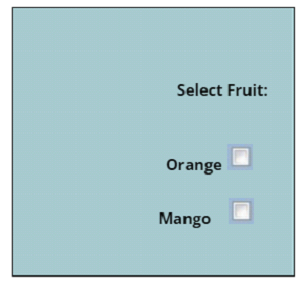
以下程式將複選標記對齊到複選框控制元件的右側
演算法
步驟 1 − 建立一個表單。
步驟 2 − 載入表單以將其顯示在螢幕上。
步驟 3 − 將複選框插入表單,然後在複選框中建立複選標記。在此步驟中,指定複選框的高度和寬度。此外,您還可以設定複選框的位置。
步驟 4 − 將複選標記對齊到複選框的右側。為此,我們將使用 checkalign 屬性並將其設定為 middleright,以便複選框與表單的右側對齊。
public partial class Form1 : Form {     //start creating the form
   public Form1()  {   //form 1 is created on this line
      InitializeComponent();    //initialize form 1 components
   }
   private void Form1_Load(object sender, EventArgs e) { //code to load form

      // Creating and setting the properties of label
      Label a = new Label();  //create new label for form
      a.Text = "Select fruit:"; //text shown on label
      a.Location = new Point(233, 111); //location to show label on form

      // Adding label to form
      this.Controls.Add(a);

      // Creating and setting the properties of CheckBox
      CheckBox acheckbox = new CheckBox();  //create first checkbox
      acheckbox.Height = 70;   //customize height of checkbox
      acheckbox.Width = 150;   //customize width of checkbox
      acheckbox.Location = new Point(229, 136);// set location of checkbox on form
      acheckbox.Text = "Orange";  //text to show on checkbox
      //set checkbox alignment to middleright
      acheckbox.CheckAlign = ContentAlignment.Middleright;

      // Adding checkbox to form
      this.Controls.Add(acheckbox);

      // Creating and setting the properties of CheckBox
      CheckBox zcheckbox = new CheckBox();//create second checkbox
      zcheckbox.Height = 70;  //set height of second checkbox
      zcheckbox.Width = 150;  //set width of second checkbox
      //set location of checkbox on form
      zcheckbox.Location = new Point(230, 174);
      zcheckbox.Text = "Mango";  //text to show on checkbox
      //set checkbox alignment to Middleright
      zcheckbox.CheckAlign = ContentAlignment.MiddleRight;

      // Adding checkbox to form
      this.Controls.Add(zcheckbox);
   }
}
輸出
結論
在本文中討論的示例中,複選框控制元件的 TextAlign 屬性設定為 mddleRight,並且文字設定為中間右側對齊。除了使用編碼技術之外,您還可以使用屬性視窗在 Visual Studio 中設定複選框對齊方式。
要在 Visual Studio 中更改對齊方式,請在表單設計器中選擇 CheckBox 控制元件,開啟“屬性”視窗,單擊“TextAlign”屬性,然後從下拉列表中選擇對齊方式。
這些屬性還允許您自定義複選框控制元件的佈局,例如寬度、高度等。最後,在 C# 中調整 CheckBox 控制元件中複選標記的對齊方式非常簡單。您可以使用 TextAlign 屬性或更改控制元件的佈局來更改 CheckBox 控制元件的外觀和功能,以滿足應用程式的需求。

374 次檢視
