
 資料結構
資料結構 網路
網路 關係型資料庫管理系統
 作業系統
作業系統 Java
Java MS Excel
 iOS
iOS HTML
HTML CSS
CSS Android
 Python
 C 程式設計
 C++
C++ C#
C# MongoDB
 MySQL
MySQL Javascript
 PHP
PHP 物理學
物理學 化學
化學 生物學
生物學 數學
數學 英語
英語 經濟學
經濟學 心理學
心理學 社會研究
社會研究 時尚研究
時尚研究 法律研究
法律研究如何在 Android 中從影像庫中選擇影像?
此示例演示瞭如何在 android 應用程式中從影像庫中選擇影像
第 1 步 − 在 Android Studio 中建立一個新專案,轉到“檔案 ⇒ 新專案”並填寫所有必需的詳細資訊以建立一個新專案。
第 2 步 − 向 res/layout/activity_main.xml 中新增以下程式碼
<?xml version="1.0" encoding="utf-8"?>
<LinearLayout
   xmlns:android="http://schemas.android.com/apk/res/android"
   android:orientation="vertical"
   android:layout_width="fill_parent"
   android:layout_height="fill_parent">
   <ImageView
      android:id="@+id/imageView"
      android:layout_width="fill_parent"
      android:layout_height="wrap_content"
      android:layout_weight="1"/>
   <Button
      android:id="@+id/buttonLoadPicture"
      android:layout_width="wrap_content"
      android:layout_height="wrap_content"
      android:layout_weight="0"
      android:text="Load Picture"
      android:layout_gravity="center"/>
</LinearLayout>
第 3 步 − 向 src/MainActivity.java 中新增以下程式碼
import android.app.Activity;
import android.content.Intent;
import android.net.Uri;
import android.os.Bundle;
import android.provider.MediaStore;
import android.view.View;
import android.widget.Button;
import android.widget.ImageView;
public class MainActivity extends Activity {
   ImageView imageView;
   Button button;
   private static final int PICK_IMAGE = 100;
   Uri imageUri;
   @Override
   public void onCreate(Bundle savedInstanceState) {
      super.onCreate(savedInstanceState);
      setContentView(R.layout.activity_main);
      imageView = (ImageView)findViewById(R.id.imageView);
      button = (Button)findViewById(R.id.buttonLoadPicture);
      button.setOnClickListener(new View.OnClickListener() {
         @Override
         public void onClick(View v) {
            openGallery();
         }
      });
   }
   private void openGallery() {
      Intent gallery = new Intent(Intent.ACTION_PICK, MediaStore.Images.Media.INTERNAL_CONTENT_URI);
      startActivityForResult(gallery, PICK_IMAGE);
   }
   @Override
   protected void onActivityResult(int requestCode, int resultCode, Intent data){
      super.onActivityResult(requestCode, resultCode, data);
      if (resultCode == RESULT_OK && requestCode == PICK_IMAGE){
         imageUri = data.getData();
         imageView.setImageURI(imageUri);
      }
   }
}
第 4 步 − 向 androidManifest.xm 中新增以下程式碼
<?xml version="1.0" encoding="utf-8"?>
<manifest xmlns:android="http://schemas.android.com/apk/res/android" package="app.com.sample">
   <uses-permission android:name="android.permission.READ_EXTERNAL_STORAGE"/>
   <application
      android:allowBackup="true"
      android:icon="@mipmap/ic_launcher"
      android:label="@string/app_name"
      android:roundIcon="@mipmap/ic_launcher_round"
      android:supportsRtl="true"
      android:theme="@style/AppTheme">
      <activity android:name=".MainActivity">
         <intent-filter>
            <action android:name="android.intent.action.MAIN" />
            <category android:name="android.intent.category.LAUNCHER" />
         </intent-filter>
      </activity>
   </application>
</manifest>
讓我們嘗試執行你的應用程式。我假設你已經將你的實際 Android 移動裝置與計算機連線。要透過 android studio 執行應用程式,請開啟專案的某個活動檔案並單擊工具欄上的執行  圖示。選擇你的移動裝置作為選項,然後檢視將顯示預設介面的移動裝置 −
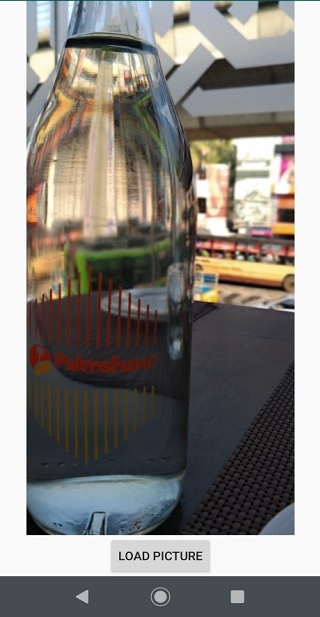
點選這裡下載專案程式碼。

更新於: 2019 年 8 月 2 日
4K+ 瀏覽量

廣告