
 資料結構
資料結構 網路
網路 關係型資料庫管理系統
 作業系統
作業系統 Java
Java MS Excel
 iOS
iOS HTML
HTML CSS
CSS Android
 Python
 C 程式設計
 C++
C++ C#
C# MongoDB
 MySQL
MySQL Javascript
 PHP
PHP 物理學
物理學 化學
化學 生物學
生物學 數學
數學 英語
英語 經濟學
經濟學 心理學
心理學 社會學
社會學 時尚研究
時尚研究 法律研究
法律研究如何在 Pygame 中移動遊戲角色?
Pygame 是一個強大的庫,允許開發人員使用 Python 程式語言建立引人入勝的2D 遊戲。遊戲開發的一個基本方面是角色移動。
在本文中,我們將學習如何在 Pygame 中移動遊戲角色。本文適合所有人,無論您是初學者還是經驗豐富的開發人員,都將為您提供在遊戲中實現流暢且響應迅速的角色移動所需的知識和技能。
在 Pygame 中移動遊戲角色的步驟
以下是如何在 Pygame 中移動遊戲角色的完整步驟
步驟 1:設定遊戲視窗並初始化 Pygame
首先,透過在程式碼開頭包含以下行來匯入必要的模組:import pygame。然後,透過呼叫 pygame.init() 初始化 Pygame。接下來,使用 s_width 和 s_height 變數定義寬度和高度來設定遊戲視窗。使用 pygame.display.set_mode((s_width, s_height)) 建立遊戲視窗,並使用 pygame.display.set_caption("Your Game Window Title") 設定視窗所需的標題。
語法
import pygame
pygame.init()
s_width, s_height = 800, 600
screen = pygame.display.set_mode((s_width, s_height))
pygame.display.set_caption("Your Game Window Title")
步驟 2:載入角色影像並定義角色的位置
使用 char_img = pygame.image.load("character.png") 載入遊戲角色的影像檔案。透過呼叫 char_rect = char_img.get_rect() 建立一個矩形物件來表示角色的尺寸。要將角色放置在遊戲視窗的中心,請使用 char_rect.center = (s_width // 2, s_height // 2) 設定矩形的中心。
語法
char_img = pygame.image.load("character.png")
char_rect = char_img.get_rect()
char_rect.center = (s_width // 2, s_height // 2)
步驟 3:處理使用者輸入以進行角色移動
在遊戲迴圈內,使用 keys = pygame.key.get_pressed() 獲取當前按下鍵的列表。檢查 keys 列表以確定按下了哪些鍵。例如,要按下左箭頭鍵時將角色向左移動,請使用以下條件:if keys[pygame.K_LEFT]: char_rect.x −= movement_speed。類似地,檢查其他箭頭鍵以處理不同方向的角色移動。
語法
keys = pygame.key.get_pressed()
if keys[pygame.K_LEFT]:
    char_rect.x -= movement_speed
if keys[pygame.K_RIGHT]:
    char_rect.x += movement_speed
if keys[pygame.K_UP]:
    char_rect.y -= movement_speed
if keys[pygame.K_DOWN]:
    char_rect.y += movement_speed
步驟 4:更新螢幕
處理使用者輸入後,必須更新螢幕以反映更改。首先使用 screen.fill((255, 255, 255)) 清空螢幕,使其填充白色背景。接下來,使用 screen.blit(char_img, char_rect) 將角色影像在其當前位置繪製到螢幕上。最後,使用 pygame.display.flip() 更新所有顯示的更改。
語法
screen.fill((255, 255, 255))
screen.blit(char_img, char_rect)
pygame.display.flip()
步驟 5:處理事件和控制遊戲迴圈
為了確保遊戲視窗保持開啟狀態,直到使用者決定關閉它,請在遊戲迴圈中包含事件處理。使用 for event in pygame.event.get() 迭代事件列表。檢查事件型別是否為 pygame.QUIT,這表示使用者想要關閉視窗。如果滿足此條件,則設定 running = False 以退出遊戲迴圈並退出遊戲。
語法
screen.fill((255, 255, 255))
screen.blit(char_img, char_rect)
pygame.display.flip()
步驟 6:新增時鐘並設定所需的幀速率
要控制遊戲的幀速率,請使用 clock = pygame.time.Clock() 建立一個時鐘物件。透過將 FPS 設定為合適的值來指定所需的幀速率。在遊戲迴圈內,呼叫 clock.tick(FPS) 來調節幀速率。
語法
screen.fill((255, 255, 255))
screen.blit(char_img, char_rect)
pygame.display.flip()
示例 1:使用 pygame 進行基本角色移動
#import the pygame and keyboard
import pygame
import keyboard

# Initialize Pygame
pygame.init()

# Set up the game window
s_width, s_height = 800, 600
screen = pygame.display.set_mode((s_width, s_height))
pygame.display.set_caption("Example to move character")

# Load the character image
char_img = pygame.image.load("tplogo.png")
char_rect = char_img.get_rect()
char_rect.center = (s_width // 2, s_height // 2)

# Set up the clock
clock = pygame.time.Clock()
FPS = 60

# Set the game loop
running = True
while running:
    dt = clock.tick(FPS) / 1000.0

    for event in pygame.event.get():
        if event.type == pygame.QUIT:
            running = False

    if keyboard.is_pressed('left'):
        char_rect.x -= 5
    if keyboard.is_pressed('right'):
        char_rect.x += 5
    if keyboard.is_pressed('up'):
        char_rect.y -= 5
    if keyboard.is_pressed('down'):
        char_rect.y += 5

    # Update the screen
    screen.fill((255, 255, 255))
    screen.blit(char_img, char_rect)
    pygame.display.flip()

# Quit the game
pygame.quit()
輸出

示例 2:使用 pygame 進行基於網格的移動
image
char_img = pygame.image.load("tplogo.png")
char_rect = char_img.get_rect()
char_rect.center = (s_width // 2, s_height // 2)

# Set up the clock
clock = pygame.time.Clock()
FPS = 60

# Define grid size and movement speed
grid_size = 100
movement_speed = 5

# Set the game loop
running = True
while running:
    dt = clock.tick(FPS) / 1000.0

    for event in pygame.event.get():
        if event.type == pygame.QUIT:
            running = False

    if keyboard.is_pressed('left'):
        char_rect.x -= movement_speed * dt
    if keyboard.is_pressed('right'):
        char_rect.x += movement_speed * dt
    if keyboard.is_pressed('up'):
        char_rect.y -= movement_speed * dt
    if keyboard.is_pressed('down'):
        char_rect.y += movement_speed * dt

    # Snap the character to the nearest grid position
    char_rect.x = round(char_rect.x / grid_size) * grid_size
    char_rect.y = round(char_rect.y / grid_size) * grid_size

    # Update the screen
    screen.fill((255, 255, 255))
    screen.blit(char_img, char_rect)
    pygame.display.flip()

# Quit the game
pygame.quit()
輸出

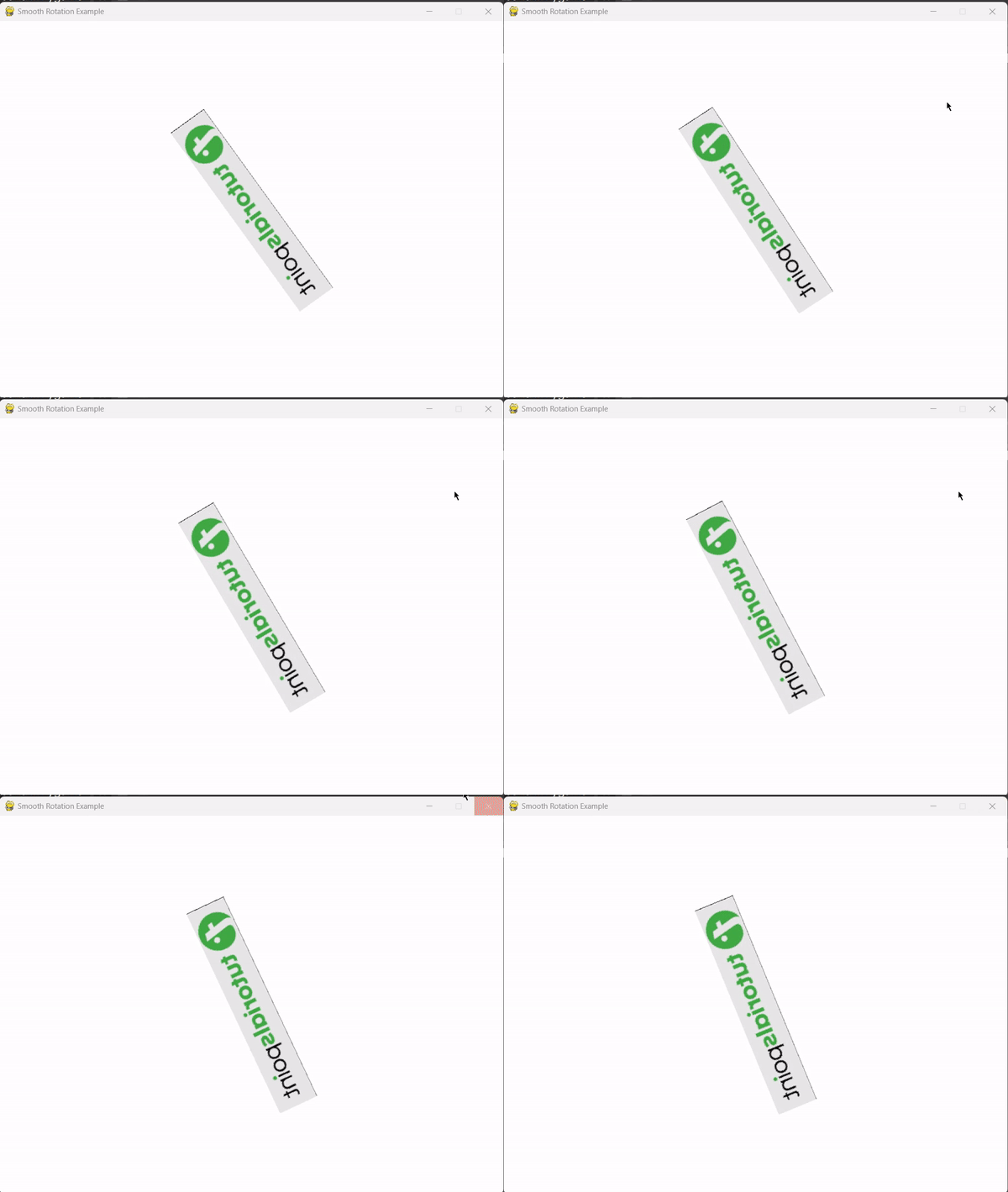
示例 3:平滑旋轉和角色翻轉
在此示例中,角色影像 (tplogo.png) 最初被載入並居中於遊戲視窗。然後透過根據旋轉速度遞增旋轉角度來平滑旋轉影像。為了實現水平翻轉效果,使用 pygame.transform.flip() 函式將旋轉後的影像翻轉,並將 True 作為第一個引數進行水平翻轉。
import pygame

# Initialize Pygame
pygame.init()
# Set up the game window
s_width, s_height = 800, 600
screen = pygame.display.set_mode((s_width, s_height))
pygame.display.set_caption("Smooth Rotation Example")

# Load the character image
char_img = pygame.image.load("tplogo.png")
char_rect = char_img.get_rect()
char_rect.center = (s_width // 2, s_height // 2)

# Set up the clock
clock = pygame.time.Clock()
FPS = 60

# Define rotation angle and speed
rotation_angle = 0
rotation_speed = 2

# Set the game loop
running = True
while running:
    dt = clock.tick(FPS) / 1000.0

    for event in pygame.event.get():
        if event.type == pygame.QUIT:
            running = False

    # Rotate the image
    rotation_angle += rotation_speed * dt
    rotated_image = pygame.transform.rotate(char_img, rotation_angle)

    # Flip the image horizontally
    flipped_image = pygame.transform.flip(rotated_image, True, False)

    # Update the screen
    screen.fill((255, 255, 255))
    screen.blit(flipped_image, flipped_image.get_rect(center=char_rect.center))
    pygame.display.flip()

# Quit the game
pygame.quit()
輸出
結論
透過遵循本文中給出的步驟,您可以成功地將遊戲角色移動到 Pygame 中。實現遊戲視窗、角色影像、使用者輸入、事件處理和時鐘控制將確保遊戲中的角色移動流暢。

2K+ 瀏覽量
