
 資料結構
資料結構 網路
網路 關係資料庫管理系統 (RDBMS)
 作業系統
作業系統 Java
Java MS Excel
 iOS
iOS HTML
HTML CSS
CSS Android
 Python
 C語言程式設計
 C++
C++ C#
C# MongoDB
 MySQL
MySQL Javascript
 PHP
PHP 物理學
物理學 化學
化學 生物學
生物學 數學
數學 英語
英語 經濟學
經濟學 心理學
心理學 社會學
社會學 服裝設計
服裝設計 法學
法學如何使用Python Tkinter讓按鈕開啟特定的.csv檔案?
圖形使用者介面 (GUI) 使得使用計算機程式變得容易。Python 是一種流行的程式語言,它有一個名為 Tkinter 的工具,可以幫助建立這些 GUI。在本文中,我們將探討使用 Python 和 Tkinter 建立一個按鈕來開啟特定 .csv 檔案的過程,建立一個實用的應用程式,使使用者能夠以使用者友好的方式與資料互動。
應用程式設計
在我們深入研究實現細節之前,讓我們概述一下應用程式的設計。我們的目標是建立一個簡單的基於 Tkinter 的程式,包含以下元件:
一個 Tkinter 視窗 - 應用程式的主視窗,提供使用者介面。
一個按鈕 - 單擊該按鈕時,將開啟一個特定的 .csv 檔案。
.csv 檔案選擇 - 單擊按鈕時,應出現一個檔案對話方塊,允許使用者選擇 .csv 檔案。
檔案處理 - 應開啟選定的 .csv 檔案,並可以訪問其內容以進行進一步處理或顯示。
考慮到應用程式的設計,讓我們看看使用 Python 示例逐步說明以及相應的程式碼,該示例建立一個使用 Python Tkinter 開啟特定 .csv 檔案的應用程式:
步驟 1:匯入必要的模組
首先,匯入我們實現所需的模組:tkinter。
第一步是匯入必要的模組,包括用於建立 GUI 的 Tkinter、用於開啟檔案對話方塊的 filedialog 模組以及用於讀取和處理 .csv 檔案的 csv 模組。
# import the tkinter module for GUI
import tkinter as tk
from tkinter import filedialog
import csv
步驟 2:建立一個函式來開啟 .csv 檔案
接下來,建立一個函式,在單擊按鈕時開啟 .csv 檔案。此函式將使用 filedialog 模組開啟檔案對話方塊,允許使用者選擇所需的 .csv 檔案。如果選擇了檔案,則將開啟它並處理其內容。
# Function to open a specific .csv file
def open_csv_file():
   file_path = filedialog.askopenfilename(defaultextension=".csv", filetypes=[("CSV Files", "*.csv")])
   if file_path:
      try:
         with open(file_path, "r") as csv_file:
            # Read and display the CSV file's contents
            csv_reader = csv.reader(csv_file)
            for row in csv_reader:
               print(row)
      except Exception as e:
         print(f"Error: {e}")
步驟 3:建立一個 Tkinter 視窗和按鈕
現在,建立一個 Tkinter 視窗,設定其標題,並建立一個按鈕,單擊該按鈕時將觸發 open_csv_file() 函式。
# Create a Tkinter window
root = tk.Tk()
root.geometry("720x400")
root.title("Opening a .csv file using button")
# Create a button to open the .csv file
open_button = tk.Button(root, text="Open .csv File", command=open_csv_file)
open_button.pack()
步驟 4:執行 Tkinter 主迴圈
最後,啟動 Tkinter 主迴圈以啟動應用程式並允許使用者與之互動。
# Start the Tkinter main loop to run the GUI application
root.mainloop()
讓我們探討此應用程式的完整實現程式碼和輸出。
示例
# import the tkinter module for GUI
import tkinter as tk
from tkinter import filedialog
import csv

# Function to open a specific .csv file
def open_csv_file():
   file_path = filedialog.askopenfilename(defaultextension=".csv", filetypes=[("CSV Files", "*.csv")])
   if file_path:
      try:
         with open(file_path, "r") as csv_file:
            # Read and display the CSV file's contents
            csv_reader = csv.reader(csv_file)
            for row in csv_reader:
               print(row)
      except Exception as e:
         print(f"Error: {e}")

# Create a Tkinter window
root = tk.Tk()
root.geometry("720x400")
root.title("Opening a .csv file using button")
# Create a button to open the .csv file
open_button = tk.Button(root, text="Open .csv File", command=open_csv_file)
open_button.pack()
# Start the Tkinter main loop to run the GUI application
root.mainloop()
輸出
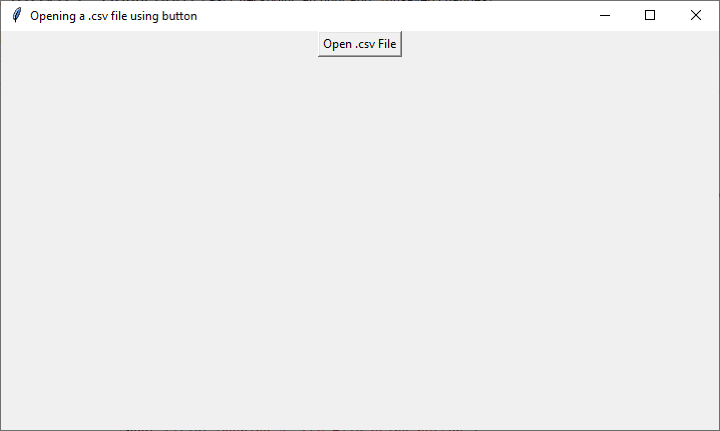
單擊“開啟 .csv 檔案”按鈕時,將出現一個檔案對話方塊,允許您選擇特定的 .csv 檔案。選擇後,.csv 檔案的內容將作為資料行顯示在控制檯中。此基本示例提供了一個基礎,您可以根據自己的特定需求對其進行自定義,例如在 Tkinter 應用程式中處理、分析或顯示來自 .csv 檔案的資料。
結論
在本文中,我們探討了建立 Python Tkinter 應用程式的過程,該應用程式在單擊按鈕時開啟特定的 .csv 檔案。能夠透過使用者友好的 GUI 與資料互動對於開發人員來說是一項寶貴的技能,而 Tkinter 提供了實現這一目標的工具。無論您從事資料分析、報告還是任何涉及處理資料的應用程式,Python 和 Tkinter 的結合都可以使您為使用者建立高效且使用者友好的介面。

920 次瀏覽
