
 資料結構
資料結構 網路
網路 關係資料庫管理系統 (RDBMS)
 作業系統
作業系統 Java
Java MS Excel
 iOS
iOS HTML
HTML CSS
CSS Android
 Python
 C 程式設計
 C++
C++ C#
C# MongoDB
 MySQL
MySQL Javascript
 PHP
PHP 物理學
物理學 化學
化學 生物學
生物學 數學
數學 英語
英語 經濟學
經濟學 心理學
心理學 社會學
社會學 服裝學
服裝學 法學
法學如何在 ElectronJS 中查詢頁面上的文字?
概述
頁面文字查詢功能幫助使用者在頁面上查詢單詞。ElectronJS 是一個開源框架,用於建立可在所有作業系統上執行的跨平臺桌面應用程式。ElectronJS 具有許多具有各自功能的預定義例項方法。因此,為了構建此頁面文字查詢功能,ElectronJS 提供了 "findInPage" 方法,該方法獲取當前聚焦的視窗並掃描頁面上的所有文字。
語法
為了查詢頁面上的文字,ElectronJS 提供了以下語法來查詢文字和清除頁面上的搜尋結果:
findInPage − 在下面的語法中,“findInPage”是一個方法,它接受文字和選項兩個引數。文字是要在頁面上查詢的單詞,另一個引數是根據其掃描頁面文字的 findInPage 方法的限制。
currentFocusedWindow − 這是一個當前視窗引用變數,其中 "getFocusedWindow()" 返回要掃描文字的當前視窗。它是 BrowserWindow 物件的方法。
WebContents − 它是一個 ElectronJS 模組,它是一組提供訪問許可權來操作瀏覽器視窗的方法。它允許使用者更改瀏覽器頁面。
currentFocusedWindow.webContents.findInPage(text, options);
stopFindPage − "stopFindPage" 是 ElectronJS 的一個方法,它透過清除頁面上突出顯示的單詞來停止 findInPage 過程,從而清除頁面。stopFindInPage 也接受一個名為 "clearSelection" 的引數作為輸入,此引數傳遞給方法以清除頁面突出顯示。
currentFocusedWindow.webContents.stopFindInPage('clearSelection');
演算法
步驟 1 − 建立一個名為 "electronApp" 的資料夾,並在文字編輯器(例如 VS Code)中開啟該資料夾。
步驟 2 − 現在開啟程式碼編輯器的整合終端或開啟您的 PowerShell。
步驟 3 − 使用以下命令檢查您的系統是否已安裝 Node。如果沒有,請訪問 NodeJS 官方網站並下載適合您系統的版本。
node --version
步驟 4 − 現在使用下面顯示的命令建立一個 'package.json' 檔案。
npm init
步驟 5 − 現在使用以下命令將 Electron 依賴項安裝到 package.json 檔案中。
npm install electron –-save
步驟 6 − 安裝後,在資料夾中建立一個 "main.js" 檔案,並使用以下程式碼建立一個瀏覽器視窗,"main.js" 是桌面應用程式的入口點。還要檢查 package.json 檔案,並將 main 設定為 "main.js"。
const { app, BrowserWindow } = require('electron')

var win;

function createWindow() {
   win = new BrowserWindow({
      width: 800,
      height: 600,
      webPreferences: {
         nodeIntegration: true
      }
   });
   win.loadFile('src/index.html')
   win.webContents.openDevTools()
}

app.whenReady().then(() => {
   createWindow()
})

app.on('window-all-closed', () => {
   if (process.platform !== 'darwin') {
      app.quit()
   }
})

app.on('activate', () => {
   if (BrowserWindow.getAllWindows().length === 0) {
      createWindow()
   }
})
步驟 7 − 現在在父資料夾內建立一個 src 資料夾,並在其中建立兩個檔案 "index.html" 和 "index.js"。
步驟 8 − 開啟 index.html 檔案,並將 HTML 模板新增到該檔案中。
步驟 9 − 現在將元標記新增到檔案的 head 標記中,該標記為頁面新增 "內容安全策略"。
<meta http-equiv="Content-Security-Policy" content="script-src 'self' 'unsafe-inline';" />
步驟 10 − 現在建立一個 div 容器,其中包含一個輸入標記和兩個按鈕,其值和 ID 名稱分別為 "search" 和 "clearSearch"。
<div id="searchPannel">
   <input id="enter" type="text" placeholder="type word to search...">
   <button id="search">Find in Text</button>
   <button id="clearSearch">Clear Selection</button>
</div>
步驟 11 − 現在建立另一個 div 容器,其中包含用於搜尋的示例文字。
<div>
   This is a sample text to search for any word. Tutorialspoint is a great platform which provides information regarding each and every domain. We also provide training courses to level up your skills. Vist tutorialspoint.com to get more information about our platform. Also you can read articles regarding any topic.
</div>
步驟 12 − 現在將 "index.js" 連結到 HTML 檔案,其中包含在頁面上搜索文字的功能。
<script src="index.js"></script>
步驟 13 − 現在開啟 index.js 檔案並從 Electron 模組匯入 "BrowserWindow"。
const electron = require('electron')
const BrowserWindow = electron.remote.BrowserWindow;
步驟 14 − 現在建立一個名為 "option" 的物件,其中包含一些查詢文字的約束條件。
var options = {
   forward: true,
   findNext: false,
   matchCase: false,
   wordStart: false,
   medialCapitalAsWordStart: false
}
步驟 15 − 現在透過 HTML DOM 訪問 "find" 按鈕和 "clear" 按鈕到引用變數。
var search = document.getElementById('search');
var clearSearch = document.getElementById('clearSearch');
步驟 16 − 現在使用 addEventListener 結合 click 事件監聽器在頁面上查詢文字。
search.addEventListener('click', () => {
   const cWin = BrowserWindow.getFocusedWindow();
   var text = document.getElementById('enter').value;
   console.log(text);
   if (text) {
      const requestId = cWin.webContents.findInPage(text, options);
      console.log(requestId);
   } else {
      console.log('Enter Text to find');
   }
   cWin.webContents.on('found-in-page', (event, result) => {
      console.log(result.requestId);
      console.log(result.activeMatchOrdinal);
      console.log(result.matches);
      console.log(result.selectionArea);
   });
});
步驟 17 − 現在使用 "clear" addEventListener 結合 click 事件監聽器停止在頁面上查詢文字的過程。
clearSearch.addEventListener('click', () => {
   const cWin = BrowserWindow.getFocusedWindow();
   cWin.webContents.stopFindInPage('clearSelection');
   console.log("Search cleared");
});
步驟 18 − 現在檢查 package.json 檔案,並在 "script" 中設定以下鍵值對。
"scripts": {
   "start": "electron ."
}
步驟 19 − 現在使用 "npm start" 命令啟動桌面應用程式。
示例
在這個例子中,我們將使用 ElectronJS 建立一個桌面應用程式。這個桌面應用程式將具有一個功能,可以在當前視窗頁面上搜索任何文字。為了構建此功能,我們將在 Electron 應用程式的渲染程序中使用 "webContents" 模組 "findInPage" 和 "stopFindPage" 方法。為此,我們將在 main.js 中建立 Electron 應用程式的主程序,在 index.js 中建立渲染器程序。index.html 將包含頁面的前端。
main.js
const { app, BrowserWindow } = require('electron')

var win;

function createWindow() {
   win = new BrowserWindow({
      width: 800,
      height: 600,
      webPreferences: {
         nodeIntegration: true
      }
   });
   win.loadFile('src/index.html')
   win.webContents.openDevTools()
}

app.whenReady().then(() => {
   createWindow()
})

app.on('window-all-closed', () => {
   if (process.platform !== 'darwin') {
      app.quit()
   }
})

app.on('activate', () => {
   if (BrowserWindow.getAllWindows().length === 0) {
      createWindow()
   }
})
index.html
<html>
<head>
   <meta http-equiv="Content-Security-Policy" content="script-src 'self' 'unsafe-inline';" />
   <title> find text on page using electronjs</title>
   <style>
      body{
         background-color: white;
         color: black;
      }
   </style>
</head>
<body>
   <div id="searchPannel">
      <input id="enter" type="text" placeholder="type word to search...">
      <button id="search">Find</button>
      <button id="clearSearch">Clear</button>
   </div>
   <hr>
   <div>
      This is a sample text to search any word. Tutorialspoint is a great platform which provides information regarding each and every domain. We also provide training courses to level up your skills. Vist tutorialspoint.com to get more information about our platform. Also you can read articles regarding any topic.
   </div>
   <script src="index.js"></script>
</body>
</html>
index.js
const electron = require('electron')
const BrowserWindow = electron.remote.BrowserWindow;

var options = {
   forward: true,
   findNext: false,
   matchCase: false,
   wordStart: false,
   medialCapitalAsWordStart: false
}

var search = document.getElementById('search');
var clearSearch = document.getElementById('clearSearch');

search.addEventListener('click', () => {
   const cWin = BrowserWindow.getFocusedWindow();
   var text = document.getElementById('enter').value;
   console.log(text);
   if (text) {
      const requestId = cWin.webContents.findInPage(text, options);
      console.log(requestId);
   } else {
      console.log('Enter Text to find');
   }

   cWin.webContents.on('found-in-page', (event, result) => {
      console.log(result.requestId);
      console.log(result.activeMatchOrdinal);
      console.log(result.matches);
      console.log(result.selectionArea);
   });
});

clearSearch.addEventListener('click', () => {
   const cWin = BrowserWindow.getFocusedWindow();
   cWin.webContents.stopFindInPage('clearSelection');
   console.log("Search cleared");
});
輸出
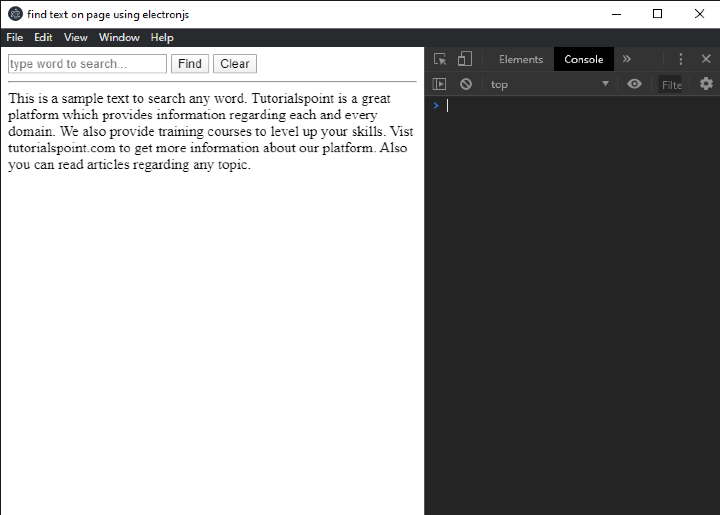
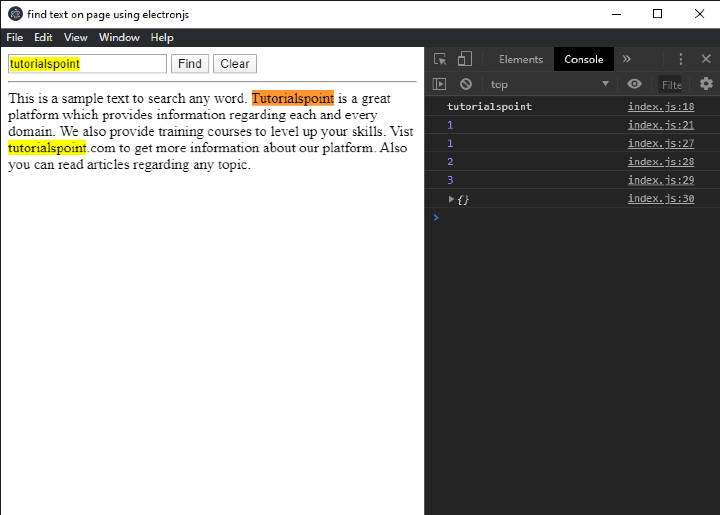
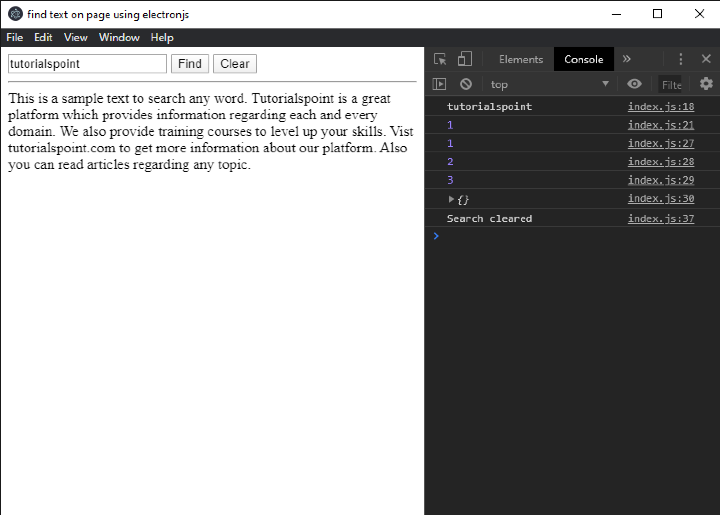
在下圖中,當用戶啟動應用程式時,他將獲得一個介面,該介面包含一個輸入框(用於接收使用者的輸入)和一個搜尋按鈕、清除按鈕以及它們各自的功能。當用戶在輸入按鈕中鍵入文字並點選 "查詢" 按鈕時,將觸發 "findInPage" 方法,並透過突出顯示螢幕上的文字(如第二張影像所示)來輸出結果。當用戶點選清除按鈕時,文字中的所有突出顯示都將被移除。
結論
當頁面上存在大量內容時,此功能非常有助於查詢頁面上的文字。在上圖中,我們可以看到控制檯中有一些數字。它們是請求次數,表示使用者請求文字的次數。當在頁面上找到文字時,所有返回的文字都將以不同的顏色顯示,表示文字出現的次數。在清除函式中,確保必須傳遞 "clearSelection" 作為引數,否則您將收到錯誤訊息。

528 次瀏覽
