
 資料結構
資料結構 網路
網路 關係型資料庫管理系統
 作業系統
作業系統 Java
Java MS Excel
 iOS
iOS HTML
HTML CSS
CSS Android
 Python
 C 程式設計
 C++
C++ C#
C# MongoDB
 MySQL
MySQL Javascript
 PHP
PHP 物理學
物理學 化學
化學 生物學
生物學 數學
數學 英語
英語 經濟學
經濟學 心理學
心理學 社會學
社會學 時尚研究
時尚研究 法律研究
法律研究如何在 iOS 中控制預設警告對話方塊的寬度和高度?
在開發 iOS 應用程式時,您可能會遇到需要控制/操作警告框寬度和高度的情況。如果您不熟悉這一點,可能會給您帶來麻煩。
在這裡,我們將瞭解如何控制預設警告框的寬度和高度。為了控制高度和寬度,我們將使用 NSLayoutConstraint。
要了解更多關於 UIAlertController 的資訊,請參考 -
https://developer.apple.com/documentation/uikit/uialertcontroller
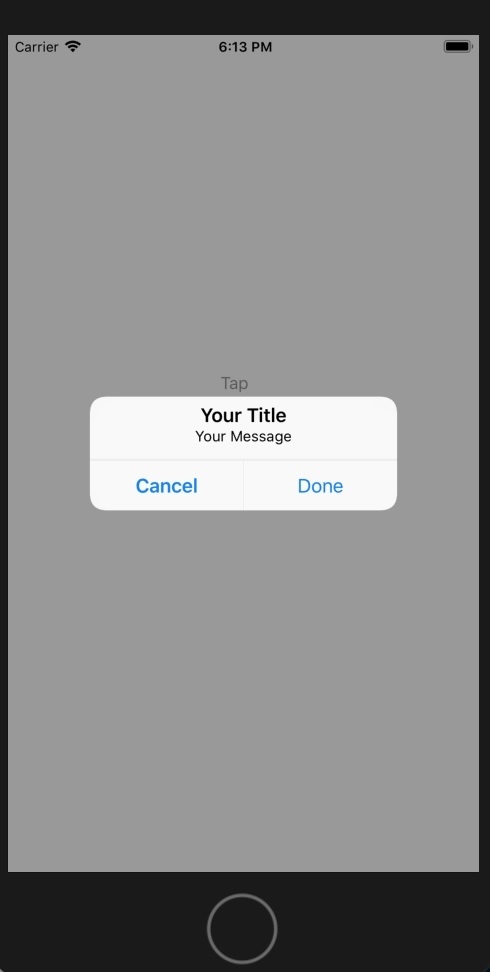
在本例中,我們將建立一個新專案,其中包含一個按鈕,點選該按鈕將顯示帶有自定義訊息的警告。
步驟 1 - 開啟 Xcode → 新建專案 → 單檢視應用程式 → 讓我們將其命名為“changeheightandwidth”
步驟 2 - 在 Main.storyboard 中建立一個按鈕並將其命名為 tap,在 ViewController.swift 中建立 @IBAction 並將出口命名為 btnAtap。
步驟 3 - 在您的按鈕方法中編寫以下程式碼。
建立 UIAlertController 物件。
let alert = UIAlertController(title: "Your Title", message: "Your Message", preferredStyle: UIAlertController.Style.alert)
建立高度和寬度約束。
// height constraint
let constraintHeight = NSLayoutConstraint(
   item: alert.view!, attribute: NSLayoutConstraint.Attribute.height, relatedBy: NSLayoutConstraint.Relation.equal, toItem: nil, attribute:
   NSLayoutConstraint.Attribute.notAnAttribute, multiplier: 1, constant: 100)
alert.view.addConstraint(constraintHeight)

// width constraint
let constraintWidth = NSLayoutConstraint(
   item: alert.view!, attribute: NSLayoutConstraint.Attribute.width, relatedBy: NSLayoutConstraint.Relation.equal, toItem: nil, attribute:
   NSLayoutConstraint.Attribute.notAnAttribute, multiplier: 1, constant: 300)
alert.view.addConstraint(constraintWidth)
使用操作顯示警告檢視。
let cancel = UIAlertAction(title: "Cancel", style: .cancel, handler: nil)
alert.addAction(cancel)
let OKAY = UIAlertAction(title: "Done", style: .default, handler: nil)
alert.addAction(OKAY)
self.present(alert, animated: true, completion: nil)
步驟 4 - 執行程式碼。
完整程式碼請參考:
@IBAction func btnATap(_ sender: Any) {
   let alert = UIAlertController(title: "Your Title", message: "Your Message", preferredStyle: UIAlertController.Style.alert)

   // height constraint
   let constraintHeight = NSLayoutConstraint(
      item: alert.view!, attribute: NSLayoutConstraint.Attribute.height, relatedBy: NSLayoutConstraint.Relation.equal, toItem: nil, attribute:
      NSLayoutConstraint.Attribute.notAnAttribute, multiplier: 1, constant: 100)
   alert.view.addConstraint(constraintHeight)

   // width constraint
   let constraintWidth = NSLayoutConstraint(
      item: alert.view!, attribute: NSLayoutConstraint.Attribute.width, relatedBy: NSLayoutConstraint.Relation.equal, toItem: nil, attribute:
      NSLayoutConstraint.Attribute.notAnAttribute, multiplier: 1, constant: 300)
   alert.view.addConstraint(constraintWidth)

   let cancel = UIAlertAction(title: "Cancel", style: .cancel, handler: nil)
   alert.addAction(cancel)
   let OKAY = UIAlertAction(title: "Done", style: .default, handler: nil)
   alert.addAction(OKAY)
   self.present(alert, animated: true, completion: nil)
}

更新於: 2019年8月7日
2K+ 瀏覽量

廣告