
 資料結構
資料結構 網路
網路 關係資料庫管理系統 (RDBMS)
 作業系統
作業系統 Java
Java MS Excel
 iOS
iOS HTML
HTML CSS
CSS Android
 Python
 C語言程式設計
 C++
C++ C#
C# MongoDB
 MySQL
MySQL Javascript
 PHP
PHP 物理學
物理學 化學
化學 生物學
生物學 數學
數學 英語
英語 經濟學
經濟學 心理學
心理學 社會學
社會學 服裝設計
服裝設計 法學
法學如何在Android系統中檢查網路連線?
本例演示如何透過廣播接收器檢查網路連線狀態。
步驟1 − 在Android Studio中建立一個新專案,轉到檔案 ⇒ 新建專案,並填寫所有必需的詳細資訊以建立新專案。
步驟2 − 要查詢網際網路狀態,我們必須將網路狀態許可權新增到AndroidManifest.xml檔案,如下所示。
<?xml version="1.0" encoding = "utf-8"?>
<manifest xmlns:android = "http://schemas.android.com/apk/res/android"
   package = "com.example.andy.myapplication">
   <uses-permission android:name = "android.permission.ACCESS_NETWORK_STATE" />
   <application
      android:allowBackup = "true"
      android:icon = "@mipmap/ic_launcher"
      android:label = "@string/app_name"
      android:roundIcon = "@mipmap/ic_launcher_round"
      android:supportsRtl = "true"
      android:theme = "@style/AppTheme">
      <activity android:name = ".MainActivity">
         <intent-filter>
            <action android:name = "android.intent.action.MAIN" />
            <category android:name = "android.intent.category.LAUNCHER" />
         </intent-filter>
      </activity>
   </application>
<manifest>
步驟3 − 以下是修改後的主活動檔案MainActivity.java的內容。此檔案可以包含每個基本生命週期方法。我們建立了一個文字檢視,當用戶點選文字檢視時,它將呼叫broadcastIntent()方法來廣播CONNECTIVITY_ACTION意圖。
import android.content.BroadcastReceiver;
import android.content.IntentFilter;
import android.net.ConnectivityManager;
import android.support.v7.app.AppCompatActivity;
import android.os.Bundle;
import android.view.View;
import android.widget.TextView;
public class MainActivity extends AppCompatActivity {
   private BroadcastReceiver MyReceiver = null;
   @Override
   protected void onCreate(Bundle savedInstanceState) {
      super.onCreate(savedInstanceState);
      setContentView(R.layout.activity_main);
      MyReceiver = new MyReceiver();
      TextView click=findViewById(R.id.click);
      click.setOnClickListener(new View.OnClickListener() {
         @Override
         public void onClick(View v) {
            broadcastIntent();
         }
      });
   }
   public void broadcastIntent() {
      registerReceiver(MyReceiver, new IntentFilter(ConnectivityManager.CONNECTIVITY_ACTION));
   }
   @Override
   protected void onPause() {
      super.onPause();
      unregisterReceiver(MyReceiver);
   }
}
步驟4 − 建立一個NetworkUtil類來查詢網路狀態,如下所示。
import android.content.Context;
import android.net.ConnectivityManager;
import android.net.NetworkInfo;
class NetworkUtil {
   public static String getConnectivityStatusString(Context context) {
      String status = null;
      ConnectivityManager cm = (ConnectivityManager)           context.getSystemService(Context.CONNECTIVITY_SERVICE);
     NetworkInfo activeNetwork = cm.getActiveNetworkInfo();
      if (activeNetwork != null) {
         if (activeNetwork.getType() == ConnectivityManager.TYPE_WIFI) {
            status = "Wifi enabled";
            return status;
         } else if (activeNetwork.getType() == ConnectivityManager.TYPE_MOBILE) {
            status = "Mobile data enabled";
            return status;
         }
      } else {
    status = "No internet is available";
      return status;
    }
    return status;
   }
}
步驟5 − 建立一個廣播接收器類,並命名為MyReceiver.java。此廣播接收器將從NetworkUtil類更新UI。
import android.content.BroadcastReceiver;
import android.content.Context;
import android.content.Intent;
import android.widget.Toast;
public class MyReceiver extends BroadcastReceiver {
   @Override
   public void onReceive(Context context, Intent intent) {
      String status = NetworkUtil.getConnectivityStatusString(context);
      if(status.isEmpty()) {
         status="No Internet Connection";
      }
      Toast.makeText(context, status, Toast.LENGTH_LONG).show();
   }
}
步驟6 − 在清單檔案中更新您的廣播接收器,如下所示。
<?xml version = "1.0" encoding = "utf-8"?>
<manifest xmlns:android="http://schemas.android.com/apk/res/android"
   package = "com.example.andy.myapplication">
   <uses-permission android:name="android.permission.ACCESS_NETWORK_STATE" />
   <application
      android:allowBackup="true"
      android:icon = "@mipmap/ic_launcher"
      android:label = "@string/app_name"
      android:roundIcon = "@mipmap/ic_launcher_round"
      android:supportsRtl = "true"
      android:theme = "@style/AppTheme">
   <activity android:name = ".MainActivity>
      <intent-filter>
         <action android:name = "android.intent.action.MAIN" />
         <category android:name = "android.intent.category.LAUNCHER" />
      </intent-filter>
   </activity>
      <receiver android:name = "MyReceiver">
         <intent-filter>
            <action android:name = "android.net.conn.CONNECTIVITY_CHANGE" />
            <action android:name = "android.net.wifi.WIFI_STATE_CHANGED" />
         </intent-filter>
      </receiver>
   </application>
</manifest>
步驟7 − 以下是res/layout/activity_main.xml檔案的內容,其中包含一個文字檢視以廣播連線狀態意圖。
<?xml version = "1.0" encoding = "utf-8"?>
<android.support.constraint.ConstraintLayout xmlns:android = "http://schemas.android.com/apk/res/android"
   xmlns:app="http://schemas.android.com/apk/res-auto"
   xmlns:tools="http://schemas.android.com/tools"
   android:layout_width = "match_parent"
   android:layout_height = "match_parent"
   tools:context = ".MainActivity">
<TextView
   android:id="@+id/click"
   android:layout_width="wrap_content"
   android:layout_height="wrap_content"
   android:text="Click here"
   app:layout_constraintBottom_toBottomOf="parent"
   app:layout_constraintLeft_toLeftOf="parent"
   app:layout_constraintRight_toRightOf="parent"
   app:layout_constraintTop_toTopOf="parent" />
</android.support.constraint.ConstraintLayout>
讓我們嘗試執行您的應用程式。我假設您已將實際的Android移動裝置連線到計算機。要在Android Studio中執行應用程式,請開啟專案中的一個活動檔案,然後單擊執行  工具欄中的圖示。選擇您的移動裝置作為選項,然後檢查您的移動裝置,它將顯示您的預設螢幕。
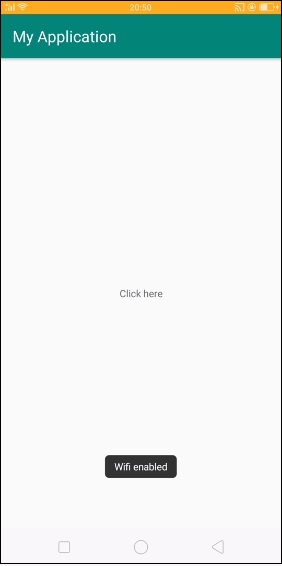
在上面的螢幕中,我們選擇了wifi連線,輸出應如下所示:
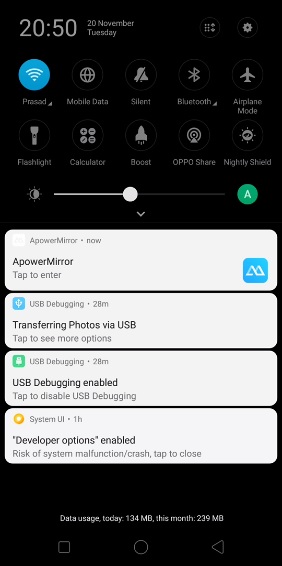
在上面的螢幕中,我們選擇了wifi連線,輸出應如下所示:
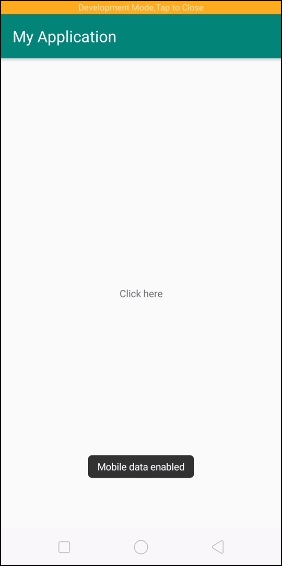
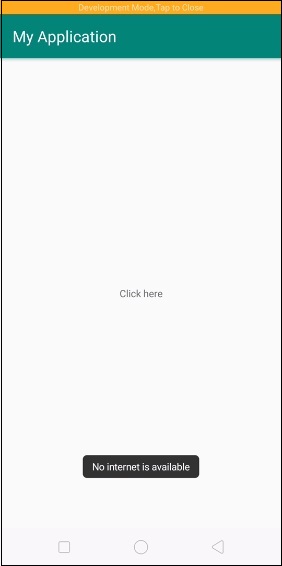
點選 此處 下載專案程式碼

更新於:2019年7月30日
3K+ 次檢視

廣告