
 資料結構
資料結構 網路
網路 RDBMS
RDBMS 作業系統
作業系統 Java
Java MS Excel
 iOS
iOS HTML
HTML CSS
CSS Android
 Python
 C 程式設計
 C++
C++ C#
C# MongoDB
 MySQL
MySQL Javascript
 PHP
PHP 物理學
物理學 化學
化學 生物學
生物學 數學
數學 英語
英語 經濟學
經濟學 心理學
心理學 社會學
社會學 時尚研究
時尚研究 法律研究
法律研究如何使用命令改變 PowerShell ISE 編輯器的顏色?
要更改 ISE 編輯器的顏色,我們需要使用 $psISE cmdlet,該 cmdlet 僅適用於 ISE 編輯器。
現在在 ISE 編輯器中,我們有很多顏色,有些可見(指令碼窗格顏色、控制檯顏色等),有些在執行指令碼時出現(錯誤、警告、詳細資訊)。這些屬性如下所示。
ErrorForegroundColor           : #FFFF9494
ErrorBackgroundColor           : #00FFFFFF
WarningForegroundColor         : #FFFF8C00
WarningBackgroundColor         : #00FFFFFF
VerboseForegroundColor         : #FF00FFFF
VerboseBackgroundColor         : #00FFFFFF
DebugForegroundColor           : #FF00FFFF
DebugBackgroundColor           : #00FFFFFF
ConsolePaneBackgroundColor     : #FF000080
ConsolePaneTextBackgroundColor : #FF012456
ConsolePaneForegroundColor     : #FFF5F5F5
ScriptPaneBackgroundColor      : #FFFFFFFF
ScriptPaneForegroundColor      : #FF000000
左端是特定的顏色屬性,右端是程式碼中的顏色名稱。要設定控制檯背景色,我們可以使用以下命令,控制檯背景色將立即變為紅色。
$psISE.Options.ConsolePaneBackgroundColor = 'Red'
輸出

同樣,要更改指令碼窗格的背景色,
$psISE.Options.ScriptPaneBackgroundColor = 'Black'
輸出

同樣,你可以設定除錯模式顏色、錯誤、警告、詳細資訊顏色等。
如果你在 ISE 中弄亂了顏色,想要恢復,不用擔心,$psISE cmdlet 中有一個選項 DefaultOptions,屬性是 Options,在那裡你可以找到原始顏色。
$psISE.Options.DefaultOptions
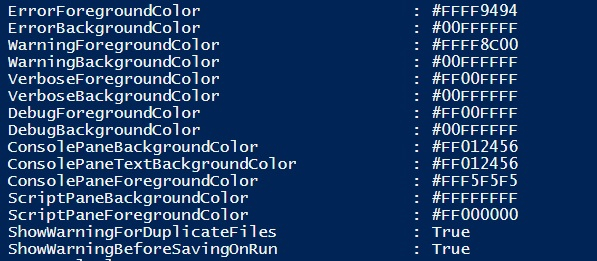
我們可以使用以下命令還原顏色。
$psISE.Options.ScriptPaneBackgroundColor = '#FFFFFFFF'

更新於: 2021 年 1 月 18 日
2 千多閱讀

廣告