
 資料結構
資料結構 網路
網路 RDBMS
RDBMS 作業系統
作業系統 Java
Java MS Excel
 iOS
iOS HTML
HTML CSS
CSS Android
 Python
 C程式設計
C程式設計 C++
C++ C#
C# MongoDB
 MySQL
MySQL Javascript
 PHP
PHP 物理學
物理學 化學
化學 生物學
生物學 數學
數學 英語
英語 經濟學
經濟學 心理學
心理學 社會學
社會學 時尚研究
時尚研究 法律研究
法律研究使用Selenium WebDriver Java來自動執行拖放功能如何?
拖放操作藉助滑鼠完成。當我們將元素從一個位置拖到另一個位置時會發生這種情況。當我們嘗試透過簡單地拖放操作將檔案從一個資料夾移動到另一個資料夾時,這是常見場景。
Selenium 使用 Actions 類來執行拖放操作。dragAndDrop(source, destination)是 Actions 類下的一個方法,用於執行拖放操作。此方法首先會對該元素執行一次左擊,然後持續單擊以按住源元素。接下來,它將移至目標位置並釋放滑鼠。
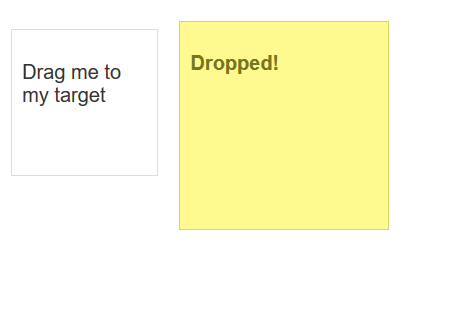
我們的目的是將第一個框拖放至第二個框。
示例
程式碼實現。
import org.openqa.selenium.By;
import org.openqa.selenium.WebDriver;
import org.openqa.selenium.WebElement;
import org.openqa.selenium.chrome.ChromeDriver;
import java.util.concurrent.TimeUnit;
import org.openqa.selenium.interactions.Actions;
public class DragDrop{
   public static void main(String[] args) {
      System.setProperty("webdriver.chrome.driver", "C:\Users\ghs6kor\Desktop\Java\chromedriver.exe");
      WebDriver driver = new ChromeDriver();
      String url = "https://jqueryui.com/droppable/";
      driver.get(url);
      driver.manage().timeouts().implicitlyWait(5, TimeUnit.SECONDS);
      driver.switchTo().frame(0);
      // identify source and target element
      WebElement s=driver.findElement(By.("draggable"));
      WebElement t=driver.findElement(By.("droppable"));
      /Actions class with dragAndDrop()
      Actions act = new Actions(driver);
      act.dragAndDrop(s, t).build().perform();
      driver.quit();
   }
}
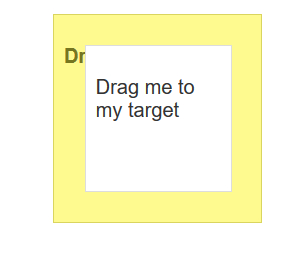
輸出

更新於: 2020-08-28
581 次瀏覽

廣告