
 資料結構
資料結構 網路
網路 RDBMS
RDBMS 作業系統
作業系統 Java
Java MS Excel
 iOS
iOS HTML
HTML CSS
CSS Android
 Python
 C 程式設計
 C++
C++ C#
C# MongoDB
 MySQL
MySQL Javascript
 PHP
PHP 物理學
物理學 化學
化學 生物學
生物學 數學
數學 英語
英語 經濟學
經濟學 心理學
心理學 社會學
社會學 時尚研究
時尚研究 法律研究
法律研究如何使用鍵盤快捷鍵或繫結啟用 Tkinter 選單和工具欄?
在提升使用者體驗方面,為選單和工具欄專案提供鍵盤快捷鍵或繫結可以極大地提高可訪問性和效率,而 Tkinter 則是 Python 中開發互動式應用程式的熱門選擇。
在本文中,我們將探討使用鍵盤快捷鍵或繫結啟用 Tkinter 選單和工具欄的過程,使開發人員能夠建立更直觀和簡化的應用程式。
如何使用鍵盤快捷鍵或繫結啟用 Tkinter 選單和工具欄?
要為啟用 Tkinter 選單和工具欄啟用鍵盤快捷鍵或繫結,您可以在建立選單項時使用 accelerator 引數。這允許您分配鍵盤快捷鍵。此外,透過使用根視窗的 bind 方法,您可以將特定函式與鍵盤事件相關聯。因此,按下相應的鍵盤快捷鍵或按鍵將觸發選單項和工具欄按鈕。
請按照以下步驟使用鍵盤快捷鍵或繫結啟用 Tkinter 選單和工具欄:
我們匯入 tkinter 模組,它是 Tk GUI 工具包的標準 Python 介面。
之後,我們定義 create_menu() 函式,該函式建立主選單及其子選單並向其新增鍵盤快捷鍵或繫結。在此函式中,我們建立 Menu 小部件,它表示主選單,並使用 config() 方法將其新增到頂級視窗。然後,我們使用 Menu 小部件再次建立兩個子選單,“檔案”和“幫助”。我們使用 add_cascade() 方法將它們新增到主選單。最後,我們為每個子選單建立選單項,使用 add_command() 方法,並使用 bind() 方法向其新增鍵盤快捷鍵或繫結。
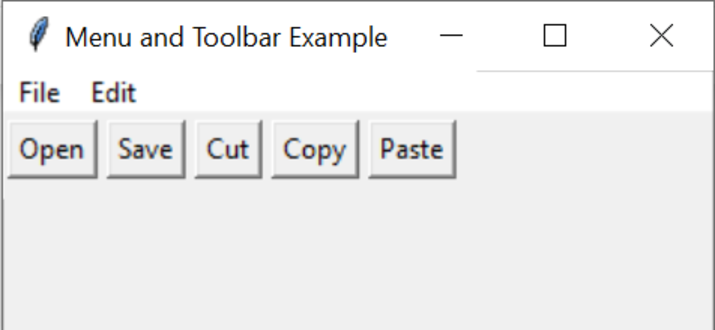
接下來,我們定義 create_toolbar() 函式,該函式負責構建包含按鈕的工具欄並向其分配繫結。在此函式中,我們生成 Frame 小部件,用作按鈕的容器,並使用 config() 方法將其包含在頂級視窗中。然後,我們建立兩個 Button 小部件,“開啟”和“儲存”,並使用 pack() 方法將它們新增到工具欄。最後,透過 bind() 方法為每個按鈕分配繫結。
接下來,我們使用 Tk 類建立頂級視窗,並使用 title() 方法設定其標題。
我們呼叫或呼叫 create_menu() 和 create_toolbar() 函式分別生成主選單和工具欄。
最後,我們使用 mainloop() 方法啟動主事件迴圈,該方法等待事件(例如使用者輸入)並對其做出響應。
示例
import tkinter as tk

def open_file():
   print("Opening file...")

def save_file():
   print("Saving file...")

def cut_text():
   print("Cutting text...")

def copy_text():
   print("Copying text...")

def paste_text():
   print("Pasting text...")

def create_menu(root):
   menu = tk.Menu(root)

   # Create the "File" menu
   file_menu = tk.Menu(menu, tearoff=False)
   file_menu.add_command(label="Open", command=open_file, accelerator="Ctrl+O")
   file_menu.add_command(label="Save", command=save_file, accelerator="Ctrl+S")
   file_menu.add_separator()
   file_menu.add_command(label="Exit", command=root.quit, accelerator="Ctrl+Q")
   menu.add_cascade(label="File", menu=file_menu)

   # Create the "Edit" menu
   edit_menu = tk.Menu(menu, tearoff=False)
   edit_menu.add_command(label="Cut", command=cut_text, accelerator="Ctrl+X")
   edit_menu.add_command(label="Copy", command=copy_text, accelerator="Ctrl+C")
   edit_menu.add_command(label="Paste", command=paste_text, accelerator="Ctrl+V")
   menu.add_cascade(label="Edit", menu=edit_menu)

   # Add the menu to the root window
   root.config(menu=menu)

def create_toolbar(root):
   toolbar = tk.Frame(root)

   # Create toolbar buttons
   open_button = tk.Button(toolbar, text="Open", command=open_file)
   open_button.pack(side=tk.LEFT, padx=2, pady=2)

   save_button = tk.Button(toolbar, text="Save", command=save_file)
   save_button.pack(side=tk.LEFT, padx=2, pady=2)

   cut_button = tk.Button(toolbar, text="Cut", command=cut_text)
   cut_button.pack(side=tk.LEFT, padx=2, pady=2)

   copy_button = tk.Button(toolbar, text="Copy", command=copy_text)
   copy_button.pack(side=tk.LEFT, padx=2, pady=2)

   paste_button = tk.Button(toolbar, text="Paste", command=paste_text)
   paste_button.pack(side=tk.LEFT, padx=2, pady=2)

   # Add the toolbar to the root window
   toolbar.pack(side=tk.TOP, fill=tk.X)

def main():
   root = tk.Tk()
   root.title("Menu and Toolbar Example")
   create_menu(root)
   create_toolbar(root)

   # Configure keyboard shortcuts or bindings
   root.bind("<Control-o>", lambda e: open_file())
   root.bind("<Control-s>", lambda e: save_file())
   root.bind("<Control-x>", lambda e: cut_text())
   root.bind("<Control-c>", lambda e: copy_text())
   root.bind("<Control-v>", lambda e: paste_text())
   root.bind("<Control-q>", lambda e: root.quit())

   root.mainloop()

if __name__ == "__main__":
   main()
輸出
Opening file...
Opening file...
Saving file...
Cutting text...
Copying text...
Pasting text...
結論
總之,使用鍵盤快捷鍵或繫結啟用 Tkinter 選單和工具欄可以極大地增強應用程式的可用性和效率。透過使用 accelerator 引數分配鍵盤快捷鍵,並使用 bind 方法將鍵盤事件繫結到特定函式,使用者可以快速訪問選單項和工具欄按鈕。
這可以提供流暢的使用者體驗,使使用者能夠輕鬆便捷地執行操作。合併鍵盤快捷鍵和繫結是簡化使用者互動並改善基於 Tkinter 的應用程式整體功能的強大方法。

634 次檢視
