
 資料結構
資料結構 網路
網路 關係資料庫管理系統 (RDBMS)
 作業系統
作業系統 Java
Java MS Excel
 iOS
iOS HTML
HTML CSS
CSS Android
 Python
 C 語言程式設計
 C++
C++ C#
C# MongoDB
 MySQL
MySQL Javascript
 PHP
PHP 物理學
物理學 化學
化學 生物學
生物學 數學
數學 英語
英語 經濟學
經濟學 心理學
心理學 社會學
社會學 服裝設計
服裝設計 法律研究
法律研究MATLAB 中的灰度共生矩陣
在數字影像處理中,**灰度共生矩陣**,也稱為**GLCM**,是一種用於儲存數字影像中畫素對之間空間關係的統計方法。
灰度共生是一種表示影像中不同畫素強度組合排列方式的方法。它主要用於指定影像的紋理屬性,並提供有關影像空間區域內畫素值中出現的模式、變化和結構的資訊。
什麼是灰度共生矩陣?
如上所述,**灰度共生矩陣 (GLCM)** 是一種統計方法,它提供有關影像指定區域性區域中畫素強度之間關係的資訊。
灰度共生矩陣基本上是一個方陣,其元素表示影像中畫素出現的頻率。這種技術在影像處理應用中獲取有關影像中存在的紋理和模式的資訊非常有用。
如何在 MATLAB 中計算灰度共生矩陣?
MATLAB 提供了一個內建函式“graycomatrix”來從影像計算灰度共生矩陣。
此函式可以具有以下三種語法
glcm = graycomatrix(I)
glcm = graycomatrix(I, Name, Value)
[glcm, SI] = graycomatrix(___)
我們將在本文的後續部分介紹所有這些語法。在此之前,讓我們瞭解一下使用 MATLAB 計算灰度共生矩陣的分步過程。
計算灰度共生矩陣的過程
下面說明了使用 MATLAB 從影像計算灰度共生矩陣的分步過程
**步驟 (1)** – 讀取輸入影像並將其轉換為灰度版本。
**步驟 (2)** – 定義引數,例如畫素對之間的距離、角度等,用於計算灰度共生矩陣。
**步驟 (3)** – 使用“graycomatrix”函式計算灰度共生矩陣。
然後,可以使用此灰度共生矩陣來分析影像的紋理和模式屬性。
現在,讓我們實際瞭解如何在 MATLAB 中從影像建立灰度共生矩陣。
使用預設引數計算灰度共生矩陣
在 MATLAB 中,我們可以使用“graycomatrix”函式的以下語法從影像建立具有預設引數的灰度共生矩陣 (GLCM)。
glcm = graycomatrix(I);
其中,I 是輸入灰度影像。
示例
現在讓我們考慮一個示例程式來演示此語法在 MATLAB 程式設計中的實現。
% MATLAB program to create GLCM with default parameters
% Read the input image
img = imread('https://tutorialspoint.tw/assets/questions/media/14304-1687425236.jpg');

% Convert the input image to gray scale image
I = rgb2gray(img);

% Compute GLCM with default parameters
glcm = graycomatrix(I);

% Display the GLCM
disp('The GLCM for the input image is:');
disp(glcm);
輸出
The GLCM for the input image is:
33	129	41	14	1	0	0	0
135	2874	778	223	84	24	3	0
31	791	22294	3199	329	125	35	1
15	174	3236	28009	3252	394	152	16
3	106	311	3128	14310	2148	317	74
1	42	140	485	1775	12637	2085	200
0	6	59	186	513	1594	24010	2485
0	0	6	40	155	484	2289	136872
使用指定引數計算灰度共生矩陣
在 MATLAB 中,使用以下“graycomatrix”函式語法使用指定引數計算灰度共生矩陣。
glcm = graycomatrix(I, Name, Value, …);
在此語法中,我們使用名稱-值對指定引數。
示例
以下示例演示了此語法在 MATLAB 程式設計中的實際實現。
% MATLAB program to create GLCM with specified parameters
% Read the input image
img = imread('https://tutorialspoint.tw/assets/questions/media/14304-1687425236.jpg');

% Convert the input image to gray scale image
I = rgb2gray(img);

% Compute GLCM with default parameters
glcm = graycomatrix(I, 'Offset', [2 1], 'NumLevels', 7);

% Display the GLCM
disp('The GLCM for the input image is:');
disp(glcm);
輸出
The GLCM for the input image is:
53	193	33	26	34	53	54
206	4087	1611	406	243	190	283
26	1607	32291	5636	1006	486	352
24	413	5511	20083	3230	844	604
29	236	1051	2957	11465	2442	768
49	201	555	808	1938	20689	3416
57	284	410	811	1073	2974	139777
計算返回縮放影像的灰度共生矩陣
在 MATLAB 中,使用以下“graycomatrix”函式語法計算返回縮放影像的灰度共生矩陣。
[glcm, SI] = graycomatrix(___);
這裡,變數“SI”是縮放影像,它基本上是歸一化到範圍 [1, NumLevels] 的輸入影像。
示例
讓我們看一個示例來了解此語法在 MATLAB 程式設計中的實現。
% MATLAB program to create GLCM returning scaled image
% Read the input image
img = imread('https://tutorialspoint.tw/assets/questions/media/14304-1687425236.jpg');

% Convert the input image to gray scale image
I = rgb2gray(img);

% Compute GLCM with default parameters
[glcm, SI] = graycomatrix(I);

% Display the GLCM and scaled image
disp('The GLCM for the input image is:');
disp(glcm);
disp('The scaled image is:');
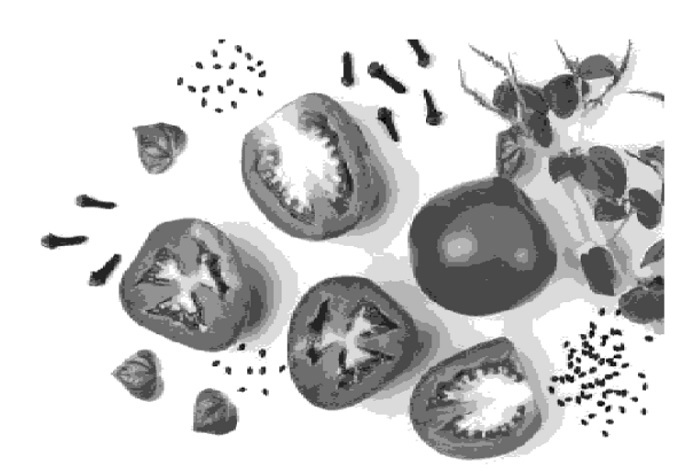
imshow(rescale(SI));
輸出
The GLCM for the input image is:
The GLCM for the input image is:
33	129	41	14	1	0	0	0
135	2874	778	223	84	24	3	0
31	791	22294	3199	329	125	35	1
15	174	3236	28009	3252	394	152	16
3	106	311	3128	14310	2148	317	74
1	42	140	485	1775	12637	2085	200
0	6	59	186	513	1594	24010	2485
0	0	6	40	155	484	2289	136872
縮放影像為
結論
這就是在 MATLAB 中建立灰度共生矩陣 (GLCM) 的全部內容。為此,MATLAB 提供了一個內建函式“graycomatrix”,它允許從影像計算共生矩陣以分析影像的紋理特徵。
在本教程中,我們解釋了灰度共生矩陣的概念,它在影像處理中的意義以及實際示例,以瞭解如何使用 MATLAB 為影像計算 GLCM。

197 次檢視
