
 資料結構
資料結構 網路
網路 RDBMS
RDBMS 運營系統
運營系統 Java
Java MS Excel
 iOS
iOS HTML
HTML CSS
CSS Android
 Python
 C 程式設計
 C++
C++ C#
C# MongoDB
 MySQL
MySQL Javascript
 PHP
PHP 物理學
物理學 化學
化學 生物學
生物學 數學
數學 英語
英語 經濟學
經濟學 心理學
心理學 社會研究
社會研究 時尚研究
時尚研究 法律研究
法律研究使用 Python 和 Selenium 找出下載何時完成
使用 Python 中的 Selenium webdriver,我們可以找出下載何時完成。我們將使用 ChromeOptions 類來實現此目的。首先,我們應建立一個 ChromeOptions 類的物件。
然後,對所建立物件應用 add_experimental_option 方法。我們將傳遞瀏覽器首選項和 download.default_directory:<下載檔案的目錄>作為該方法的引數。最後,此資訊將傳遞給驅動程式物件。
下載完成後,我們藉助 os.path.isfile 方法對其進行確認。下載檔案路徑作為引數傳遞給該方法。還應使用 os.path.exists 方法來確認下載檔案的路徑是否存在。
語法
op = webdriver.ChromeOptions()
p = {'download.default_directory':'C:\Users\Downloads\Test'}
op.add_experimental_option('prefs', p)
示例
from selenium import webdriver
from selenium.webdriver.chrome.options import Options
import time
import os.path
#object of ChromeOptions class
op = webdriver.ChromeOptions()
#browser preferences
p = {'download.default_directory': 'C:\Users\Downloads\Test'}
#add options to browser
op.add_experimental_option('prefs', p)
#set chromedriver.exe path
driver = webdriver.Chrome(executable_path="C:\chromedriver.exe",
options=op)
#maximize browser
driver.maximize_window()
#launch URL
driver.get("https://www.seleniumhq.org/download/");
#click download link
l = driver.find_element_by_link_text("32 bit Windows IE")
l.click()
#check if file downloaded file path exists
while not os.path.exists('C:\Users\Downloads\Test'):
time.sleep(2)
#check file
if os.path.isfile('C:\Users\Downloads\Test\IEDriverServer_Win32.zip):
   print("File download is completed")
else:
   print("File download is not completed")
#close browser
driver.quit()
輸出

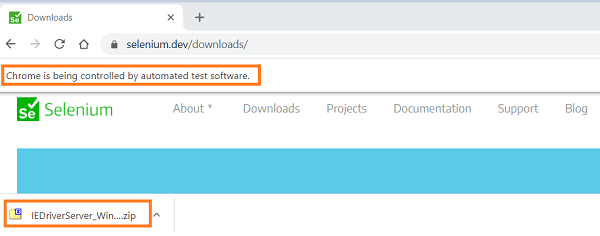

更新於:02-Feb-2021
7K+ 次檢視

廣告