
 資料結構
資料結構 網路
網路 RDBMS
RDBMS 作業系統
作業系統 Java
Java MS Excel
 iOS
iOS HTML
HTML CSS
CSS Android
 Python
 C 程式設計
 C++
C++ C#
C# MongoDB
 MySQL
MySQL Javascript
 PHP
PHP 物理學
物理學 化學
化學 生物學
生物學 數學
數學 英語
英語 經濟學
經濟學 心理學
心理學 社會學
社會學 時尚研究
時尚研究 法律研究
法律研究使用 Google Colab 將任何內容下載到 Google Drive
Google Collab 是 Google 提供的一個免費線上平臺,它提供 CPU、GPU 和其他基礎設施來運行復雜的計算和資料分析。Google Collab 提供了一個 Jupyter Notebook 環境來執行 Python 程式碼。我們可以透過將我們的 Google Drive 掛載到 Collab 上,使用 Google Collab 將任何內容下載到 Google Drive。在本文中,我們將瞭解如何使用 Google Collab 將任何內容下載到 Google Drive。
步驟 1:設定 Google Collab
如果您有 Google 帳戶,您可以開啟 Google Collab 網站 並點選“新建筆記本”以建立一個新的 Jupyter Notebook。要訪問 Google Collab,您需要擁有一個 Google 帳戶。
步驟 2:掛載您的 Google Drive
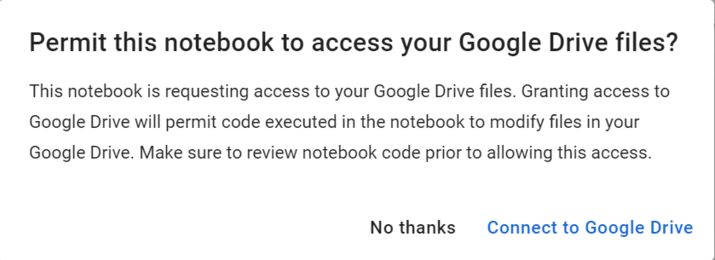
要使用 Google Collab 將任何內容下載到 Google Drive,您需要從 Google Collab 環境中掛載您的 Google Drive 帳戶。要在 Collab 上掛載您的 Google Drive,請在 Collab 中的 Jupyter Notebook 上執行以下程式碼。
執行程式碼後,您將收到一個提示,要求您驗證您的 Google 帳戶並允許 Collab 訪問您的 Drive。按照提示中的說明完成驗證過程。
from google.collab import drive
drive.mount('/content/drive')
輸出
步驟 3:將檔案下載到 Google Drive
一旦您的 Drive 掛載到 Collab 環境中,您現在就可以透過以下程式碼語法從網際網路直接將檔案下載到您的 Google Drive
語法
!wget -P /content/drive/My\ Drive [file URL]
這裡 [檔案 URL] 是您要下載的檔案的 URL。!wget 用於從網際網路下載檔案,-P 指定檔案在 Google Drive 中儲存的位置。
示例
在下面的示例中,我們下載了一個 Python 徽標並將其儲存到我們 Drive 的根目錄。
!wget -P /content/drive/My\ Drive https://python.club.tw/static/img/python-logo.png
輸出

結論
在本文中,我們討論瞭如何將檔案從網際網路直接下載到我們的 Google Drive。要將任何內容下載到我們的 Google Drive,我們需要在 Collab 環境中掛載我們的 Google Drive。一旦 Drive 掛載到 Collab 中,我們就可以使用 wget 命令將任何檔案下載到 Drive。

3K+ 瀏覽量
