
 資料結構
資料結構 網路
網路 RDBMS
RDBMS 作業系統
作業系統 Java
Java MS Excel
 iOS
iOS HTML
HTML CSS
CSS Android
 Python
 C 程式設計
 C++
C++ C#
C# MongoDB
 MySQL
MySQL Javascript
 PHP
PHP 物理
物理 化學
化學 生物
生物 數學
數學 英語
英語 經濟
經濟 心理學
心理學 社會研究
社會研究 時裝研究
時裝研究 法律研究
法律研究在 tkinter 中建立一個包含 Entry 欄位的彈出訊息框
Tkinter 彈出視窗是頂級視窗介面,可以將視窗小部件和元素包裝在主視窗中。可以使用按鈕小部件之類的處理程式將其嵌入到任何主視窗中。可以使用Toplevel(root)建構函式建立彈出視窗。
示例
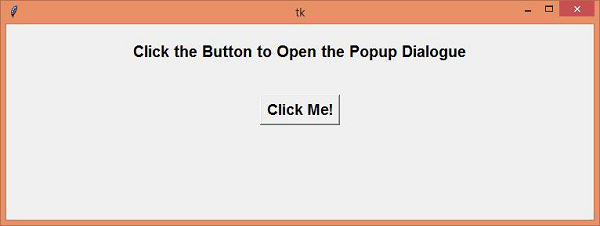
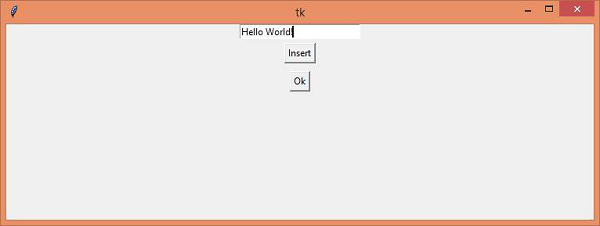
在這個示例中,我們將建立一個簡單的應用程式,其中包含一個Label 視窗小部件和一個按鈕,用於開啟包含一個Entry 欄位的彈出訊息框。一旦彈出視窗被開啟,它可以具有返回到主視窗的功能。
#Import the required library
from tkinter import*

#Create an instance of tkinter frame
win= Tk()

#Define geometry of the window
win.geometry("750x250")

#Define a function to close the popup window
def close_win(top):
   top.destroy()
def insert_val(e):
   e.insert(0, "Hello World!")

#Define a function to open the Popup Dialogue
def popupwin():
   #Create a Toplevel window
   top= Toplevel(win)
   top.geometry("750x250")

   #Create an Entry Widget in the Toplevel window
   entry= Entry(top, width= 25)
   entry.pack()

   #Create a Button to print something in the Entry widget
   Button(top,text= "Insert", command= lambda:insert_val(entry)).pack(pady= 5,side=TOP)
   #Create a Button Widget in the Toplevel Window
   button= Button(top, text="Ok", command=lambda:close_win(top))
   button.pack(pady=5, side= TOP)
#Create a Label
label= Label(win, text="Click the Button to Open the Popup Dialogue", font= ('Helvetica 15 bold'))
label.pack(pady=20)

#Create a Button
button= Button(win, text= "Click Me!", command= popupwin, font= ('Helvetica 14 bold'))
button.pack(pady=20)
win.mainloop()
輸出
執行上述程式碼將顯示一個視窗,其中包含一個按鈕,用於開啟彈出對話方塊。
一旦我們點選按鈕,它將開啟彈出對話方塊。彈出對話方塊有兩個按鈕,每個按鈕具有不同的目的。當我們點選“確定”按鈕時,它將銷燬彈出視窗並返回主視窗。

更新日期: 2021-04-15
6 千次 + 瀏覽

廣告