
 資料結構
資料結構 網路
網路 關係資料庫管理系統 (RDBMS)
 作業系統
作業系統 Java
Java MS Excel
 iOS
iOS HTML
HTML CSS
CSS Android
 Python
 C語言程式設計
 C++
C++ C#
C# MongoDB
 MySQL
MySQL Javascript
 PHP
PHP 物理學
物理學 化學
化學 生物學
生物學 數學
數學 英語
英語 經濟學
經濟學 心理學
心理學 社會學
社會學 服裝設計
服裝設計 法學
法學為什麼在使用git commit命令之前要使用git add命令?
git add 命令將檔案新增到暫存區,而 git commit 命令會將更改永久寫入儲存庫。
完成一個重要的功能後,您需要建立該更改的快照並將其儲存到 Git 儲存庫。為此,您將執行提交操作。
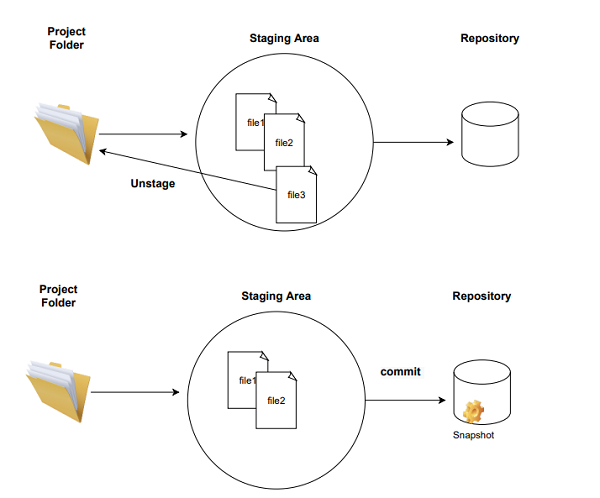
在 Git 中,提交之前存在一箇中間步驟,這在其他版本控制系統中不存在。這個中間步驟稱為暫存區。暫存區也稱為索引。暫存區可用於構建您想要一起提交的一組更改。git add 命令可用於將工作區中的更改推送到暫存區。
簡單來說,git add 命令就像攝影師為集體照擺好所有人的姿勢,而 git commit 就像攝影師實際拍攝照片一樣。暫存區允許我們在更改最終確定之前預覽更改。
讓我們用一個例子來理解:
步驟 1 - 建立一個名為“tut_repo”的資料夾,並使用 cd 命令指向此目錄
步驟 2 - 初始化一個空資料庫。
$ mkdir tut_repo // Create a directory
$ cd tut_repo/ // Navigate to the director
$ git init //Initialize an empty database
一條顯示儲存庫已建立的訊息將顯示給使用者。
Initialized empty Git repository in E:/tut_repo/ .git
步驟 3 - 建立 3 個檔案“file1.txt”、“file2.txt”和“file3.txt”,並在這些檔案中新增一些文字。
$ echo hello > file1.txt
$ echo hello > file2.txt
$ echo hello > file3.txt
步驟 4 - 執行命令 git status。
$ git status
一條訊息顯示這些檔案應該新增到暫存區(如上所示)。只有將檔案新增到暫存區後才能提交這些檔案。這可以使用 git add 命令實現。
On branch master
No commits yet
Untracked files:
   (use “git add <file>...” to include in what will be committed)
   file1.txt
   file2.txt
   file3.txt
步驟 5 - 執行 git add 命令將檔案新增到暫存區。
$ git add file1.txt file2.txt file3.tx
執行 git status 命令以驗證檔案是否已新增到暫存區。
$ git status
請參考以下內容以獲取輸出。
On branch master
No commits yet
Changes to be committed:
   (use “git rm −−cached<file>...” to unstage)
   new file: file1.txt
   new file: file2.txt
   new file: file3.txt
步驟 6 - 假設在審查後,我們決定不將“file3.txt”包含在最終提交中。這可以透過使用命令 git rm --cached 來實現。使用此命令的語法為:
$ git rm −−cached <file_name>
以下命令將從暫存區中刪除“file3.txt”。
$ git rm −−cached file3.txt
執行 git status 命令以驗證檔案是否已從暫存區中刪除。
$ git status
輸出表明該檔案已從暫存區中刪除。
On branch master
No commits yet
Changes to be committed:
   (use “git rm −−cached<file>...” to unstage)
   new file: file1.txt
   new file: file2.txt
   new file: file3.txt
Untracked files: (use “git add <file>...” to include what will be committed)
   file3.txt
步驟 7 - 從暫存區刪除“file3.txt”後,您可以檢查工作樹的狀態,最後將“file1.txt”和“file2.txt”新增到儲存庫。使用 git commit 命令來實現這一點。
$ git commit −m ‘snapshot of file1 and file 2’
上面命令的輸出顯示在螢幕截圖中。
[master (root−commit)5552726 snapshot of file1 and file2
2 files changed, 2 insertions(+)
create mode 100644 file1.txt
create mode 100644 file2.txt
以上步驟可以以圖形方式表示如下:

4K+ 次檢視
