
 資料結構
資料結構 網路
網路 關係資料庫管理系統 (RDBMS)
 作業系統
作業系統 Java
Java MS Excel
 iOS
iOS HTML
HTML CSS
CSS Android
 Python
 C 程式設計
 C++
C++ C#
C# MongoDB
 MySQL
MySQL Javascript
 PHP
PHP 物理
物理 化學
化學 生物
生物 數學
數學 英語
英語 經濟學
經濟學 心理學
心理學 社會學
社會學 時尚研究
時尚研究 法律研究
法律研究React 中帶下拉選單的響應式側邊欄
您可能在您喜歡的某些網站上遇到過響應式側邊欄。此 Web 應用程式功能為使用者提供了一種便捷的導航方式,方法是託管下拉選單。您可以閱讀本文以瞭解如何在 React 中整合帶下拉選單的響應式側邊欄。
先決條件
React 專案的執行需要您在 PC 上具備以下內容。
- 您需要一個 React 環境,這意味著一個可用的程式碼編輯器(我將使用 Visual Studio Code)和最新 Node.js 的安裝。在您的 Nodejs 中使用 node -v 命令檢查您是否正在執行 v20.17.0 或更高版本,以確保專案能夠無縫編譯。
- 您可以使用 create-react-app 命令設定 React 環境,但更多內容將在後續部分介紹。
專案結構
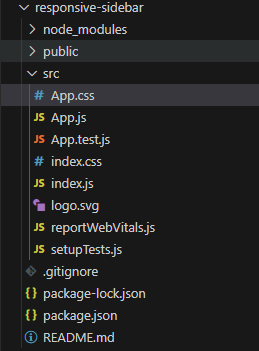
專案結構將適應您打算建立 React 應用程式的檔案路徑。在我的情況下,我將應用程式託管在一個名為 responsive-sidebar 的資料夾中,以符合任務的目標。下面是我的檔案目錄的螢幕截圖,以幫助您瞭解檔案結構。
方法
本節將分解您必須在 React 環境中執行的步驟。
步驟 1:設定 React 環境
從先決條件部分開始,您應該使用 create-react-app 命令在您首選的資料夾中建立 React 專案。本節中的其他步驟包括安裝必要的依賴項,如 react-icons(用於圖示)和 styled-components(用於樣式)。
在終端中執行以下命令建立 React 應用程式,然後按 Enter 鍵執行。
npx create-react-app responsive-sidebar

cd responsive-sidebar
透過鍵入以下命令安裝 react-icons。
npm install react-icons
安裝依賴項是在終端中鍵入以下命令。
npm install styled-components
步驟 2:構建側邊欄和主元件結構
構建側邊欄和主元件的結構需要您調整 Apps.js 資料夾中的內容。您必須定義側邊欄、下拉選單和主要內容區域的結構。為此,您可以使用 useState、Sidebar 和 DropDown 函式來管理側邊欄切換狀態。
App.js:複製以下程式碼並將其貼上到您的 App.js 檔案中。
// App.js
import React, { useState } from 'react';
import './App.css'; // Custom styles for the sidebar

// Create a Sidebar component with an open and close toggle state
function Sidebar() {
  const [isOpen, setIsOpen] = useState(false);

  const toggleSidebar = () => {
    setIsOpen(!isOpen);
  };

  // Render the Sidebar with a clickable hamburger icon
  return (
    <div className="sidebar-container">
      {/* Hamburger Icon */}
      <div className="hamburger" onClick={toggleSidebar}>
        ☰
      </div>

      {/* Sidebar */}
      <div className={`sidebar ${isOpen ? 'open' : ''}`}>
        <ul>
          <li><a href="#dashboard"> TutorialsPoint Dashboard</a></li>
          <li><a href="#profile">Profile</a></li>
          <li><a href="#settings">Settings</a></li>
          <li><a href="#notifications">Notifications</a></li>
          <li><a href="#support">Support</a></li>
        </ul>
      </div>
    </div>
  );
}

export default Sidebar;
步驟 3:新增 CSS 以實現佈局和響應性
CSS 樣式部分是您可以自定義側邊欄專案的佈局和響應性的位置。在 src 資料夾中建立一個新檔案,並將其重新命名為 App.css。
/* Sidebar styling for Sidebar.css */
 .sidebar-container {
     position: relative;
}
 .hamburger {
     font-size: 30px;
     cursor: pointer;
     padding: 10px;
}
 .sidebar {
     position: fixed;
     top: 0;
     left: -250px;
     height: 100%;
     width: 250px;
     background-color: purple;
     transition: left 0.3s ease;
     padding-top: 60px;
     box-shadow: 2px 0 5px rgba(0, 0, 0, 0.2);
}
 .sidebar.open {
     left: 0;
}
 .sidebar ul {
     list-style-type: none;
     padding: 0;
}
 .sidebar ul li {
     padding: 15px 20px;
     text-align: left;
}
 .sidebar ul li a {
     text-decoration: none;
     color: white;
     font-size: 18px;
     display: block;
}
 .sidebar ul li:hover {
     background-color: #5d3b91;
    /* Set the sidebar background to purple on hover */
}
/* Ensure the backdrop of the main page is white */
 body {
     background-color: white;
     margin: 0;
     font-family: Arial, sans-serif;
}
輸出
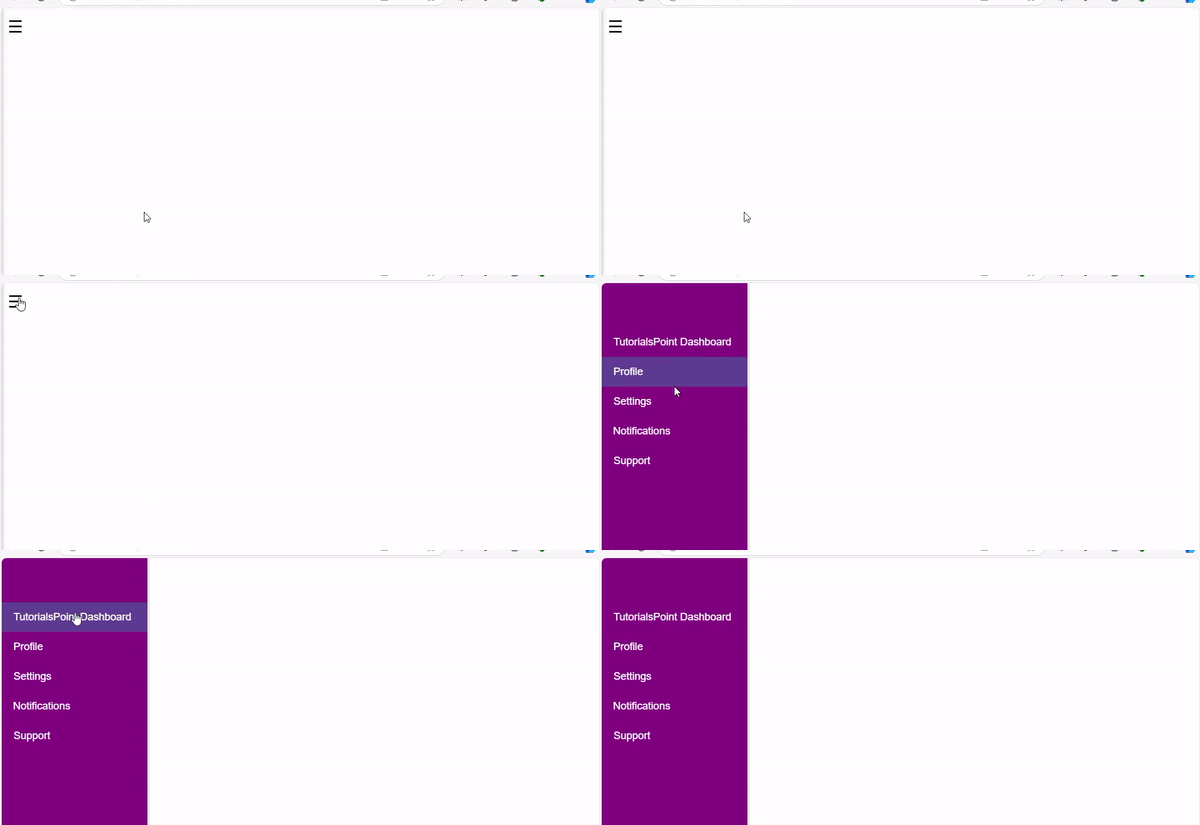
最後一步是啟動 React 開發伺服器,您可以在其中測試您的響應式側邊欄功能。React 響應式功能確保 Web 應用程式在移動裝置上無縫執行。啟動一個終端並導航到專案的目錄,然後使用 npm start 命令。

100 次瀏覽
