
 資料結構
資料結構 網路
網路 關係資料庫管理系統 (RDBMS)
 作業系統
作業系統 Java
Java MS Excel
 iOS
iOS HTML
HTML CSS
CSS Android
 Python
 C語言程式設計
 C++
C++ C#
C# MongoDB
 MySQL
MySQL Javascript
 PHP
PHP 物理學
物理學 化學
化學 生物學
生物學 數學
數學 英語
英語 經濟學
經濟學 心理學
心理學 社會研究
社會研究 服裝研究
服裝研究 法律研究
法律研究Java程式:將元件插入JTextPane元件
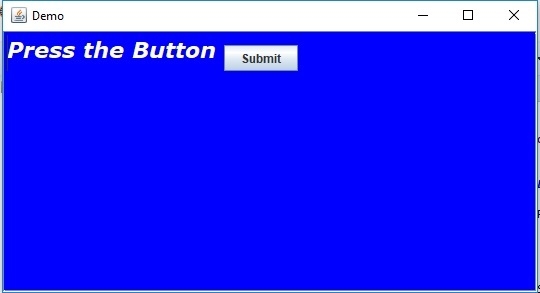
在本文中,我們將學習如何在Java中向JTextPane新增元件。透過使用StyledDocument和StyleConstants,我們可以插入按鈕等元素到文字窗格中,從而建立動態和互動式的基於文字的元件。
JTextPane
JTextPane是Java Swing中一個多功能的文字元件,允許使用樣式化的文字。它支援多種文字格式,例如粗體、斜體和不同的字型。它還可以透過StyledDocument類顯示富文字,例如嵌入的影像或按鈕。
將元件插入JTextPane
以下是將元件插入JTextPane的步驟:
- 步驟1. 建立一個JFrame視窗: 建立一個名為“Demo”的新JFrame。此視窗將成為GUI的主容器。
setDefaultCloseOperation(JFrame.EXIT_ON_CLOSE)確保在關閉視窗時應用程式退出。
JFrame frame = new JFrame("Demo");
frame.setDefaultCloseOperation(JFrame.EXIT_ON_CLOSE);
- 步驟2. 獲取框架的內容窗格: getContentPane()檢索JFrame的主容器,可以在其中新增按鈕、文字欄位和麵板等元件。
Container container = frame.getContentPane();
- 步驟3. 建立一個JTextPane: 建立JTextPane作為允許樣式化文字的文字元件。setForeground(Color.white)將文字顏色設定為白色。setBackground(Color.blue)將背景顏色設定為藍色。
JTextPane textPane = new JTextPane();
textPane.setForeground(Color.white); be>
textPane.setBackground(Color.blue);
- 步驟4. 為文字樣式建立SimpleAttributeSet: 建立一個SimpleAttributeSet物件來儲存文字樣式的字元級屬性。
StyleConstants.setItalic(attributeSet, true)設定文字為斜體。
SimpleAttributeSet attributeSet = new SimpleAttributeSet();StyleConstants.setItalic(attributeSet, true);
- 步驟5. 設定JTextPane的字元屬性: 這將應用建立的attributeSet(包括斜體樣式)到JTextPane。true引數表示它將屬性應用於整個文字。
textPane.setCharacterAttributes(attributeSet, true);
- 步驟6. 在JTextPane中設定文字: 這將JTextPane中的初始文字設定為“按按鈕”。
textPane.setText("Press the Button ");
- 步驟7. 設定文字的字型: 使用字型“Verdana”,粗體樣式和大小22建立一個Font物件。
setFont(font)將此字型應用於JTextPane中的文字。
Font font = new Font("Verdana", Font.BOLD, 22);
textPane.setFont(font);
- 步驟8. 建立StyledDocument以插入元件: getDocument()返回JTextPane的StyledDocument,允許您插入樣式化的文字和元件。建立一個新的樣式並命名為“StyleName”,稍後可用於定義新增到文件中的元件的外觀。
StyledDocument doc = (StyledDocument) textPane.getDocument();
Style style = doc.addStyle("StyleName", null);
- 步驟9. 建立一個JButton並將其新增到文件: 建立一個帶有標籤“提交”的新JButton,並將其新增到帶有前面定義的樣式的StyledDocument中。這將按鈕嵌入到文字中。
StyleConstants.setComponent(style, new JButton("Submit"));
- 步驟10. 插入一些不可見的文字以演示元件插入: 這在文件末尾插入字串“不可見文字”,應用包含嵌入按鈕的樣式。但是,文字不可見,因為它沒有外觀,只有按鈕。
doc.insertString(doc.getLength(), "invisible text", style);
- 步驟11. 將JTextPane包裝在JScrollPane中以使其可滾動: 使用JScrollPane使JTextPane在文字超過可見區域時可滾動。JScrollPane新增到框架內容窗格的中心。
JScrollPane scrollPane = new JScrollPane(textPane);
container.add(scrollPane, BorderLayout.CENTER);
- 步驟12. 設定框架的大小並使其可見: setSize(550, 300)設定視窗的尺寸(寬550畫素,高300畫素)。
setVisible(true)使框架在螢幕上可見。
frame.setSize(550, 300);
frame.setVisible(true);
Java程式:將元件插入JTextPane
以下是將元件插入JTextPane的示例:
package my;
import java.awt.BorderLayout;
import java.awt.Color;
import java.awt.Container;
import java.awt.Font;
import javax.swing.JButton;
import javax.swing.JFrame;
import javax.swing.JScrollPane;
import javax.swing.JTextPane;
import javax.swing.text.BadLocationException;
import javax.swing.text.SimpleAttributeSet;
import javax.swing.text.Style;
import javax.swing.text.StyleConstants;
import javax.swing.text.StyledDocument;
public class SwingDemo {
public static void main(String args[]) throws BadLocationException {
JFrame frame = new JFrame("Demo");
frame.setDefaultCloseOperation(JFrame.EXIT_ON_CLOSE);
Container container = frame.getContentPane();
JTextPane textPane = new JTextPane();
textPane.setForeground(Color.white);
textPane.setBackground(Color.blue);
SimpleAttributeSet attributeSet = new SimpleAttributeSet();
StyleConstants.setItalic(attributeSet, true);
textPane.setCharacterAttributes(attributeSet, true);
textPane.setText("Press the Button ");
Font font = new Font("Verdana", Font.BOLD, 22);
textPane.setFont(font);
StyledDocument doc = (StyledDocument) textPane.getDocument();

Style style = doc.addStyle("StyleName", null);
StyleConstants.setComponent(style, new JButton("Submit"));
doc.insertString(doc.getLength(), "invisible text", style);
JScrollPane scrollPane = new JScrollPane(textPane);
scrollPane = new JScrollPane(textPane);
container.add(scrollPane, BorderLayout.CENTER);
frame.setSize(550, 300);
frame.setVisible(true);
}
}
輸出

更新於:2024年11月23日
242 次瀏覽

廣告