
 資料結構
資料結構 網路
網路 關係資料庫管理系統
 作業系統
作業系統 Java
Java MS Excel
 iOS
iOS HTML
HTML CSS
CSS Android
 Python
 C 程式設計
 C++
C++ C#
C# MongoDB
 MySQL
MySQL Javascript
 PHP
PHP 物理
物理 化學
化學 生物
生物 數學
數學 英語
英語 經濟學
經濟學 心理學
心理學 社會學
社會學 時尚研究
時尚研究 法律研究
法律研究如何在 Ubuntu 16.04 上安裝和配置 MS SQL(Beta)
在這篇文章中,我們將學習如何在 Ubuntu 上安裝和配置 MS SQL。微軟最近宣佈他們計劃釋出適用於 Linux 的 MS SQL。特別是 Red Hat Enterprises Linux、Centos 和 Ubuntu 的 Beta 版本,但僅限於 64 位版本。
先決條件
- 一臺至少具有 4 GB RAM 和 30 GB 硬碟空間的機器。
- 一臺安裝了 Ubuntu 16.04 的機器。
- 具有 root 許可權的使用者或 root 使用者。
在 Ubuntu 上安裝 MS SQL Server
由於 MS SQL 在預設的 Ubuntu 儲存庫中不可用,因此我們需要將 MS SQL 儲存庫詳細資訊新增到本地機器儲存庫中。
我們需要將 GPG 金鑰新增到本地機器。
$ sudo curl https://packages.microsoft.com/keys/microsoft.asc | sudo apt-key add –
% Total % Received % Xferd Average Speed Time Time Time Current
Dload Upload Total Spent Left Speed
100 983 100 983 0 0 253 0 0:00:03 0:00:03 --:--:-- 253
OK
然後,我們將 Microsoft 儲存庫新增到本地 Ubuntu 機器。
$ sudo curl https://packages.microsoft.com/config/ubuntu/16.04/mssql-server.list | sudo tee /etc/apt/sources.list.d/mssql-server.list
% Total % Received % Xferd Average Speed Time Time Time Current
Dload Upload Total Spent Left Speed
100 87 100 87 0 0 95 0 --:--:-- --:--:-- --:--:-- 95
deb [arch=amd64] https://packages.microsoft.com/ubuntu/16.04/mssql-server xenial main
我們需要執行更新以將儲存庫獲取到本地機器。
$ sudo apt-get update
儲存庫更新後,我們將執行以下命令來安裝 MS-SQL 伺服器。
$ sudo apt-get install -y mssql-server
Reading package lists... Done
Building dependency tree
Reading state information... Done
The following additional packages will be installed:
gcc-5-base gdb gdbserver libbabeltrace-ctf1 libbabeltrace1 libc++1 libc6 libc6-dbg
libcc1-0 libcurl3 libjemalloc1 libpython-stdlib libpython2.7-minimal
libpython2.7-stdlib libstdc++6 libunwind8 python python-minimal python2.7
python2.7-minimal
Suggested packages:
..
..
Need to get 158 MB of archives.
After this operation, 734 MB of additional disk space will be used.
Get:1 http://in.archive.ubuntu.com/ubuntu xenial-updates/main amd64 libpython2.7-minimal amd64 2.7.12-1ubuntu0~16.04.1 [339 kB]
Get:2 https://packages.microsoft.com/ubuntu/16.04/mssql-server xenial/main amd64 mssql-server
amd64 14.0.1.246-6 [144 MB]
..
..
..
14 not fully installed or removed.
Need to get 0 B/144 MB of archives.
After this operation, 681 MB of additional disk space will be used.
Preconfiguring packages ...
(Reading database ... 60605 files and directories currently installed.)
Preparing to unpack .../mssql-server_14.0.1.246-6_amd64.deb ...
Unpacking mssql-server (14.0.1.246-6) ...
Processing triggers for libc-bin (2.23-0ubuntu3) ...
…
..
Setting up libc++1:amd64 (3.7.0-1) ...
Setting up libc6-dbg:amd64 (2.23-0ubuntu4) ...
Setting up libjemalloc1 (3.6.0-9ubuntu1) ...
Setting up mssql-server (14.0.1.246-6) ...
+-------------------------------------------------------------------+
| Please run /opt/mssql/bin/sqlservr-setup to complete the setup of |
| Microsoft(R) SQL Server(R). |
+-------------------------------------------------------------------+
Processing triggers for libc-bin (2.23-0ubuntu3) ...
配置 MS SQL SA 帳戶
安裝完成後,我們將執行 sqlservr-setup 指令碼以設定 SA 的密碼;我們需要為 SA 帳戶提供一個強密碼(至少 8 個字元,包含大小寫字母、1 到 10 之間的數字或任何非字母數字字元)。
# sudo /opt/mssql/bin/sqlservr-setup
Microsoft(R) SQL Server(R) Setup
You can abort setup at anytime by pressing Ctrl-C. Start this program
with the --help option for information about running it in unattended mode.
The license terms for this product can be downloaded from
http://go.microsoft.com/fwlink/?LinkId=746388 and found
in /usr/share/doc/mssql-server/LICENSE.TXT.
Do you accept the license terms? If so, please type "YES": YES
Please enter a password for the system administrator (SA) account:
Please confirm the password for the system administrator (SA) account: The passwords specified do not match. Please try again.
Please enter a password for the system administrator (SA) account:
Please confirm the password for the system administrator (SA) account:
Setting system administrator (SA) account password...
Do you wish to start the SQL Server service now? [y/n]: y
Do you wish to enable SQL Server to start on boot? [y/n]: y
Created symlink from /etc/systemd/system/multi-user.target.wants/mssql-server.service to /lib/systemd/system/mssql-server.service.
Created symlink from /etc/systemd/system/multi-user.target.wants/mssql-server-telemetry.service to /lib/systemd/system/mssql-server-telemetry.service.
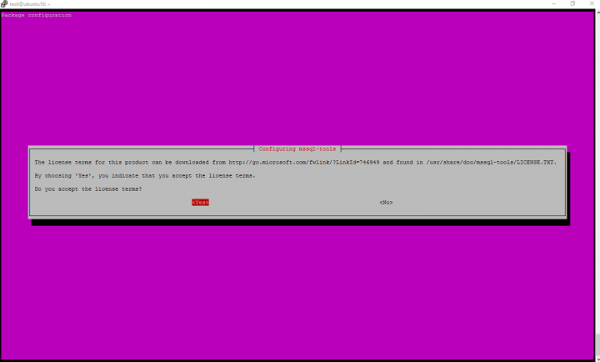
設定成功完成
配置完成後,我們將重新啟動 MS SQL 服務,並使用以下命令檢視服務的執行狀態。
重啟服務
# systemctl start mssql-server
檢視服務的執行狀態
# systemctl status mssql-server
mssql-server.service - Microsoft(R) SQL Server(R) Database Engine
Loaded: loaded (/lib/systemd/system/mssql-server.service; enabled; vendor preset: enabled)
Active: active (running) since Tue 2016-12-06 23:13:01 IST; 52s ago
Main PID: 6173 (sqlservr)
CGroup: /system.slice/mssql-server.service
├─6173 /opt/mssql/bin/sqlservr
└─6190 /opt/mssql/bin/sqlservr
Dec 06 23:13:28 ubuntu16 sqlservr[6173]: [45B blob data]
..
..
Dec 06 23:13:28 ubuntu16 sqlservr[6173]: [124B blob data]
Dec 06 23:13:36 ubuntu16 systemd[1]: Started Microsoft(R) SQL Server(R) Database Engine.
安裝 MS SQL 客戶端工具
安裝並更新 GPG 金鑰,然後我們將更新本地機器的儲存庫。
# curl https://packages.microsoft.com/keys/microsoft.asc | sudo apt-key add -
% Total % Received % Xferd Average Speed Time Time Time Current
Dload Upload Total Spent Left Speed
100 983 100 983 0 0 282 0 0:00:03 0:00:03 --:--:-- 282
OK
GPG 金鑰更新後,我們將使用 Microsoft 儲存庫更新本地儲存庫。
$ sudo curl https://packages.microsoft.com/config/ubuntu/16.04/prod.list | sudo tee /etc/apt/sources.list.d/msprod.list
% Total % Received % Xferd Average Speed Time Time Time Current
Dload Upload Total Spent Left Speed
0 0 0 0 0 0 0 0 --:--:-- 0:00:01 --:--:-- 0
100 79 100 79 0 0 67 0 0:00:01 0:00:01 --:--:-- 67
deb [arch=amd64] https://packages.microsoft.com/ubuntu/16.04/prod xenial main$
儲存庫安裝到本地機器後,我們可以使用以下命令安裝 MS SQL 工具。
# sudo apt-get install mssql-tools
Reading package lists... Done
Building dependency tree
Reading state information... Done
..
..
Selecting previously unselected package mssql-tools.
(Reading database ... 66292 files and directories currently installed.)
Preparing to unpack .../mssql-tools_14.0.1.246-1_amd64.deb ...
Unpacking mssql-tools (14.0.1.246-1) ...
Setting up mssql-tools (14.0.1.246-1) ...
連線到 Linux 上的 SQL Server
工具安裝到機器上後,我們將進行測試,以下是連線到 MS SQL 伺服器的命令和通用語法。
語法
# sqlcmd –S IP-ADDRESS –U SA –P ‘<YOUR SYSTEM PASSWORD’
# sqlcmd sqlcmd -S localhost -U SA -P Test@1234
1>CREATE DATABASE TEST1;
2>GO;
3>quit
例如,我們將執行一些查詢,這些查詢返回所有資料庫的名稱。
SELECT Name from sys.Databases;
GO
使用 SQL Server 預設設定建立資料庫。
CREATE DATABASE inventdb;
GO
在本文中,我們學習瞭如何在 Ubuntu 16.04 上安裝 MS SQL Server、使用 MS SQL 命令列工具連線到伺服器,以及如何更改或設定 MS SQL 的 SA 帳戶密碼、安裝客戶端工具和執行查詢。

169 次檢視
