
 資料結構
資料結構 網路
網路 關係型資料庫管理系統 (RDBMS)
 作業系統
作業系統 Java
Java MS Excel
 iOS
iOS HTML
HTML CSS
CSS Android
 Python
 C 程式設計
 C++
C++ C#
C# MongoDB
 MySQL
MySQL Javascript
 PHP
PHP 物理學
物理學 化學
化學 生物學
生物學 數學
數學 英語
英語 經濟學
經濟學 心理學
心理學 社會學
社會學 時尚研究
時尚研究 法律研究
法律研究在 React JS 中建立可自定義的模態框
在這篇文章中,我們將瞭解如何在 React JS 中建立一個可自定義的模態框,其中包含多個按鈕,可用於各種型別的專案,例如登陸頁面或旅遊網站。模態框是一個顯示在螢幕頂部的訊息框。我們可以使用模態框作為訂閱框;我們還可以使用 CSS 為模態框新增動畫。
示例
首先建立一個 React 專案 -
npx create-react-app tutorialpurpose
進入專案目錄 -
cd tutorialpurpose
下載並安裝 **react-modal** 包 -
npm i --save react-modal
我們可以使用此包在任何 React 專案中新增簡單的預製模態框。它還允許您新增預設樣式。
在 **App.js** 中新增以下程式碼行 -
import React from "react";
import Modal from "react-modal";

const customStyles = {
   content: {
      top: "50%",
      left: "50%",
      right: "auto",
      bottom: "auto",
      marginRight: "-50%",
      transform: "translate(-50%, -50%)",
   },
};

export default function App() {
   let subtitle;
   const [modalIsOpen, setIsOpen] = React.useState(false);
   function openModal() {
      //This function tell what should do when clicked open
      setIsOpen(true);
   }

   function afterOpenModal() {
      // references are now sync'd and can be accessed.
      subtitle.style.color = "#f00";
   }
   function closeModal() {
      //This function tell what should do when clicked close
      setIsOpen(false);
   }

   return (
      <div>
         <button onClick={openModal}>Open Modal</button>
         <Modal
            isOpen={modalIsOpen} //if modal is open
            onAfterOpen={afterOpenModal} //what to do after modal open
            onRequestClose={closeModal} //what to do after modal close
            style={customStyles}
            contentLabel="Example Modal">

            <h2 ref={(_subtitle) => (subtitle = _subtitle)}>Hello</h2>
            <button onClick={closeModal}>close</button>
            <div>I am a modal</div>
            <form>
               <input />
               <button>tab navigation</button>
               <button>stays</button>
               <button>inside</button>
               <button>the modal</button>
            </form>
         </Modal>
      </div>
   );
}
解釋
概念很簡單。點選按鈕時,**狀態**更改為 **true**,當為 **true** 時,模態框開啟。在模態框上,有一個按鈕,點選該按鈕會將狀態更改為 **false** 並關閉模態框。
我們還在模態框上添加了簡單的樣式和一組用於不同功能的按鈕。
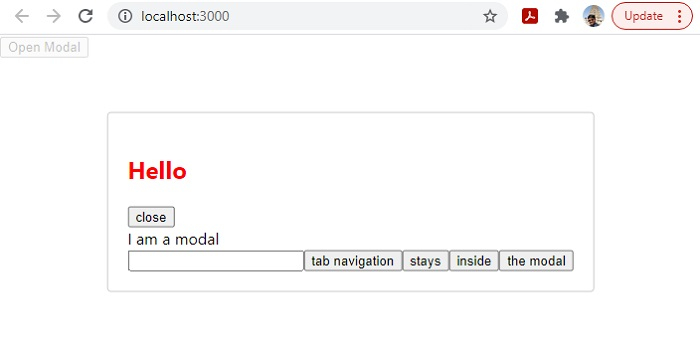
輸出
執行後,將生成以下輸出 -

更新於: 2021年9月29日
495 次瀏覽

廣告